Grant access keys from a Twitch drop
Use a Twitch drops campaign to grant players access keys.
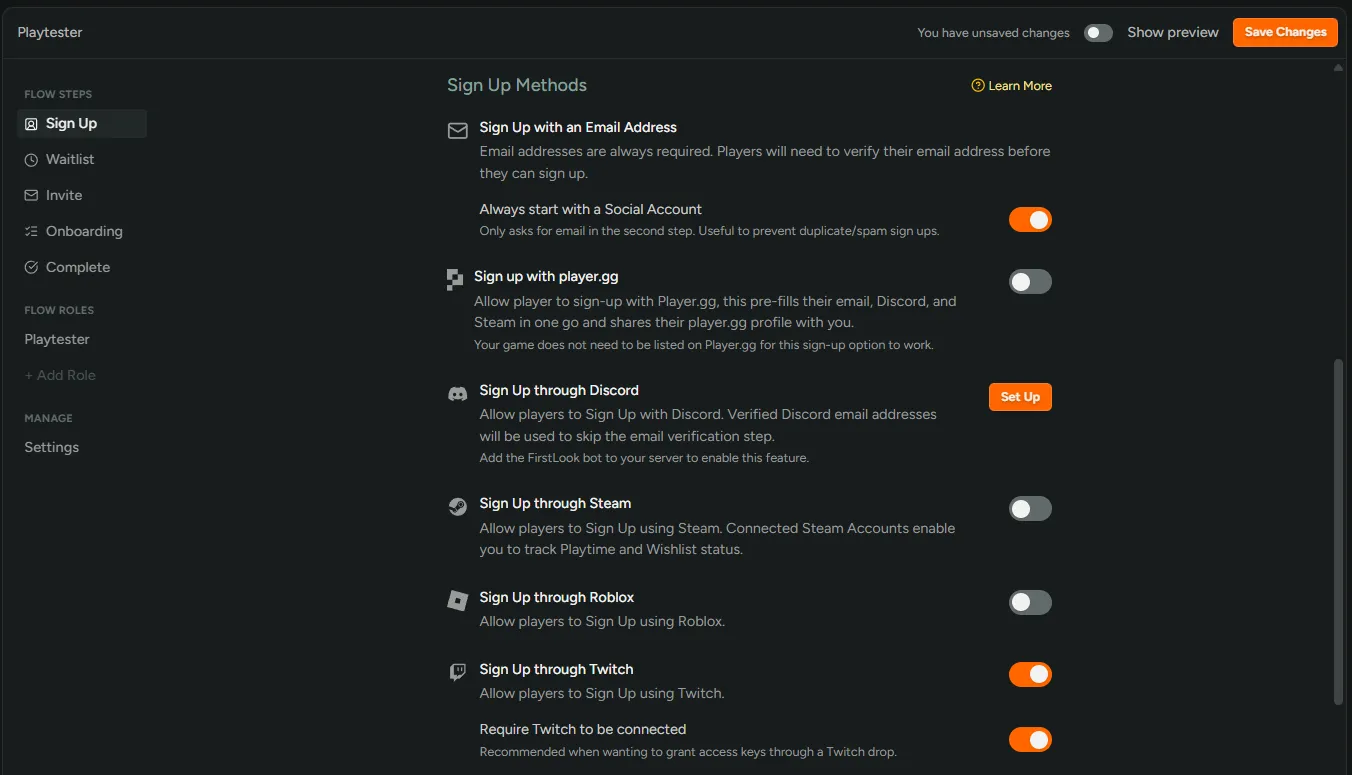
Ask players to connect their Twitch account
Section titled “Ask players to connect their Twitch account”Set up your flow to require players to connect Twitch in the sign-up step.
Create the key type and upload inventory
Section titled “Create the key type and upload inventory”Setup the keys FirstLook should grant.
- Create a key type for the platform you’re distributing on.
- Import your keys. See Adding Keys.
Two settings on the key type are worth deciding now:
Enable Key Limitcaps how many keys one player can hold of this type. Set it to1if a player should only ever get one key from the campaign. See Key Type Configuration.- Inventory size. Upload enough keys to cover the campaign.
Set up your drops campaign on Twitch
Section titled “Set up your drops campaign on Twitch”Twitch’s drops documentation is the authoritative guide for this part. At a high level, you’ll do the following in the Twitch Developer Console:
- Register an application under the organization that owns your game. Save the Client ID and Client Secret for the next section.
- Create a drops campaign under the same organization and attach it to your game. You can use your FirstLook sign-up page as the Drop Connection URL for the campaign.
- Add your rewards. Use your own reward IDs instead of Twitch-generated UUIDs. Readable IDs (for example,
access_key_grant) make your reward mapping and drops table easier to audit.
Configure the integration in FirstLook
Section titled “Configure the integration in FirstLook”From the side menu navigate to Integrations → Twitch and open the Configuration tab.
- Enter the Client ID and Client Secret from your Twitch application.
- For Organization and Game ID, paste the URL of your game’s analytics or boxart page from the Twitch Developer Console.
- Under Reward Mapping, pair your Twitch reward ID with the key type it should grant.
- Save your changes.
Start syncing
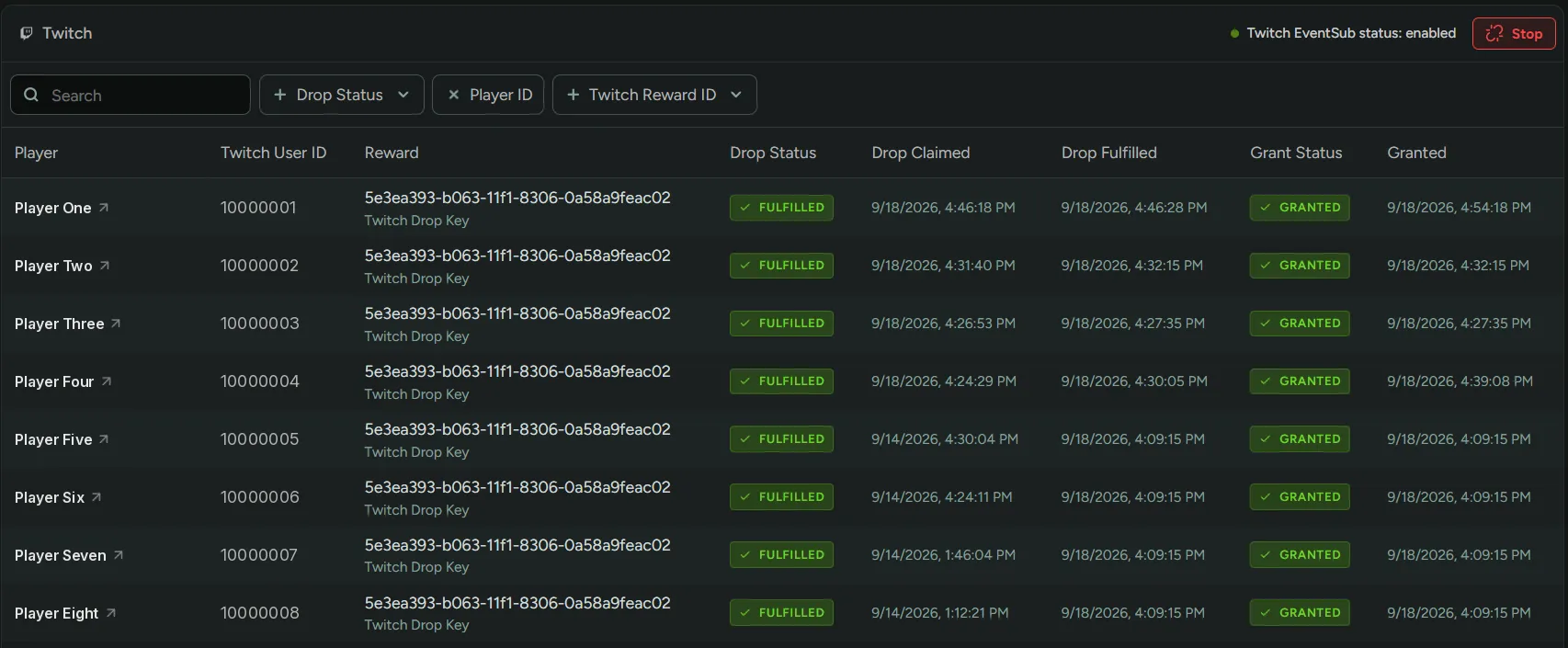
Section titled “Start syncing”Before the campaign goes live, open the Monitor Drops tab and click Start Syncing button in the upper right corner.
Starting sync turns on two processes that work together:
- An EventSub subscription. FirstLook subscribes to Twitch’s
drop.entitlement.grantevent, so Twitch notifies FirstLook as soon as a player claims a drop. - A background sync. Every 15 minutes, FirstLook fetches drops from Twitch to catch any it missed, and retries any
Pendinggrants.
Invite players who claimed a drop
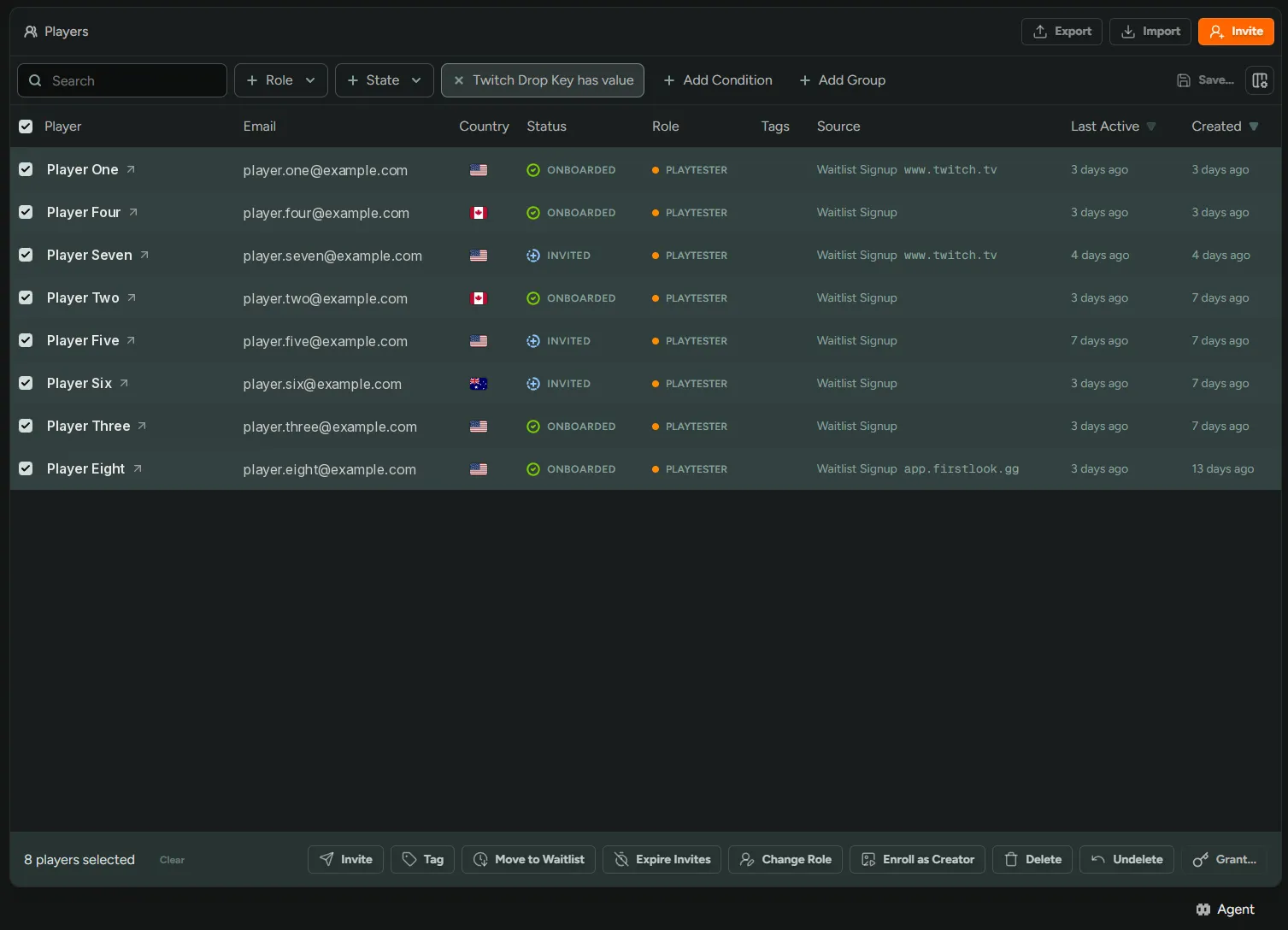
Section titled “Invite players who claimed a drop”To find these players, go to the Players page and filter by your key type. You can then invite all these players off the waitlist. Once they onboard, the granted access key will be available to them.
Edge cases
Section titled “Edge cases”-
Claims from players who haven’t signed up are kept. If FirstLook can’t match a claim’s Twitch user ID to a player, it stores the claim without a player and sets the grant to
Pending. Each sync retries the match. When that person signs up and connects the same Twitch account, they get their key. -
Running out of keys is recoverable. If there are not enough keys available when a drop is processed, the grant stays
Pending. Upload more inventory, and the next background sync will grant them. -
FirstLook fulfills the drop on Twitch whether or not a key was granted. A claim can therefore show a Drop Status of
Fulfilledalongside a Grant Status ofPending. -
Player limit reachedis final. This status means the player already holds the maximum number of keys allowed for that key type. These grants aren’t retried, so raising the limit later won’t result in a grant. -
Restart syncing after rotating your Twitch credentials. Twitch may revoke the EventSub subscription when its credentials change, and FirstLook doesn’t resubscribe on its own. On the Monitor Drops tab, click Stop, then Start, to create a new subscription. Until you do, drops are still granted by the background sync every 15 minutes.