Localization
The Localization feature let’s you automatically translate content in FirstLook into your player’s native languages. This covers two things:
- The player-facing UI itself (buttons, labels, system messages on the player dashboard and inside flows) is already translated by FirstLook into every supported language.
- The content you write (flows, announcements, survey questions, rewards descriptions, creator program messaging, and more) can be translated automatically, with the option for you to override any wording you want to fine-tune.
Supported languages
Section titled “Supported languages”FirstLook supports 35 languages out of the box. Source content is authored in English; everything else is a translation target.
| Code | Language |
|---|---|
en | English (source) |
ar | Arabic (العربية) |
bg | Bulgarian |
cs | Czech |
da | Danish |
de | German (Deutsch) |
el | Greek |
es | Spanish - Latin America |
es-ES | Spanish - Spain |
fi | Finnish |
fr | French (Français) |
hi | Hindi (हिन्दी) |
hr | Croatian |
hu | Hungarian |
id | Indonesian |
it | Italian (Italiano) |
ja | Japanese (日本語) |
ko | Korean (한국어) |
lt | Lithuanian |
ms | Malay (Bahasa Melayu) |
nl | Dutch |
no | Norwegian |
pl | Polish (Polski) |
pt | Portuguese - Brazil |
pt-PT | Portuguese - Portugal |
ro | Romanian |
ru | Russian (Русский) |
sv | Swedish |
th | Thai (ไทย) |
tr | Turkish (Türkçe) |
uk | Ukrainian |
ur | Urdu (اردو) |
vi | Vietnamese (Tiếng Việt) |
zh | Chinese - Simplified (简体中文) |
zh-TW | Chinese - Traditional (繁體中文) |
Arabic and Urdu render right-to-left automatically.
How a player’s language is chosen
Section titled “How a player’s language is chosen”When a player loads your flow or dashboard, FirstLook picks their language using this order, top wins:
- The language they picked in their player settings (see below)
- Their browser’s Accept-Language header (what their OS or browser is configured to send)
- The locale we detected for them on first visit
- English, as a final fallback
Languages outside the set you’ve enabled for your game are skipped over - except English, which is always available because it’s the source.
Letting players pick their language
Section titled “Letting players pick their language”If a player’s browser language doesn’t match what they want to read your game in, they can override it themselves:
- Player signs in
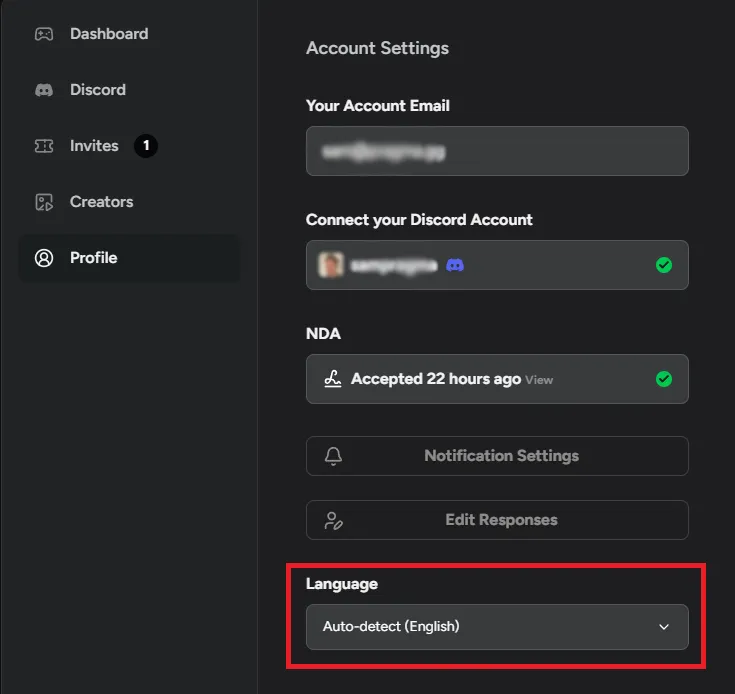
- Opens Account Settings on their player dashboard
- Uses the Language dropdown - choices include every language you’ve enabled, plus an Auto-detect option
Their choice sticks across sessions and applies everywhere - flow, announcements, dashboard chrome.
LLM Localization
Section titled “LLM Localization”LLM Localization is the recommended way to translate your game’s content. One source flow in English becomes localized experiences automatically, with no manual work unless you want to hand-tune specific strings.
Turning it on
Section titled “Turning it on”- Go to Labs in your admin sidebar.
- Find the LLM Localization card and toggle it on.
- A new Localization section appears in the Config group in your sidebar, with two pages: Translations and Languages.
Picking your target languages
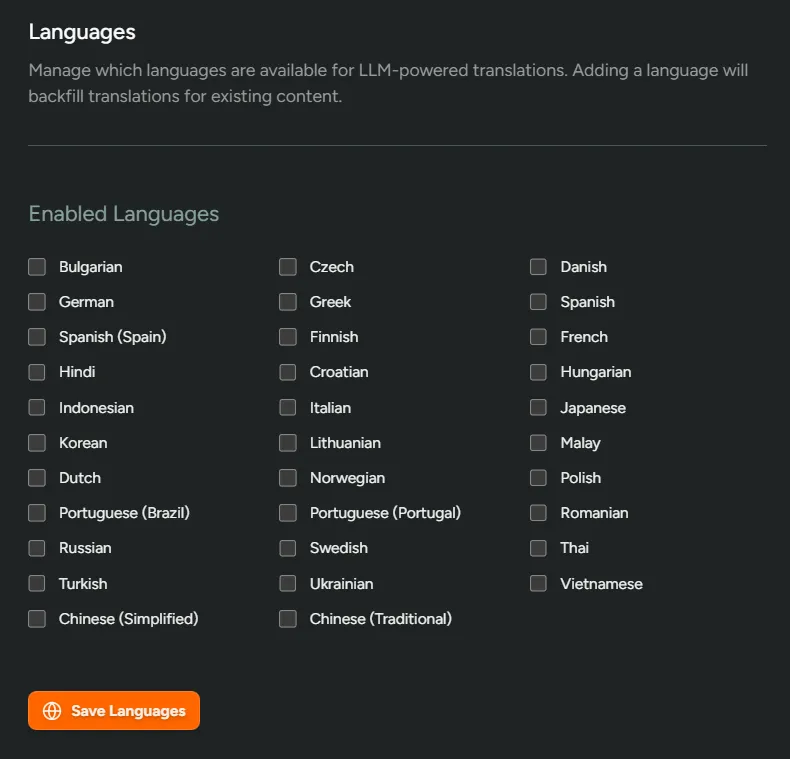
Section titled “Picking your target languages”Before translations start flowing, tell us which languages you want to support:
- Go to Config → Localization → Languages.
- Check the boxes for every language you want to offer.
- Click Save Languages.
Enabling a new language backfills translations for everything you’ve already authored - flows, announcements, surveys, reward descriptions, the lot - so you don’t need to revisit each piece of content to “turn translation on” for it.
Disabling a language stops new translations being shown to players who request it; they’ll fall back to English.
What gets translated
Section titled “What gets translated”When LLM Localization is on, the following studio-authored content is translated automatically:
| Surface | What’s translated |
|---|---|
| Flows | Signup, waitlist, onboarding, invite, and complete step copy across every flow. |
| Flow emails | Custom email subject lines, body copy, and CTAs configured per flow. |
| Game emails | Game-level email templates (sender name, footer, etc.). |
| Announcements | Subject and body of any announcement you send. |
| Questions (player attributes) | Question text, helper text, and answer options that appear in onboarding and surveys. |
| Creator program messaging | Landing page, pending page, and success page copy for your Creator Program. |
| Creator campaigns | Campaign name, brief, and player-facing copy. |
| Rewards settings | Top-level rewards messaging (header, intro, etc.). |
| Reward tiers | Tier names and descriptions. |
| Individual rewards | Reward names, descriptions, and instructions. |
| Home page | Game home page hero and section copy. |
| Surveys | Survey title, intro, questions, answer options, and outro. |
The player-facing UI shell (system buttons, errors, account screens) is translated by FirstLook directly - you don’t need to do anything to get those.
Editing translations
Section titled “Editing translations”Auto-translation is usually good, but you’ll occasionally want to tweak a specific phrase. Every translation can be overridden by hand.
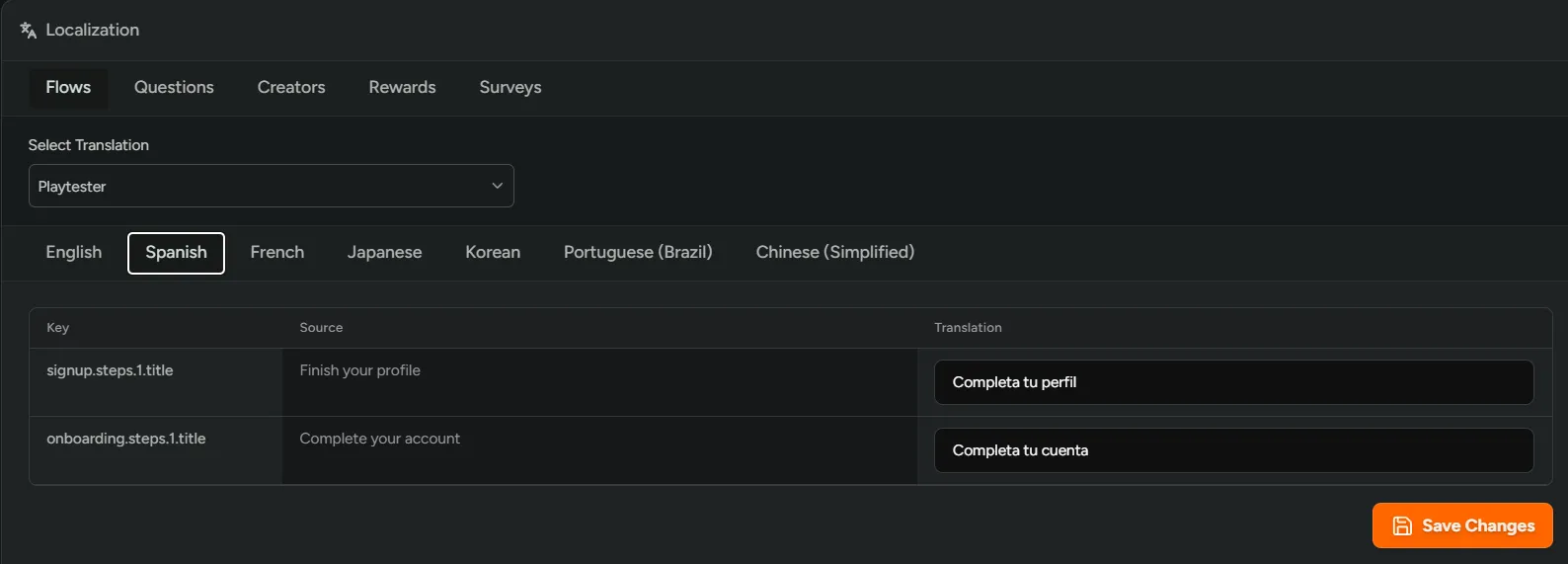
- Go to Config → Localization → Translations.
- Pick the entity group along the top tab bar - Flows, Emails, Announcements, Questions, Creators, Rewards, Home Page, or Surveys.
- Use the Select Translation dropdown to pick the specific entity (e.g. “Playtester Flow”).
- Pick the target language tab.
- The editor shows Source (English, read-only) on the left and Translation on the right. Edit any field you want to override, then Save Changes.
Translations you’ve manually overridden are preserved even if you re-edit the English source - but new fields you add in English will get a fresh AI translation on save.
To edit the English source, go back to where you originally authored the content (the flow editor, the announcement editor, etc.). The translations page is intentionally read-only for source text so you can’t accidentally drift the English copy out from under its translations.
Announcements
Section titled “Announcements”Announcements are translated at send time, based on each individual recipient’s preferred language:
- A player whose preferred language is English receives the original copy immediately.
- A player whose preferred language is anything else receives a translated version. There’s a brief translation step on send, then their copy goes out.
You don’t need to do anything to opt in beyond turning on LLM Localization. When you compose an announcement, you only write the English version - every other language is handled for you.
To preview or override a translation for a specific announcement, open it in Config → Localization → Translations → Announcements.
Surveys
Section titled “Surveys”Surveys are translated for players on the web (player dashboard surveys) and in-game via the SDK. The player’s system language determines which translation they see.
To preview or override a survey translation, open it in Config → Localization → Translations → Surveys.
See the surveys docs for the broader surveys feature.