Branding & Custom Domain
Adding your branding helps your FirstLook pages and emails feel like an extension of your game - not a third-party tool. A few quick updates can make the entire player experience look polished, trustworthy, and on-brand.
Players are more likely to complete signup or onboarding when the content feels authentic to the game they’re testing. Customizing your branding builds trust that the playtest is legitimate, helps tell your story - what the game is and why this playtest matters - sets expectations for what happens after signing up, and reduces confusion about why players are being asked to log in or share certain information.
This guide walks you through configuring your branding in the FirstLook Dashboard, provides a reference for every branding setting, and explains how to add a custom domain.
Step 1: Check Out Your Dashboard
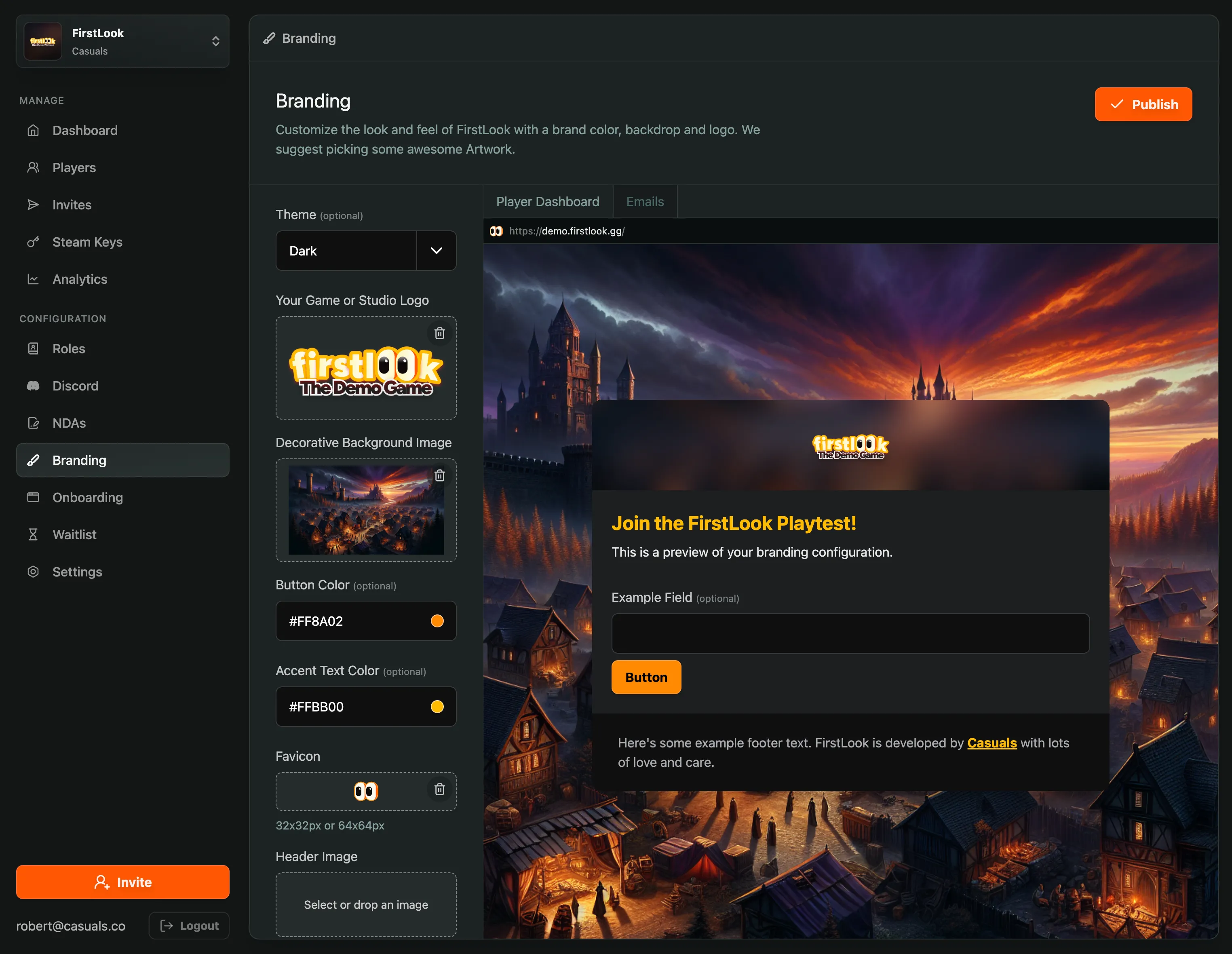
Section titled “Step 1: Check Out Your Dashboard”Navigate to Configuration → Branding in your FirstLook Dashboard to familiarize yourself with the available branding configurations.
On the left you will see the customization options and on the right you will see the Preview Panel. As you make changes to the different options, you will immediately see the Preview Panel update. Try making a few changes to better understand the impact of your changes on the Preview Content.
Step 2: Upload Your Visuals
Section titled “Step 2: Upload Your Visuals”Your visuals define the first impression players get of your studio and game. In order to grab your players’ attention you will want to upload a logo and background image. You want to create a cohesive experience across all player touchpoints, so make sure to use elements that tie into your existing experiences.
Upload your game’s logo (or studio logo if your game isn’t yet announced).
- Landscape orientation with a transparent background works best.
- Subtle shadows help it stand out against lighter themes.
Key Art
Section titled “Key Art”The key art, or background image, you upload is shown on your across your FirstLook player pages such as your homepage or player dashboard. Use something visually interesting - a screenshot, concept art, or promotional image that sets the tone.
Favicon
Section titled “Favicon”Adding a favicon helps your player-facing site stand out in browser tabs and looks more professional. Using a simplified version of your logo works best.
Step 3: Choose a Theme and Color Palette
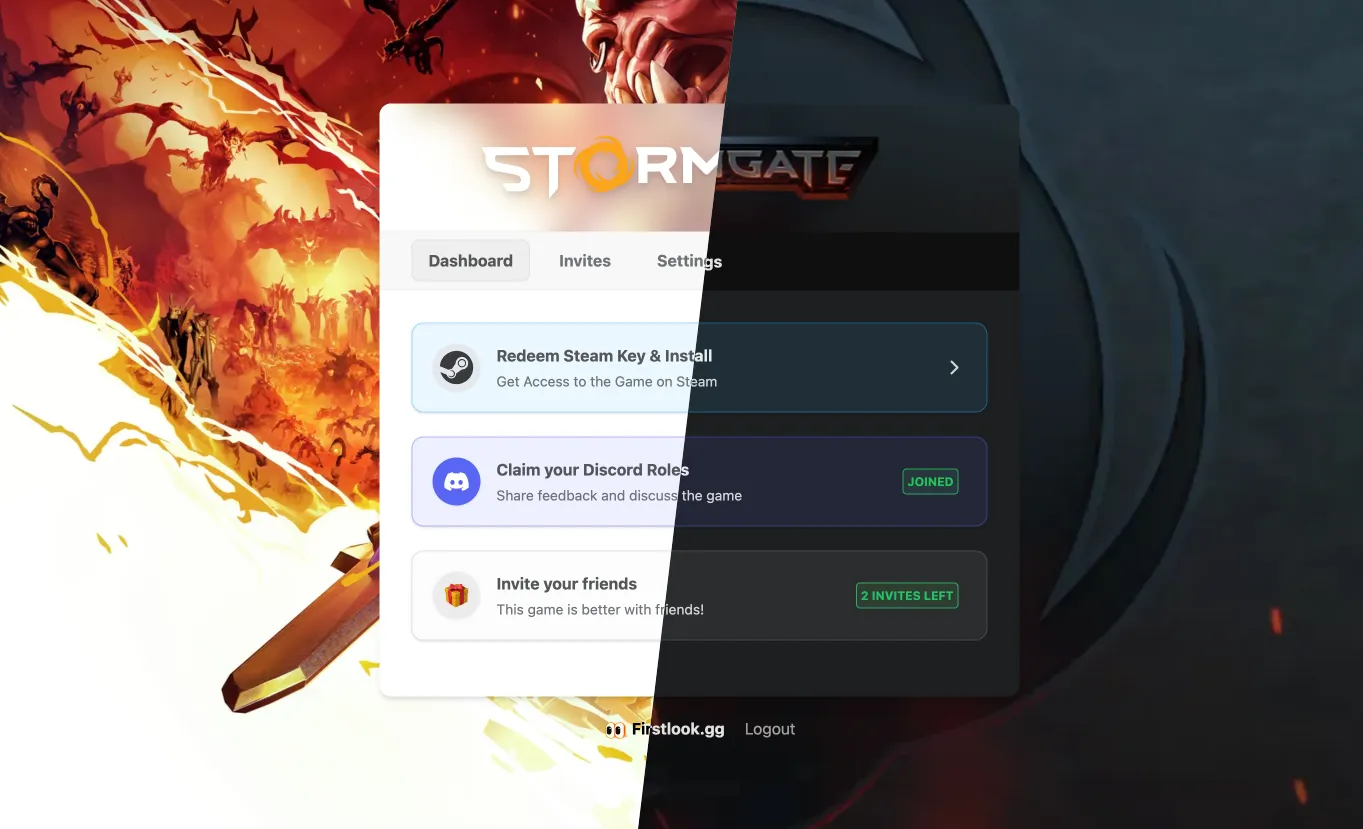
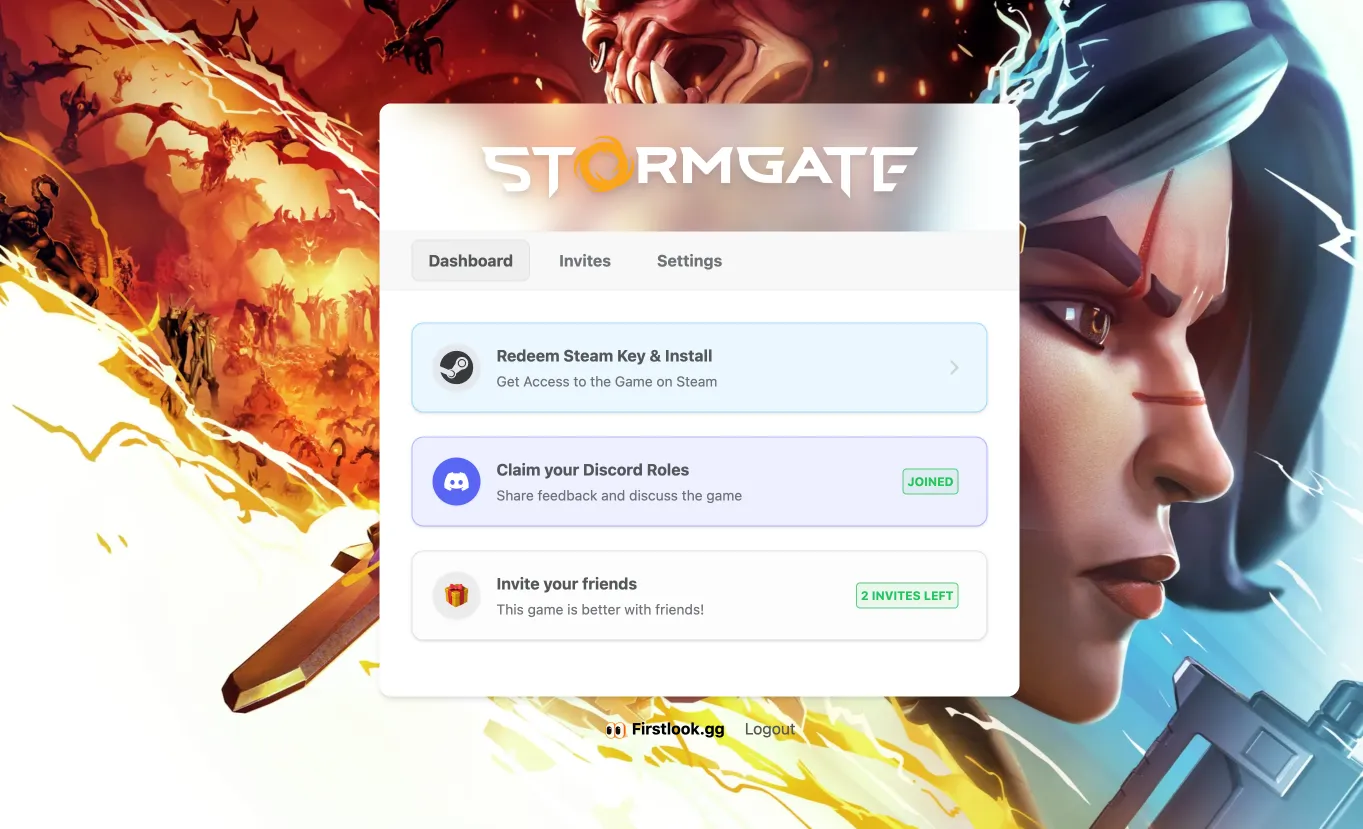
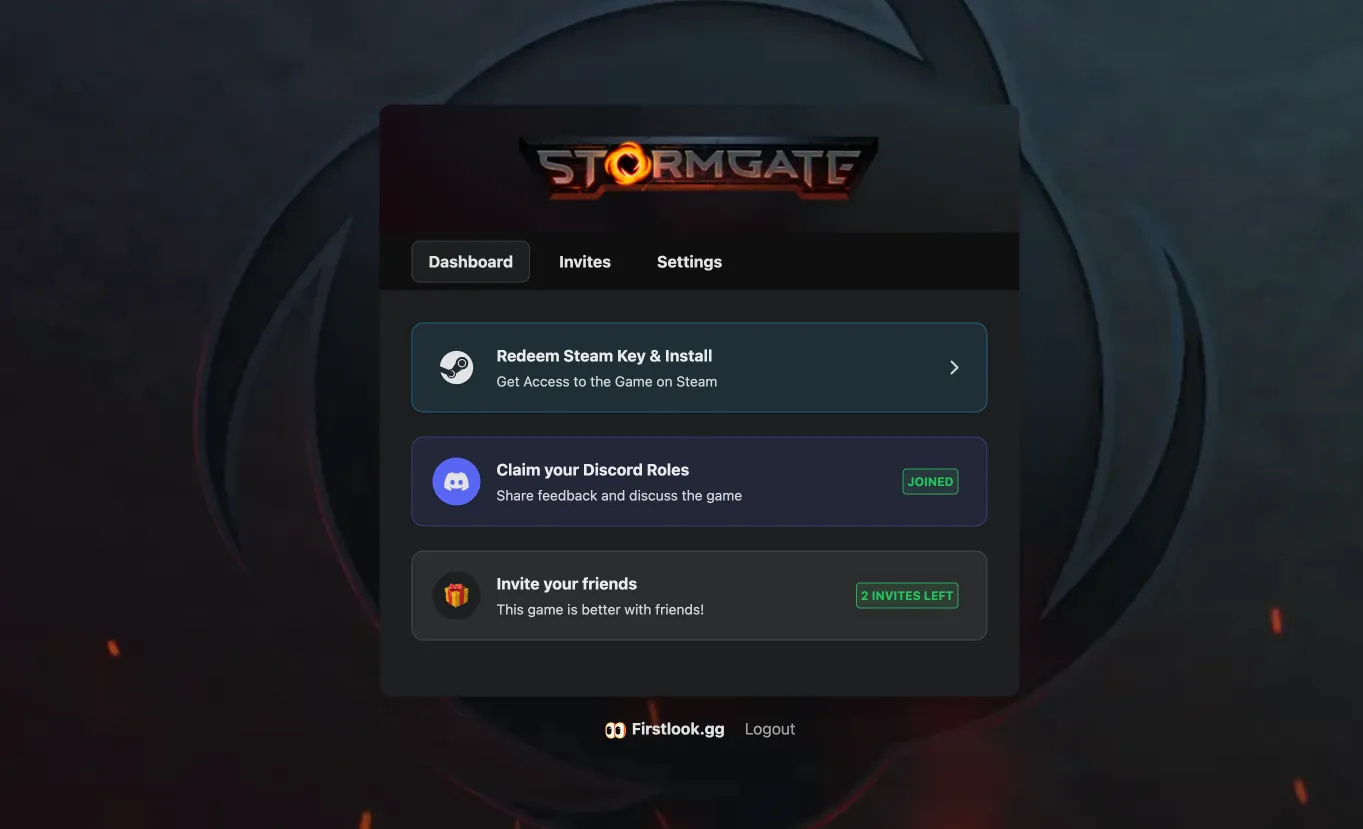
Section titled “Step 3: Choose a Theme and Color Palette”FirstLook supports Light and Dark themes for both the Player Dashboard and emails.
Choose the one that matches your game’s tone, then adjust accent colors for buttons and text.
Tips:
- Light themes work well for cheerful, friendly tones.
- Dark themes suit moody, serious, or sci-fi aesthetics.
- Keep button and text colors readable against your chosen background.
Step 4: Preview and Save
Section titled “Step 4: Preview and Save”Before finalizing your updates:
- Review the live preview in your Dashboard.
- Open the player site and emails in both Light and Dark modes.
- Send yourself a test invite email to make sure links, logos, and visuals render correctly across devices and email clients.
- Make sure your images display clearly and your colors remain accessible.
Once everything looks good, click Save — your new branding will apply instantly across FirstLook.
Branding Reference
Section titled “Branding Reference”Branding Settings
Section titled “Branding Settings”All branding options are located under Configuration → Branding, where you can upload images, adjust themes, customize colors, and preview how your changes will appear across player-facing pages and system-generated emails.
Images
Section titled “Images”You can upload several images to personalize the player-facing experience:
Displayed in the Player Dashboard, custom pages and in emails. A landscape logo with a transparent background produces the best results.
Key Art / Background Image
Section titled “Key Art / Background Image”Used as the background on player-facing pages such as the Homepage and some onboarding screens. This can be a screenshot, concept art, or any artwork that represents your game’s visual style.
Email Header (Optional)
Section titled “Email Header (Optional)”Displayed at the top of all system-generated emails.
The image must be at least 460px wide. Height is flexible.
Email Footer
Section titled “Email Footer”Customise the footer which is displayed at the bottom of announcements.
Favicon
Section titled “Favicon”Displayed in browser tabs when players visit your FirstLook site.
Favicons should be square (32 × 32 px or 64 × 64 px) and saved as PNG or SVG.
Themes and Colors
Section titled “Themes and Colors”Your choice of Light or Dark theme affects both player-facing pages and system emails. In addition, text and button accent colors may be customized to better match your game’s palette. For readability, ensure button and text colors maintain sufficient contrast.
Custom Domain (Pro Plan)
Section titled “Custom Domain (Pro Plan)”Branding is only one part of a fully branded player journey — you can also customize the messaging on each screen players see, including your Homepage, Sign Up, Waitlist, Invite, and Complete screens.
By default, your player site lives at <your-game-slug>.firstlook.gg. If you are on the Pro plan or above, you can host it on your own domain instead — such as play.yourstudio.com — so the entire flow feels fully branded and instantly recognizable to players. Custom domains are set per game, so if you run multiple games, each can have its own.
Benefits of using a custom domain:
- Stronger brand consistency
- Increased trust and professionalism
How Setup Works
Section titled “How Setup Works”Custom domains are set up together with our team rather than self-served in the dashboard. Since every studio’s DNS setup is slightly different, your Customer Success Manager (CSM) or support will guide you through the process. Here’s what to expect:
- Tell us the domain you want. Reach out to support or your CSM with the domain you’d like to use (for example,
play.yourstudio.com). - We provision it and send you DNS records. Our team sets up the domain on our side and sends you the exact DNS records to add with your DNS provider. Expect records for the player site itself, plus records that authenticate email sending from your domain — a DKIM record and a return-path record from our email provider.
- You add the records. Add them with whoever manages DNS for your studio’s domain. If that’s not you, loop that person in early — this is usually the slowest part.
- We verify and switch you over. Once the records are in place, our team verifies them and switches your player site to the new domain.
Custom Sender Email (Pro Plan)
Section titled “Custom Sender Email (Pro Plan)”By default, FirstLook emails are sent from the FirstLook mail domain — announcements, for example, default to an @mail.firstlook.gg sender address. On the Pro plan, you can send from your own domain instead, which follows the same support-guided process as above: once our team has verified email sending on your domain, you can set custom sender addresses under Settings → General.
Note that your announcements sender address must use your verified domain — the dashboard won’t accept an address on any other domain.