Steam Playtests
Steam Keys are unique codes that can be redeemed on Steam to unlock your game. You can generate Steam Keys in the Steamworks Partner Portal and distribute them to players. FirstLook is a great way to distribute these keys while keeping track of who has access to your game. This page first explains the concepts — key types, branches, and the Steam Playtest feature — then walks through setting up a Steam Playtest and connecting it to FirstLook.
Understanding Steam Key types
Section titled “Understanding Steam Key types”There are multiple types of Steam Keys, and it’s important to understand the differences between them. You can read about Types of Keys in depth on the Steamworks Documentation. In short and in relation to playtests, you’ll need to know about:
- Default Release Keys (or standard release) should never be used for playtests and only used to grant access to the final version of your game (you could choose to give playtesters a copy of the final game as a reward). Limited to 5,000 keys per game.
- Release State Override Keys (or beta keys) are useful for granting access to a game that is about to be released or is in a beta state. Limited to 2,500 keys per game. Recommended for Press and Influencers, when you are planning to release the game soon, or for a closed beta.
- Developer Autogrant (or devcomp) are very limited and meant to provide access to developers and QA testers that are not in your organization. They are not meant for playtesters.
- Steam Playtest Keys are the best choice for playtests. You can grant access to a playtest branch of your game without needing a public store page, and can revoke access once the playtest is over. You can generate up to 50,000 keys per game before Valve needs to approve more.
- Steam Inventory Item are used to grant players with an item to be added to their inventory. This is used for player quests rewards or creator goal rewards. Requires Steam WebAPI key to be set in FirstLook.
Understanding the Steam Branches (Betas) Feature
Section titled “Understanding the Steam Branches (Betas) Feature”Steam Branches (Betas) let you give different groups of players access to specific builds of your game. This is ideal for running multiple playtests in parallel, limiting new features to select groups, or testing fixes post-launch before rolling them out to your entire player base. Branches are also managed through the Steamworks Partner Portal where you can create and configure them, then share the password with players. You can read about how branches work in detail on the Steamworks Documentation.
FirstLook makes it easy to distribute Steam Keys and branch passwords, letting you control who gets access based on roles, specific conditions, or manual approval. See Steam Beta Branches for how to configure branches on the FirstLook side.
Using the Steam Playtest Feature
Section titled “Using the Steam Playtest Feature”While the above will work fine, they are not ideal for large-scale playtests. Instead, we (and Valve too) recommend using the Steam Playtest Feature — it offers more flexibility, fewer risks, and fewer limitations than traditional key-based approaches. This feature allows you to create a playtest branch of your game and generate keys that will only grant access to this branch. Once the game is released, the Playtest will be removed from the player’s library.
While typically you’d use this feature to advertise your playtest on the Steam Store and gather playtesters on Steam, you can also use it with FirstLook while hiding the playtest from the Steam Store. This way you benefit from far more control over the playtest and knowing exactly who has access, as well as being able to communicate with them directly.
Additionally, Steam Playtests have a few more features that make them ideal for playtests:
- You can distribute up to 50,000 keys, compared to the standard 2,500 limit on Release Override Keys.
- You do not lose the Wishlists status of players that access the playtest. When you’d use Release State Override Keys, you’d lose the Wishlist status of the player as they essentially get a copy of the game.
- A playtester’s review will be counted as a normal review once the game is released and they acquired the game. Release State Override Keys reviews are not counted towards the final review score.
- Playtest keys work like normal Standard Release Keys, meaning you can control the playability of the game by toggling the
Playtest Status: Playable— turning access on and off without revoking or reissuing keys.
With the concepts covered, the rest of this page clears up common misconceptions, walks through setting up a Steam Playtest in Steamworks, and shows how to use FirstLook to distribute keys and manage tester access.
Common Myths About Steam Playtests
Section titled “Common Myths About Steam Playtests””Playtest Apps shouldn’t be used for confidential testing.”
Section titled “”Playtest Apps shouldn’t be used for confidential testing.””Not true. Steam Docs make it sound risky to release a playtest app since there is not an NDA in place for play testers. While it is true Playtest Apps do not include NDAs by default, FirstLook easily adds NDA requirements during onboarding.
”You need a fully completed Store Page before you can use Playtest Apps.”
Section titled “”You need a fully completed Store Page before you can use Playtest Apps.””Not true. A Store Page technically exists but does not need to be public or complete. You only need capsule images and minimal assets for review and using a codename is common practice.
”The Request Access button must be visible on your store page.”
Section titled “”The Request Access button must be visible on your store page.””It doesn’t. You can hide the Request Access button entirely and distribute access solely through FirstLook.
Setting Up a Steam Playtest
Section titled “Setting Up a Steam Playtest”Follow these steps inside Steamworks:
-
Create a Playtest App Go to your base game’s
Associated Packages & DLCsection and add a new Playtest App. -
Add Required Assets At minimum, upload Library Capsule and Community Capsule images. Tip: The Playtest App name cannot be changed after publishing, so if you want to change it - change it now.
-
Complete the Review Process Your app must go through a lightweight Store and Build review. This review typically only checks capsule images and icons.
-
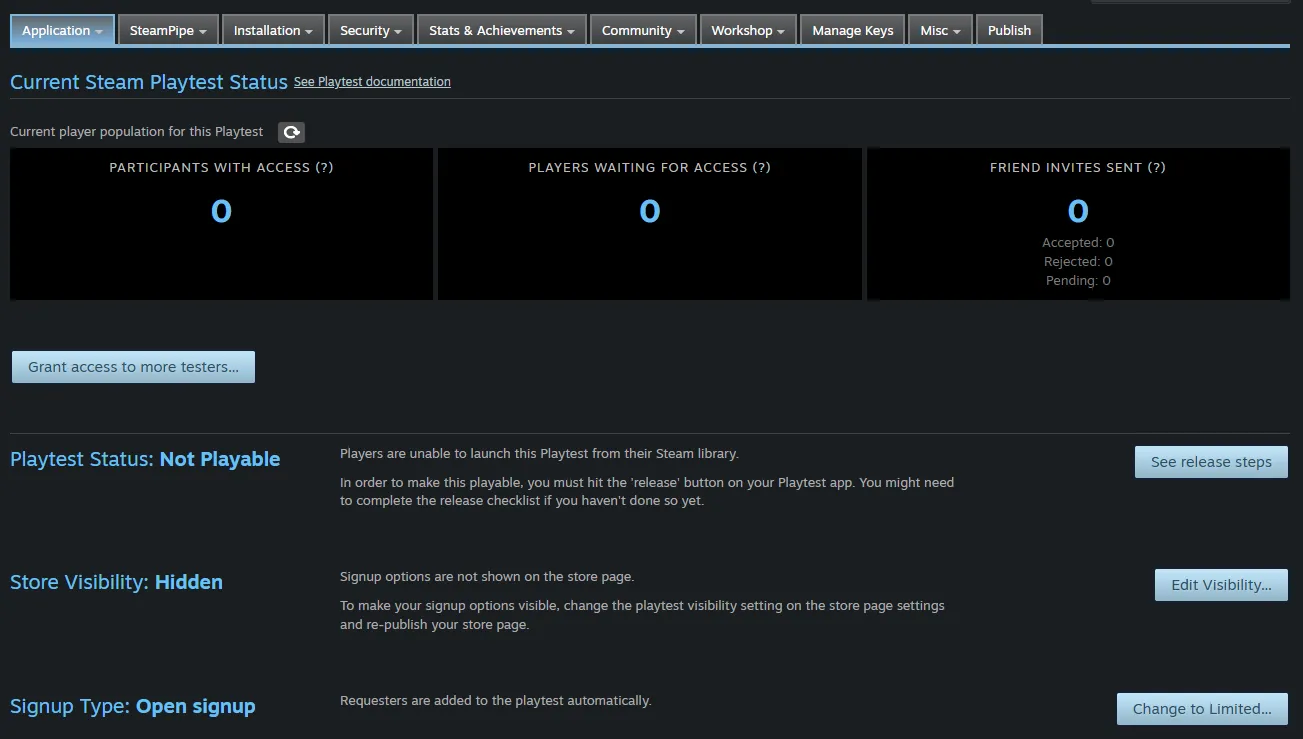
Configure Playtest Behavior Once approved, visit Manage Your Steam Playtest to set visibility and launch permissions:
- Playtest Status
- Playable: Players can launch the build
- Not Playable: Access stays in the library but cannot be launched
- Store Visibility
- Visible: Request Access appears on your main game’s store page
- Hidden: The playtest stays invisible
- Signup Type
- Open: No approval needed
- Limited: Players must request access
- Playtest Status
-
Request Playtest Keys Go to Manage Keys → generate the number of keys you need → download and import them into FirstLook. Need more than 50,000? Submit a Steam support ticket.
-
Publish Your Playtest App Select:
See Release Steps → View Release Options → Prepare for Release → Publish Now -
Start Your Playtest Once published, your Playtest App is live.
-
Turn Off Access Afterward No need to revoke keys—just change Playtest Status to Not Playable until the next test.
Connecting Steam Playtests to FirstLook
Section titled “Connecting Steam Playtests to FirstLook”Once your Playtest App is ready, FirstLook helps you manage access, distribute keys, and guide players through onboarding.
-
Create a Key Type Add a new Steam key type in Keys and import your Playtest Keys.
-
Configure Your Flows Set up Flows to control your player journey through FirstLook.
-
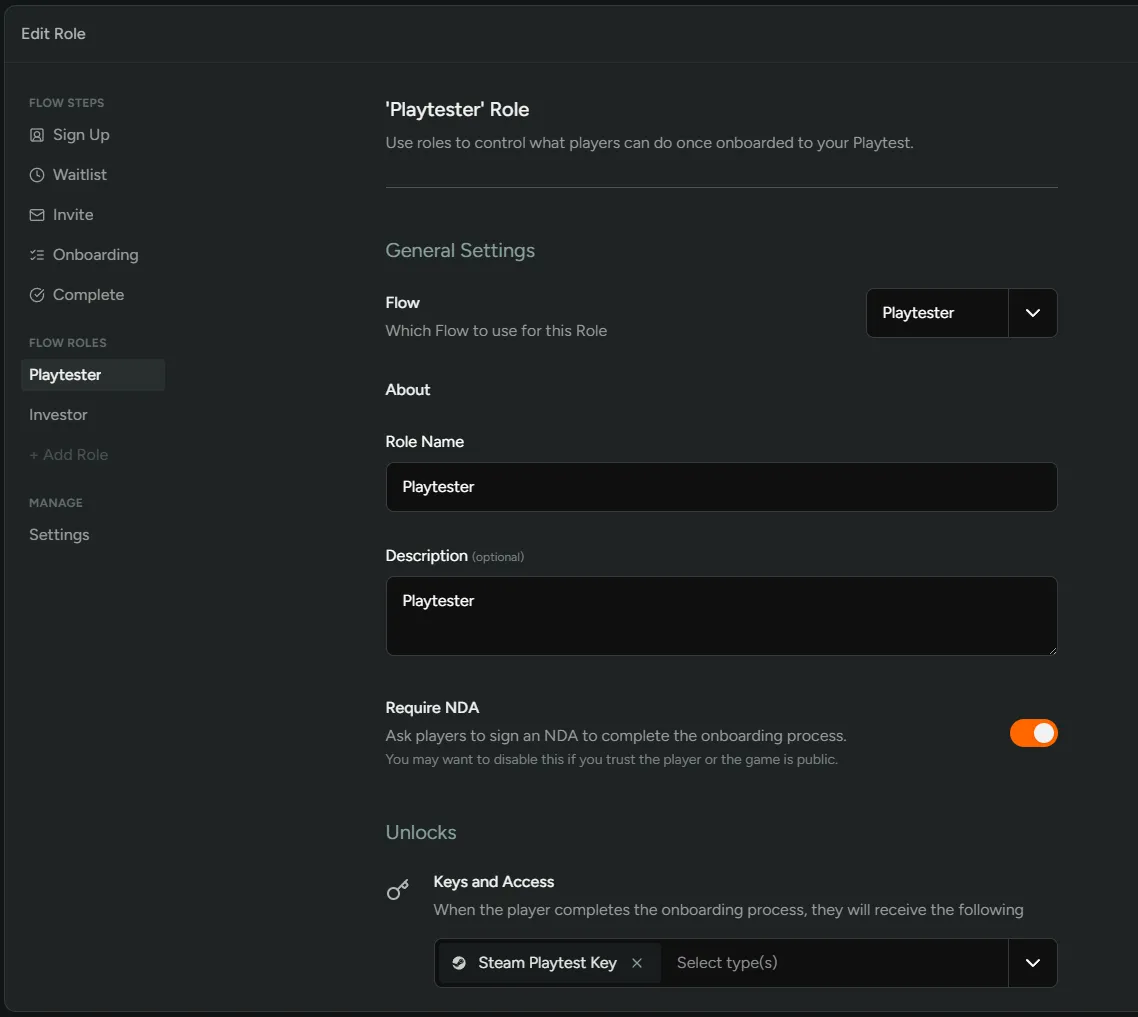
Connect Keys to Roles Assign the Steam key type to the appropriate Flow Role.
-
Invite Players Use FirstLook’s Invite tools to bring players into your playtest.
When they complete onboarding, their Steam Playtest Key is assigned automatically.
Removing Steam Playtest Keys (If Needed)
Section titled “Removing Steam Playtest Keys (If Needed)”In rare cases, you may need to revoke or cycle keys. If so: