Google Play
In FirstLook you’re able to integrate Google Play as part of the onboarding experience for players.
Integrate your Google Play Account with FirstLook
Section titled “Integrate your Google Play Account with FirstLook”To connect your Google Play closed test with FirstLook, you primarily need to retrieve the Join URL (also known as the Opt-in URL) from your Google Play Console. This link allows authorized testers to accept your invitation and download the game from the Play Store.
How to get the Closed Testing Access Link
Section titled “How to get the Closed Testing Access Link”- Sign in to the Google Play Console.
- Select your app from the list.
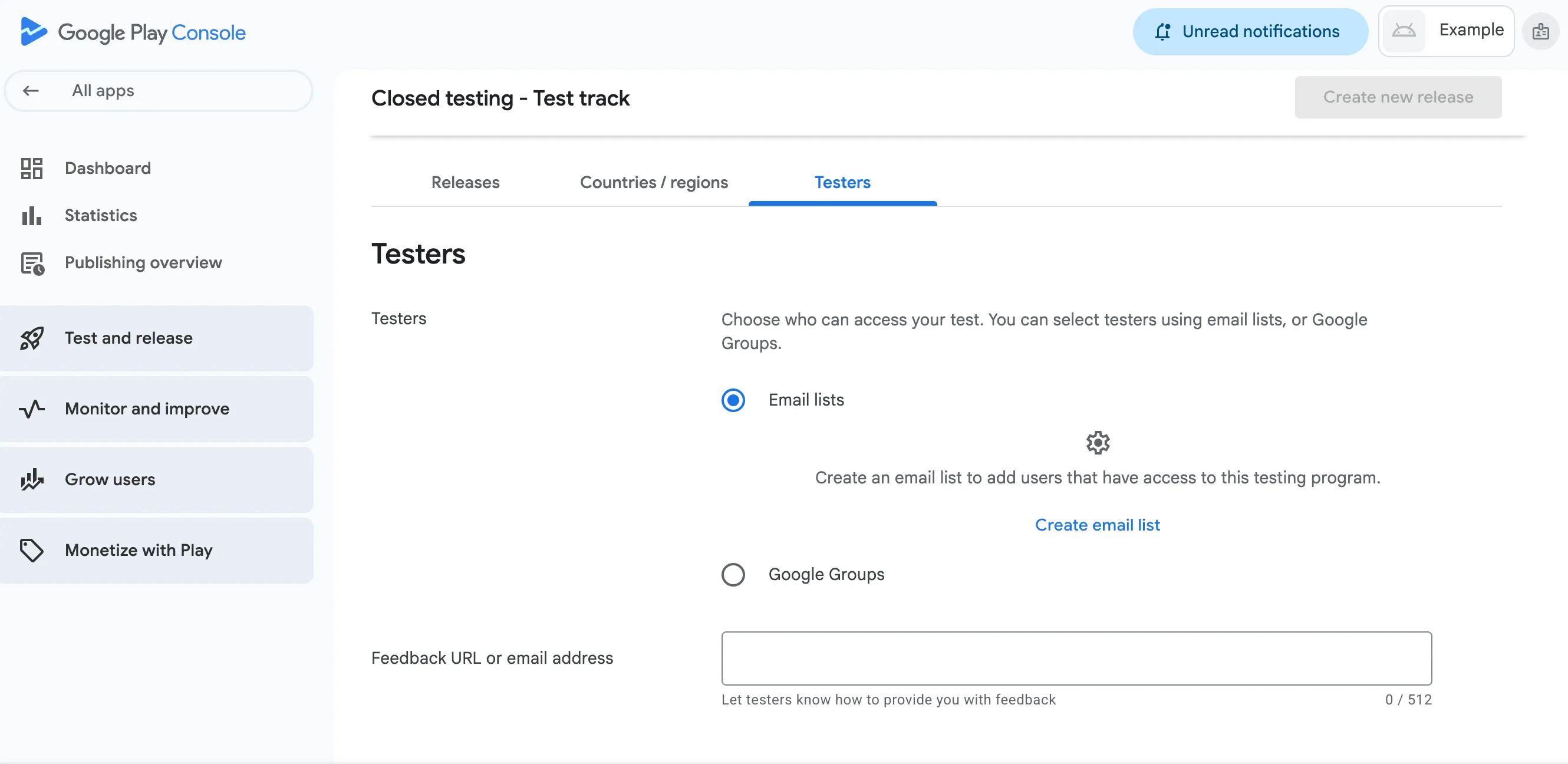
- In the left sidebar, navigate to Test and release > Closed testing.
- Find the track you wish to use (e.g., “Alpha”) and click Manage track.
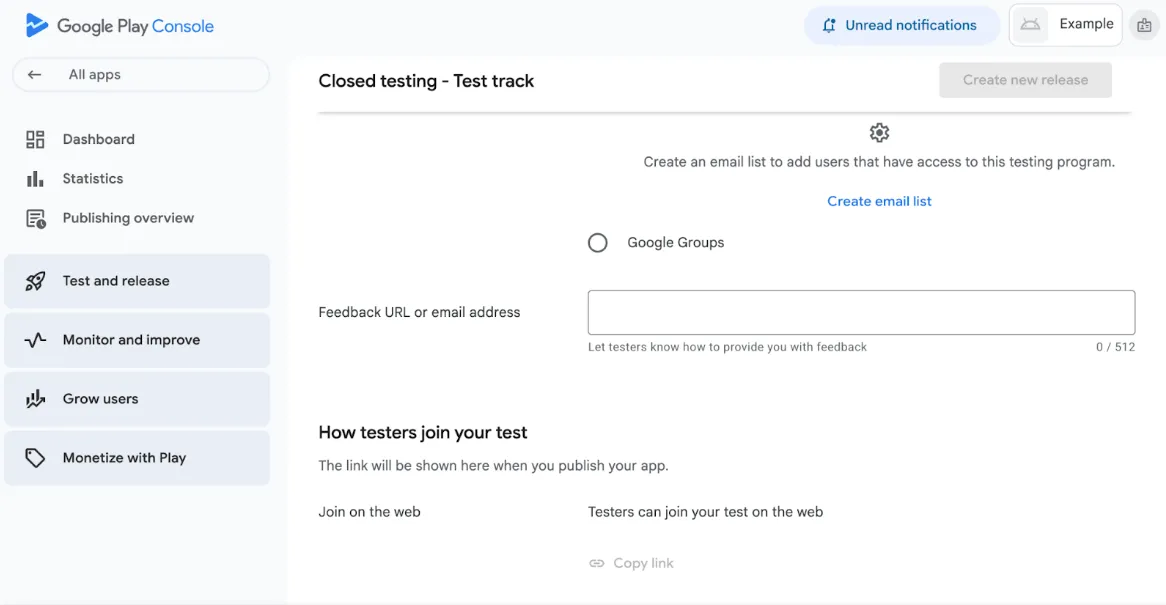
- Select the Testers tab.
- Scroll down to the “How testers join your test” section.
- Click Copy link next to the Web URL.
Closed Testing Requirements
Section titled “Closed Testing Requirements”If you are using a new personal developer account, Google requires a mandatory testing period before you can apply for Production access:
- Minimum Testers: You must have at least 20 testers opted into your closed test.
- Testing Duration: These testers must remain opted-in and use your app for at least 14 days continuously.
FirstLook helps you meet these requirements by automating the collection of tester emails and providing them with your Join Link immediately after they complete your onboarding process.
Setting Up OAuth for SDK Authentication
Section titled “Setting Up OAuth for SDK Authentication”If you are using the Unity SDK to authenticate players directly from your game client, you need to configure an OAuth 2.0 client ID so FirstLook can verify Google ID tokens.
Create an OAuth 2.0 Client ID in Google Cloud Console
Section titled “Create an OAuth 2.0 Client ID in Google Cloud Console”- Go to Google Cloud Console and open your project (or create one).
- Navigate to APIs & Services > Credentials.
- Click Create Credentials > OAuth 2.0 Client ID.
- Select Web application as the application type.
- This is the client ID that FirstLook uses to verify ID tokens on the server side. Do not use an Android client ID here.
- Give it a name (e.g. “FirstLook Token Verification”) and click Create.
- Copy the client ID (it looks like
123456789-abcdefg.apps.googleusercontent.com).
Register Your Android App (Required for Google Sign-In on Android)
Section titled “Register Your Android App (Required for Google Sign-In on Android)”For Google Sign-In to work on Android builds, you must also register your app as an Android OAuth client so Google can validate the sign-in request:
- In APIs & Services > Credentials, click Create Credentials > OAuth 2.0 Client ID again.
- Select Android as the application type.
- Enter your app’s package name (e.g.
com.yourcompany.yourgame) and the SHA-1 certificate fingerprint of your signing key.- To get your debug SHA-1:
keytool -list -v -keystore ~/.android/debug.keystore -alias androiddebugkey -storepass android -keypass android - For release builds, use the SHA-1 from your release keystore.
- To get your debug SHA-1:
- Click Create. You do not need to add this Android client ID to FirstLook — it is only needed so Google accepts sign-in requests from your app.
Add the Web Client ID to FirstLook
Section titled “Add the Web Client ID to FirstLook”- In your FirstLook dashboard, go to Config > Google Play.
- Add the Web application client ID you created above to the allowed list.
- Click Save.
The client ID you configure in your Google Sign-In library and the client ID in the FirstLook dashboard must match. See the Unity SDK Setup guide for how to pass the ID token to the SDK.
Getting Started
Section titled “Getting Started”Now that you have the necessary details to complete the integration, there are a few steps to have this properly working in FirstLook.
- Google Play can be toggled on here to allow players to connect their accounts during sign-up and onboarding.
- Players will need to be manually uploaded to the Google Play Console. To do so, navigate to your Closed testing track, click on the ‘Testers’ tab and upload your FirstLook players via CSV.
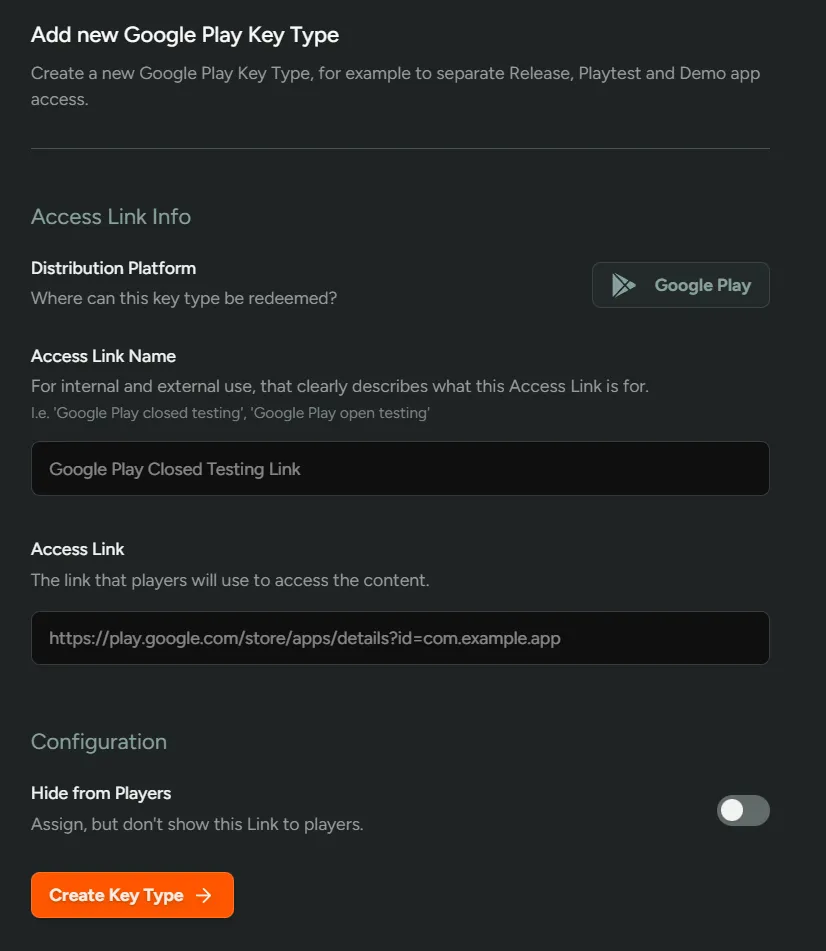
- Create a new key type which can be distributed to players to grant them access. This can be done from the ‘Keys & Access’ tab.
- The URL created earlier can be added here.