Players
In FirstLook you can manage all of your players in one place. You can find this by navigating to the ‘Players’ tab. From here you can filter your players into different cohorts, send invites and make any changes you might need.
Player Profile
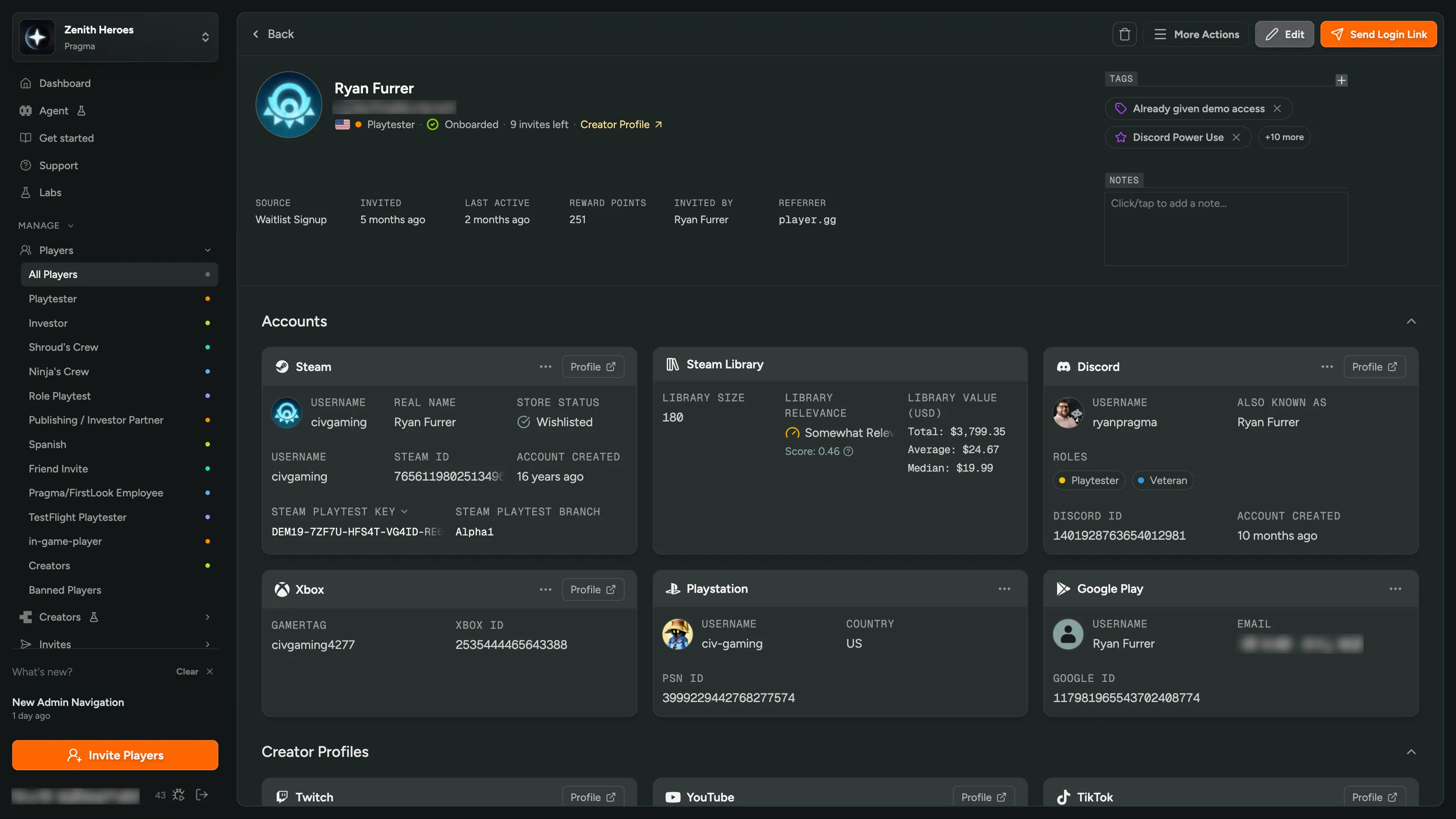
Section titled “Player Profile”To manage players effectively, you’ll need to be able to view and edit their details. This can be done by clicking the players name. Here you’ll be greeted with the following information:
- Audit Log.
- General player information (name, email, source etc).
- Tags.
- Notes.
- Platform connections (Discord, Steam, PlayStation, Xbox, Epic etc).
- Answers to sign-up/onboarding questions.
From the player profile you’ll be able to take various actions:
Login as Player - Impersonate a player to troubleshoot or quickly check what a player is seeing in their dashboard.
Grant Invites - Grant the player a certain number of invites.
Grant Access - Grant the player access to a key or branch.
Grant Points - Grant the player points towards Rewards.
Enroll as creator - Enroll the player onto your Creator program.
Edit - Edit the player’s profile.
Send Invite - Invite the player to start their onboarding. If the player’s already invited, use this button to resend the invite email.
Delete - You can delete the player with various different advanced options e.g. deleting from discord, wiping information now or in 30 days, banning the player and the ban duration. You can also ban the entire domain.
Playtime
Section titled “Playtime”If your game uses the FirstLook SDK, each player’s profile will include a breakdown of their in-game activity. This gives you a detailed picture of how an individual player is engaging with your game:
- Last Active In Game - The most recent time this player launched a session.
- Sessions - How many total sessions the player has logged.
- Total - Cumulative playtime across all sessions.
- Avg. Daily - Their average daily playtime over the last two weeks.
- Avg. Session - Mean session length across all recorded sessions.
- Last 2 Weeks - Total time spent in-game over the past two weeks.
- Avg. Weekly - Their average weekly playtime across all recorded history.
- Longest Session - The single longest session on record.
- First Session - When the player first launched your game.
You can filter and segment players by any of these playtime stats using the Conditions filter, and perform Bulk Actions on the results.
Events
Section titled “Events”The Events tab on a player’s profile shows every custom event that has been recorded for that player. Events are organized into collapsible groups by their category prefix — for example, all match.* events appear together — with each entry showing the event name, its cumulative value, and when it was last recorded. This includes both counter events and duration events. A counter event sent with parameters lists each parameter as a row nested under the event, and the event’s own row sums them. To learn how to instrument custom events in your game client, see the SDK Setup guide.
Filters
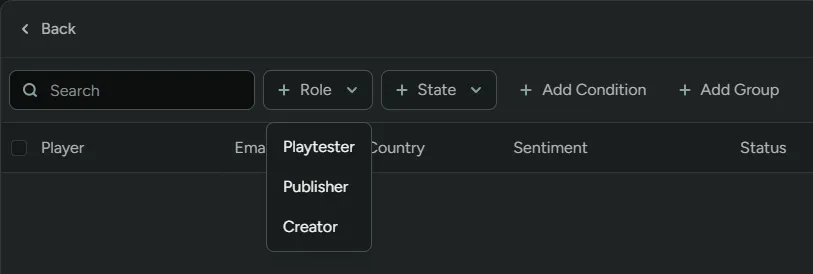
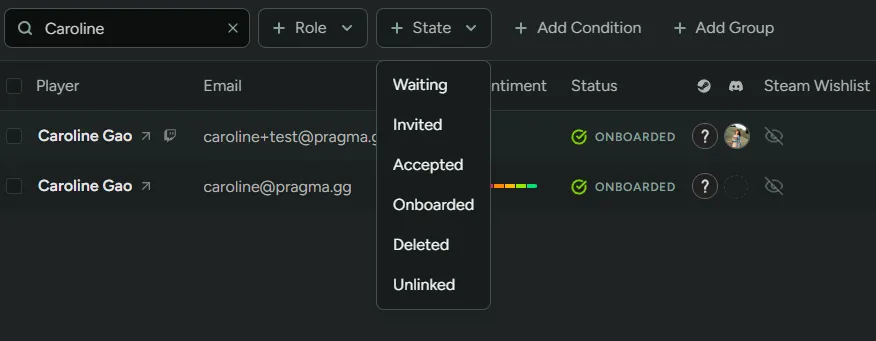
Section titled “Filters”Being able to segment players into cohorts is a really powerful tool. Thankfully in FirstLook, that’s made simple. You can filter players by ‘Roles’ and ‘States’ by selecting options from the dropdown menu. Additionally we have a huge list of filters available to further segment your player base.
Filter by a specific Flow Role
Pending - The player has started sign-up, but hasn’t finished.
Waitlist - The player is on the waitlist.
Invited - An invite has been sent to the player.
Accepted - The player has accepted the invite.
Onboarded - The player has finished onboarding.
Deleted - The player has been deleted.
Unlinked - The player has not yet made a FirstLook account. See Unlinked Players.
Condition
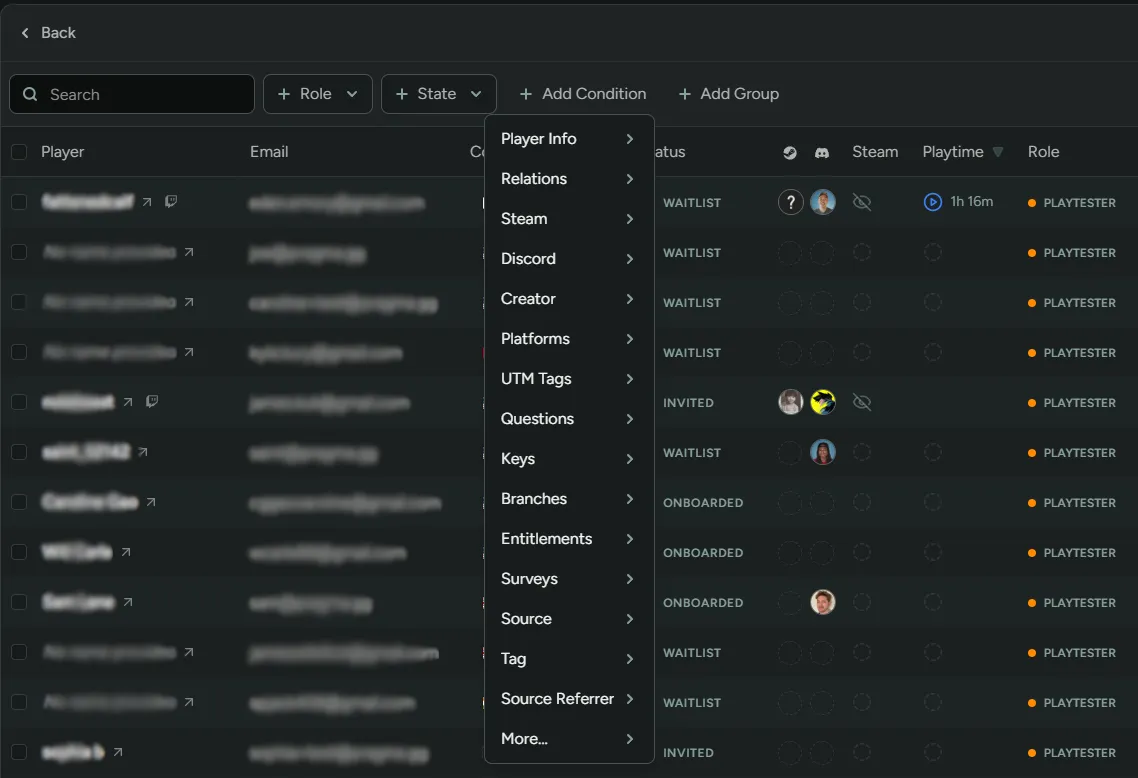
Section titled “Condition”In FirstLook you can filter a player by a number of different conditions. You can do this by selecting +Add Condition and choosing from the list of filters you wish to segment players by.
For advanced filters, select the condition, click on the drop down and choose
Advanced Filters.
Groups
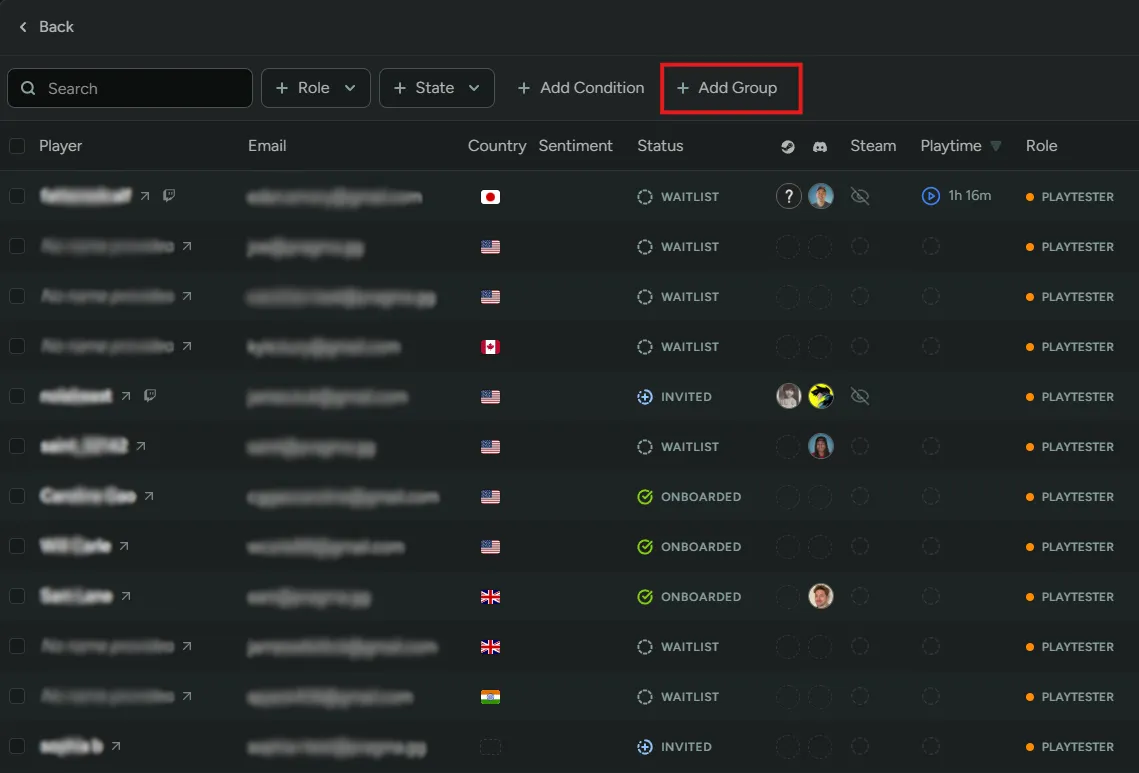
Section titled “Groups”You can filter players using AND | OR statements. This can be done from the +Add Group tab. Add the specific filter required and then select +Add to utilize the AND statement.
For OR statements use Add new ‘or’ group to add the next filter you wish to search against. This can be done as many times you want.
Save Filters
Section titled “Save Filters”If you need to save your filtered lists to be used another day and by other members of your team, you can do that using the save button. You’ll be able to give the new list a name and it will appear in a drop down you can then access at any time. In the picture below, we’ve saved a list for onboarded players.

Bulk Actions
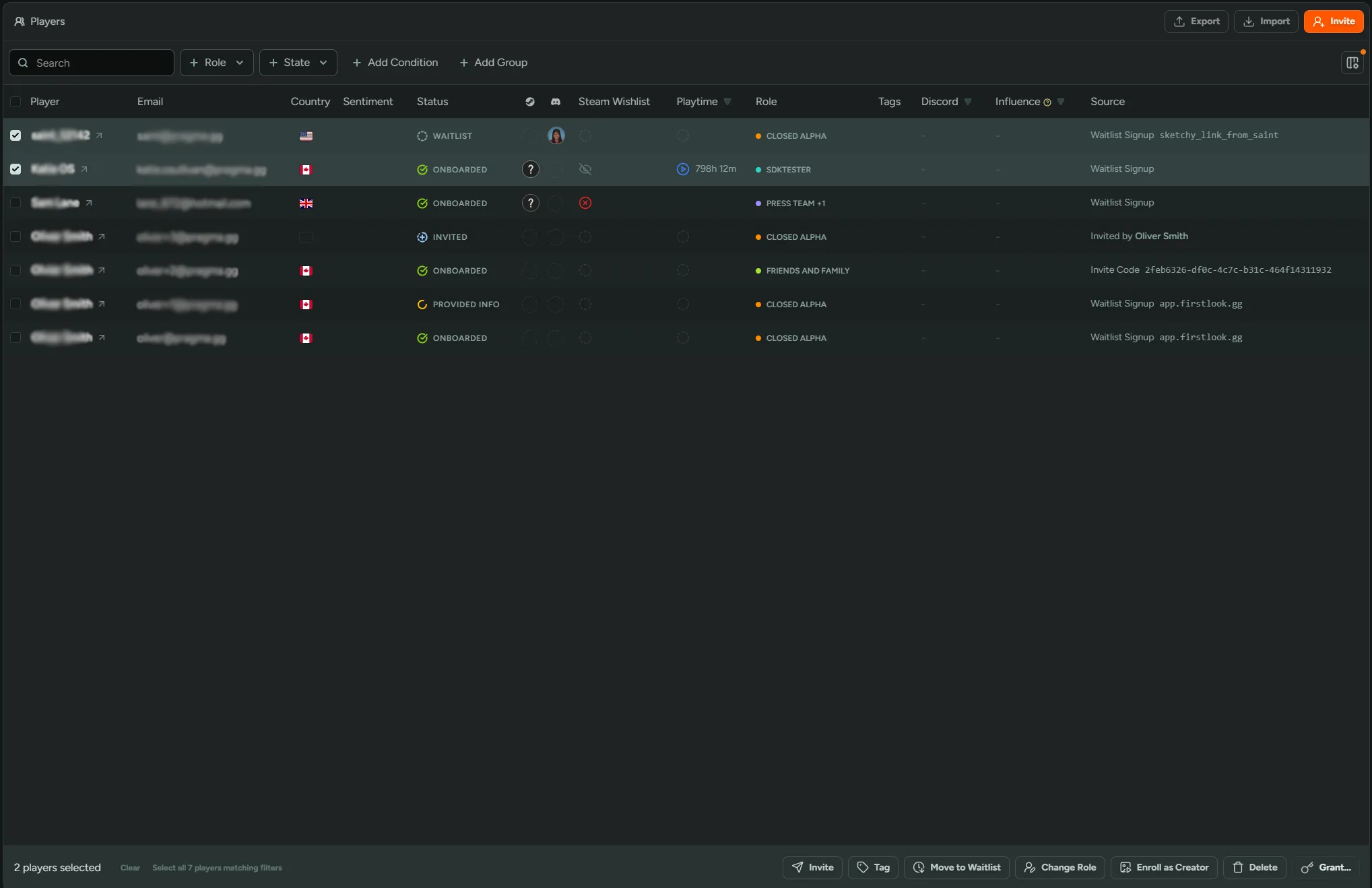
Section titled “Bulk Actions”When you need to make changes across a wider cohort of players, performing bulk actions will be most time-effective way. To do this, either select individual players or select the entire list. You can perform the following:
Invite - Send an invite.
Tag - Add or remove tags.
Move to Waitlist - Move selected players back to the waitlist, so they can be re-invited to another playtest.
Change Role - Change roles for selected players.
Enroll as Creator - Enroll selected players onto your Creator program.
Delete - Delete all selected players. You’ll also be provided with advanced delete options, and ban restrictions.
Grant Invites - Grant invites. (Click advanced to edit the number of invites, uses per invite and role assigned once invited).
Grant Access - Grant selected keys.
Grant Entitlement - Grant in-game items.
Grant Points - Grant points.
Importing Players
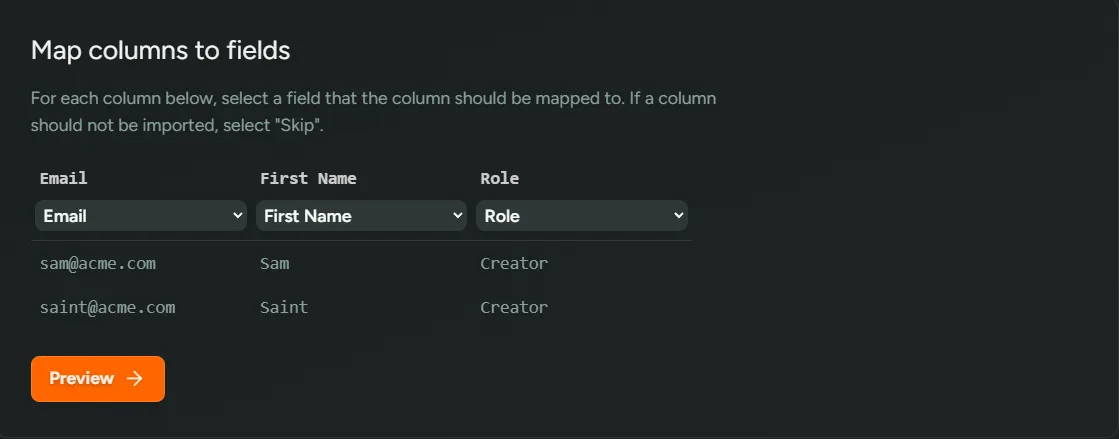
Section titled “Importing Players”You may have a list of players that you would like to import directly into FirstLook. To do this, navigate to “Import” in the top right hand corner and select the .csv file you wish to use.
The first row in the file needs to be used for the field names you wish to map into FirstLook.
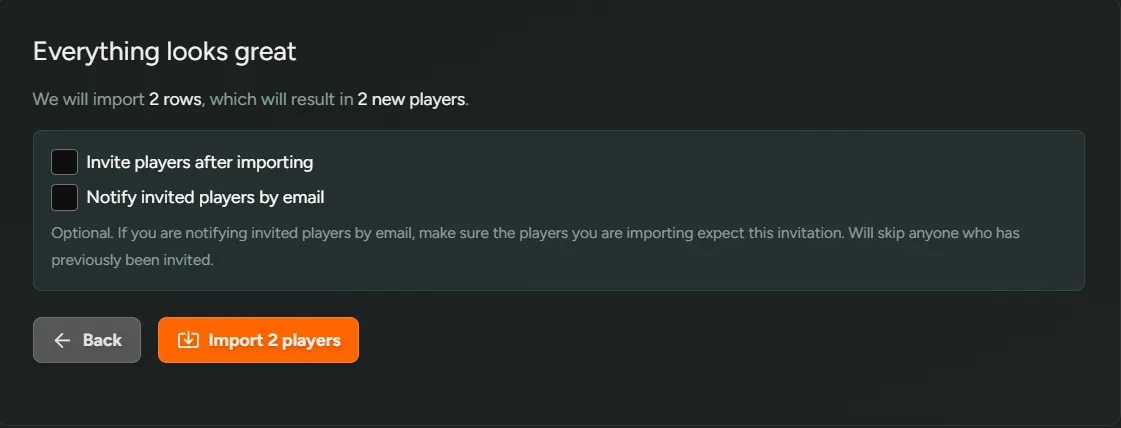
Once you have the right fields selected, select “Preview” to check everything is correct before finally importing. You’ll be told how many players will be successfully imported. By default, players will be added to the Waitlist. Additionally you can select the following options:
Invite players after importing- This will automatically Invite players.Notify invited players by email- Select this option if you’d like an email notification to be sent.
Unlinked Players
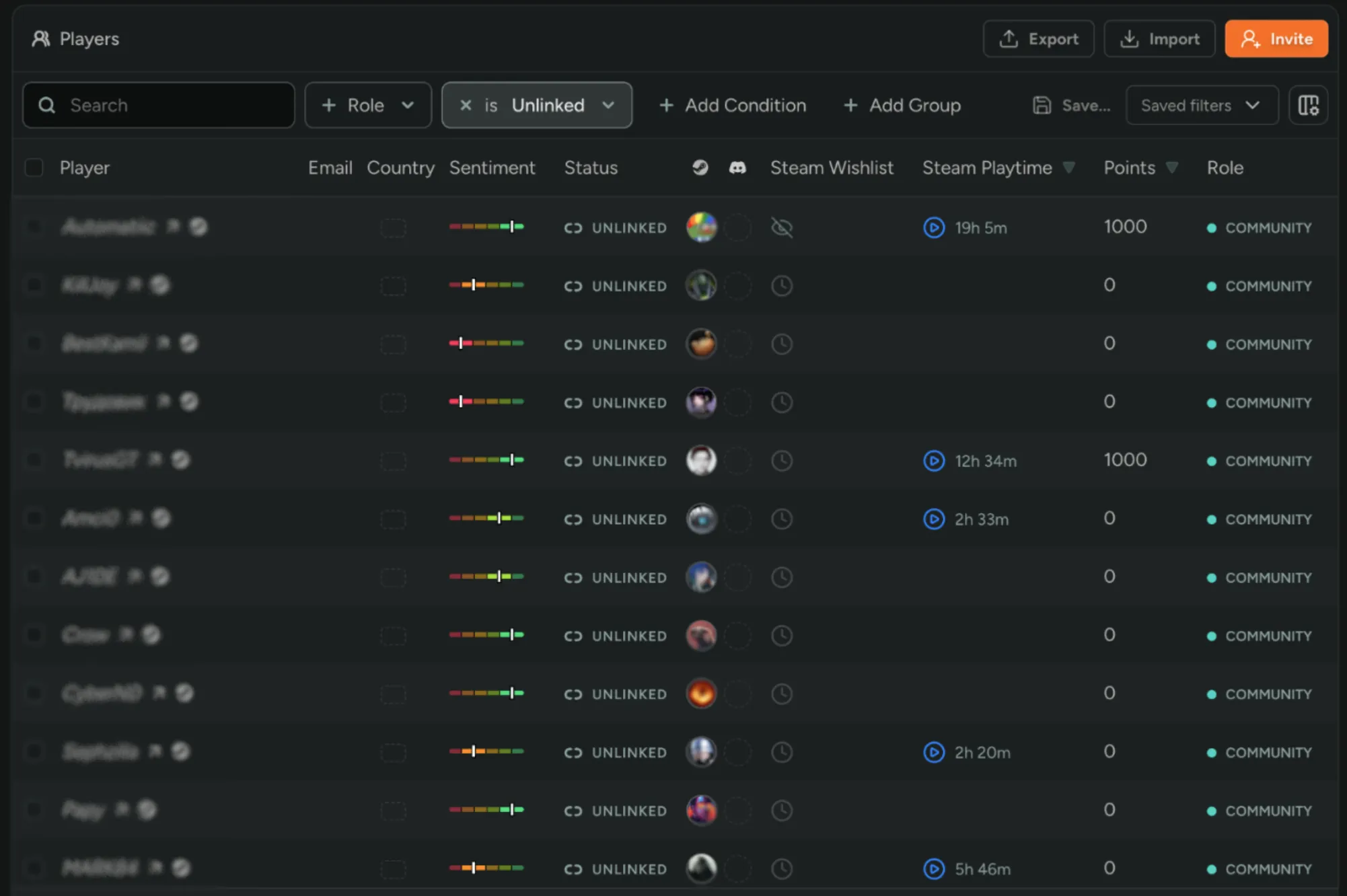
Section titled “Unlinked Players”Unlinked players are people already active around your game who haven’t signed up for FirstLook. They’re created automatically from two sources:
- Integrations - Players who are active in your Discord server, or who leave Steam reviews and discussion posts. These are assigned the
Communityrole. See Sentiment. - The FirstLook SDK - Players who launch your game without a FirstLook account. These are assigned the
Game Session Playersrole. See the SDK overview for setup.
The value of an unlinked player is the data attached to them. FirstLook starts attributing activity to them straight away, so you get a far richer read on how your whole community feels about your game through sentiment, and real playtime and activity stats from people actually playing it. Use the Sentiment and Analytics tabs to work with this data.
Unlinked players have no verified email address, only the platform account they were found on, so they can’t be reached through Announcements or any other email.
If an unlinked player signs up or claims their account, they take over that existing record rather than starting a new one. Everything already attributed to them carries over, and their state, role, and source update to reflect how they signed up. From that point they’re a normal player. If your game uses the SDK, you can prompt this in your client with a claim link or QR code, see Onboard Unlinked Players for Unity or Unreal.
Unlinked players can also complete quests and earn points towards your reward tiers. Points accumulate on the record and wait there, so a stack of unclaimed rewards is a great reason for a player to come and claim their account.