MCP
The Model Context Protocol (MCP) is an open standard that lets AI assistants like Claude, ChatGPT, and other agents securely connect to external tools. FirstLook’s MCP server gives your AI assistant direct access to your player data — so you can ask questions, run queries, and take actions conversationally without switching to a dashboard.
Server endpoints
Section titled “Server endpoints”- Streamable HTTP –
https://mcp.firstlook.gg/mcp
Claude
Section titled “Claude”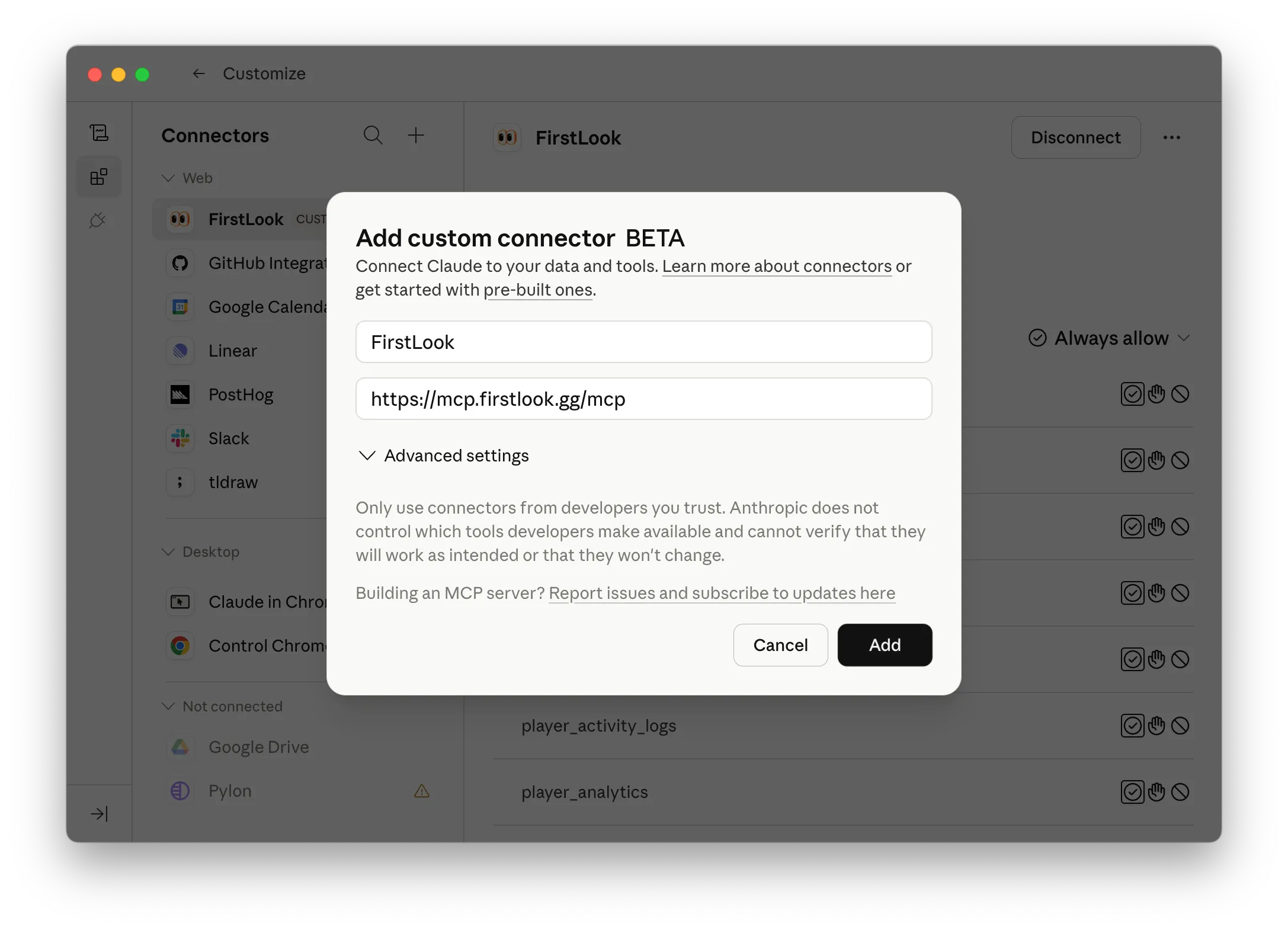
- Open Customize (bottom-left of the Claude sidebar)
- Go to Connectors and click the + icon
- Select Custom connector and enter the following:
- Name:
FirstLook - URL:
https://mcp.firstlook.gg/mcp
- Name:
- Click Add, then log in with your FirstLook account when prompted.
ChatGPT
Section titled “ChatGPT”- Read about Risk and safety related to using custom MCP servers with ChatGPT.
- Enable Developer Mode
- Go to
Settings > Apps & Connectors > Advanced Settings - Toggle on
Developer Mode
- Go to
- Create a new connector
- Go to
Settings > Apps & Connectors - Click on
Create(top right) - Fill in the following information:
- Name:
FirstLook - MCP Server URL:
https://mcp.firstlook.gg/mcp - Authentication:
OAuth - Hit
Create
- Name:
- Go to
Once connected, ChatGPT can pull the same FirstLook resources and record actions, keeping your playtest workflow aligned across both assistants.
What you can do
Section titled “What you can do”Once connected, you can query your FirstLook data using natural language. Here are some examples to get you started:
Player search and filtering
Section titled “Player search and filtering”- “How many players are signed up for my game?”
- “Show me all players from Germany who joined in the last 30 days”
- “Find players who have more than 10 hours of playtime”
Custom player attributes
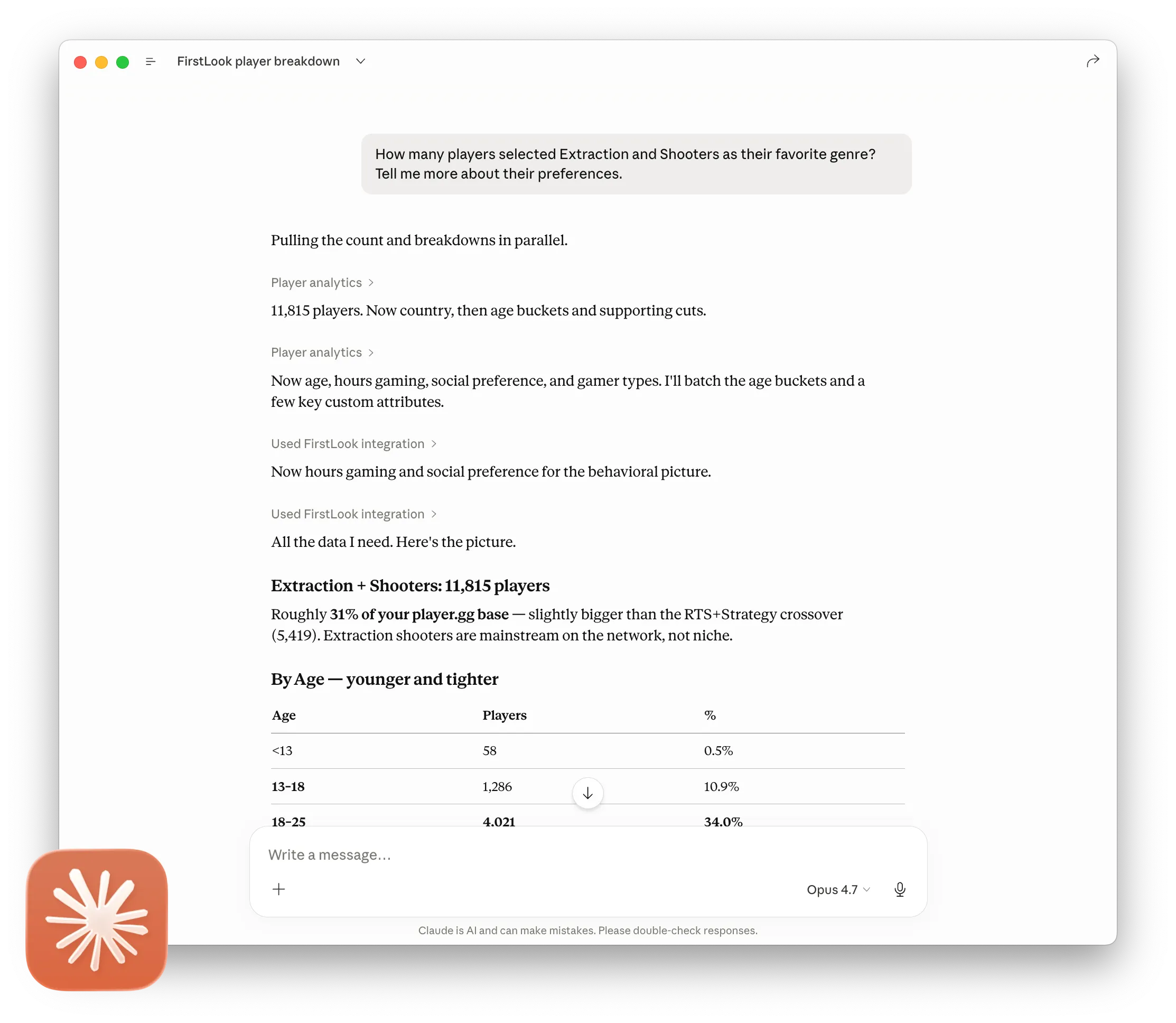
Section titled “Custom player attributes”Your AI assistant has access to all the custom questions you’ve configured on your game. If you’ve added signup questions like favorite genre, playstyle preference, or platform, you can query and break down players by those fields:
- “How many players selected Extraction Shooters as their favorite genre? Tell me more about their preferences.”
- “Break down my players by preferred playstyle”
- “What percentage of players chose PvP vs PvE?”
Analytics and comparisons
Section titled “Analytics and comparisons”- “Compare my signup numbers this week vs last week”
- “What countries are my players coming from?”
- “Show me player growth over the last 3 months”
Player counts
Section titled “Player counts”Use the dedicated count tool for fast totals without pulling full player records — useful when you just need a number:
- “How many players match my current filters?”
- “Count players who signed up through Discord”
Bulk actions
Section titled “Bulk actions”You can also manage players directly through your AI assistant:
- “Tag all players from the US with ‘na-region’”
- “Grant 5 invites to players who joined this week”
- “Update the role for players in my beta group”
Steam data
Section titled “Steam data”- “Show me recent Steam play sessions for my game”
- “Which players logged the most hours last week?”
In-dashboard Agent
Section titled “In-dashboard Agent”FirstLook Agent is the AI chat in the admin dashboard that communicates with the FirstLook MCP. Open the full page from Agent in the admin sidebar (Beta tag), or press Cmd + K / Ctrl + K and type /ask. Direct link: app.firstlook.gg/manage/*/agent.
In-page Agent
Section titled “In-page Agent”On most pages in the admin dashboard, an Agent control sits at the bottom of the layout. Click it to open a chat panel over the page you are already on.
A Focus on … chip shows which page in the admin dashboard you opened it from (for example Invites or Sentiment). Ask what the screen means, what a number is doing, or what to do next. Remove the chip for a general question about your playerbase.
Expand the panel for a longer reply, or open the full Agent page for chat history, skills, and New chat.
The Agent can look up players and flows, draft announcements, search these docs, and jump you to the right page in the admin dashboard. Before any change, it asks you to Accept or Decline in the chat.