Onboarding Creators
This is where you set up your program’s own branded sign-up flow — the page creators land on at your own domain, the steps they move through to apply, the emails they receive, and the content that counts toward your program. It’s the fully customized path into your program, as opposed to listing on Creators.gg, where creators discover you and join through the network’s quick one-click sign-up instead.
You control all of it under Configuration → Creators, and changes take effect as soon as you save. The pages below follow the order they appear there.
To Get Started
Section titled “To Get Started”Set up a dedicated path for creators to apply and get approved:
- Go to Configuration → Creators → Sign Up
- Toggle on Enable Sign Ups.
- (Optional) Toggle on Auto‑Accept Applications.
- Click Save.
Sign Up
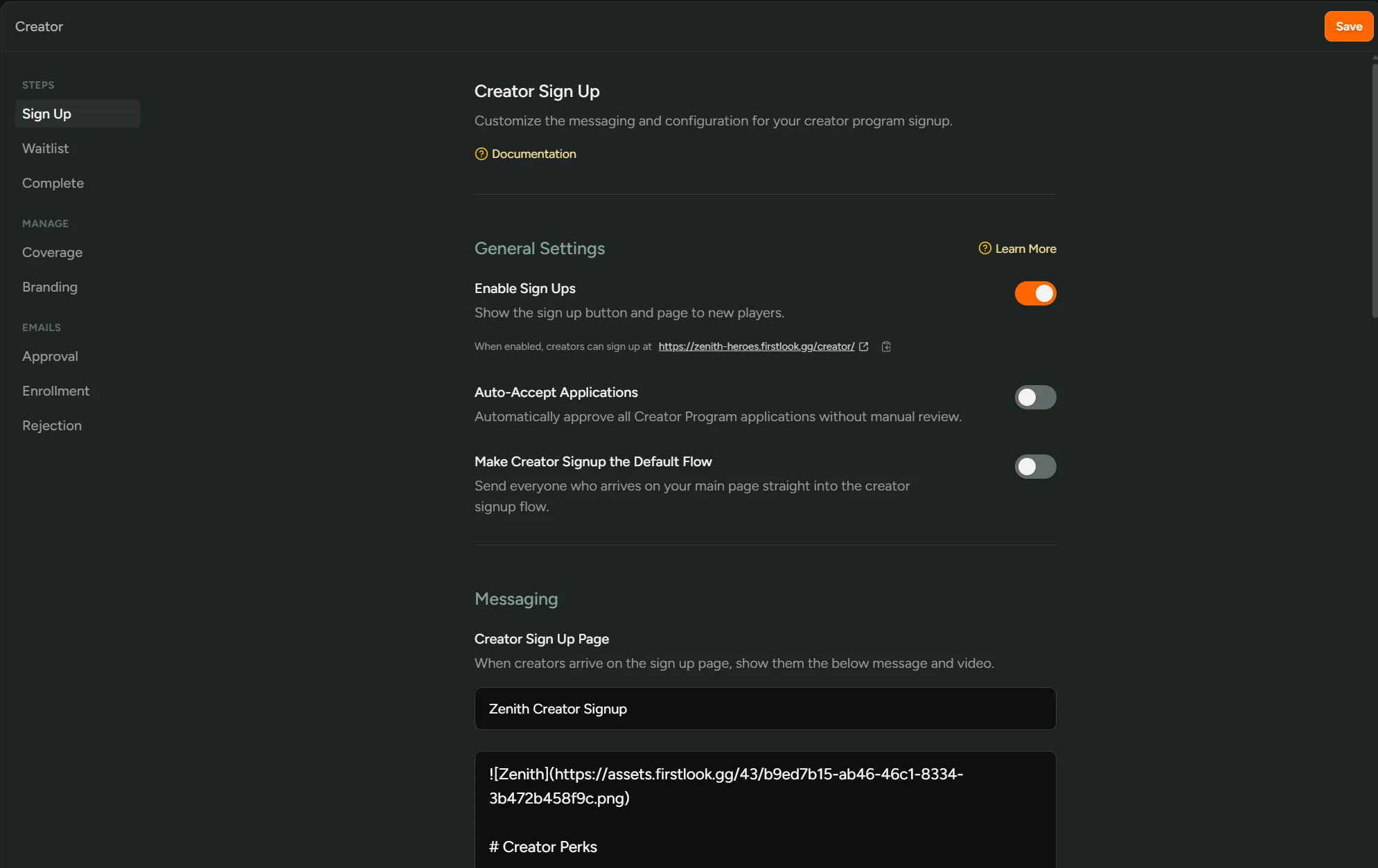
Section titled “Sign Up”Your creator program has a public sign-up page at <your-domain>/creator/. Players land on this page, read your program description, and connect their creators.gg account to apply. Existing players are automatically pre-filled with their linked accounts. Configure it under Configuration → Creators → Sign Up.
Here you set your landing page title, message, and video, choose which sign-up methods creators can (or must) use beyond email, and add custom questions to collect at application. Gaming accounts are used for sign-up gating; content tracking comes from the creator’s linked channels.
Waitlist
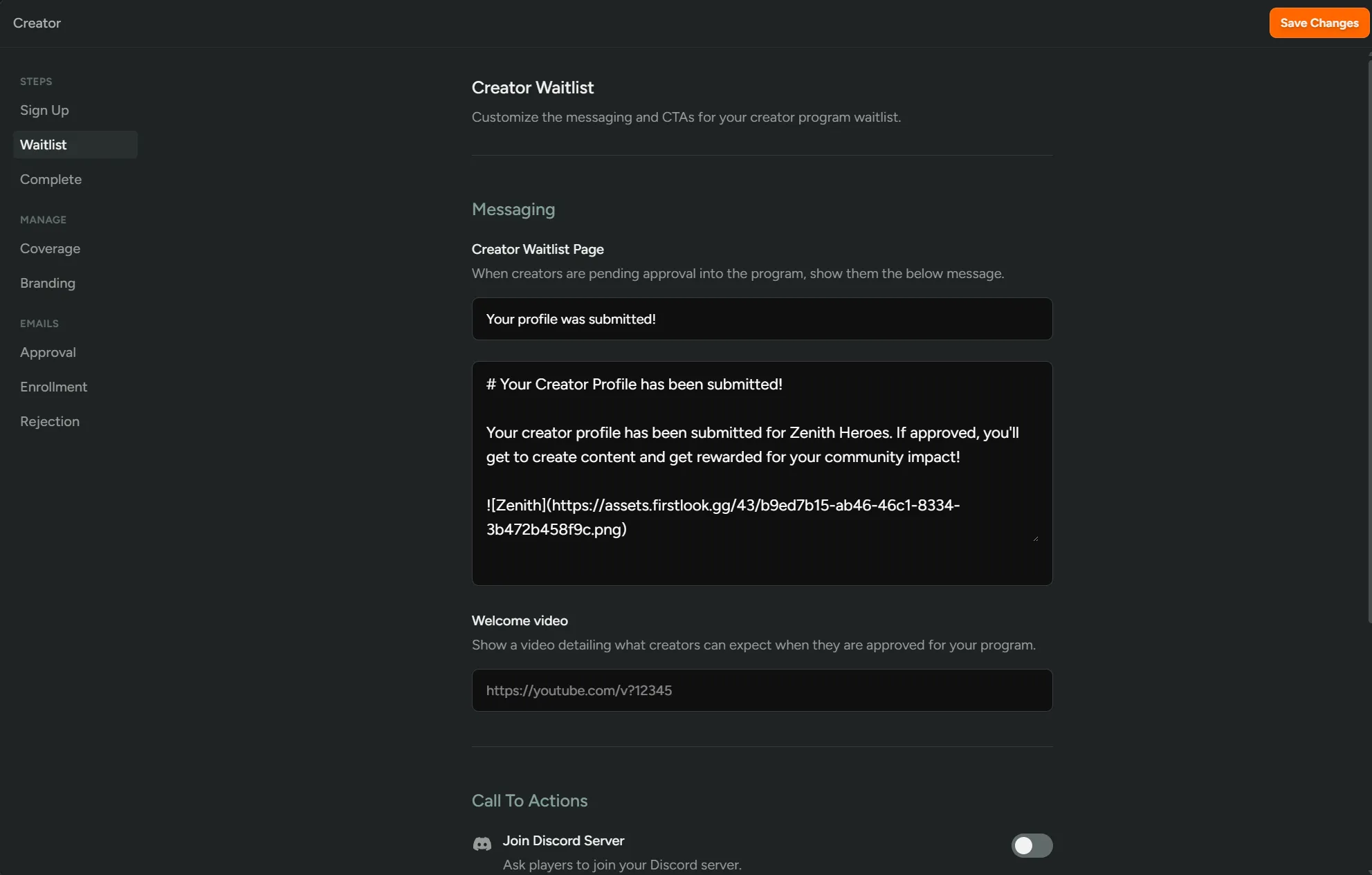
Section titled “Waitlist”After applying, creators whose applications are under review land on the waitlist page. This step only appears when Auto-Accept is turned off. Creators can still manage their profile while they wait. Configure it under Configuration → Creators → Waitlist.
Alongside the title, message, and video, you can add call-to-action buttons to keep creators engaged while they wait — a Discord invite, a Steam or console wishlist, or your own custom links.
Complete
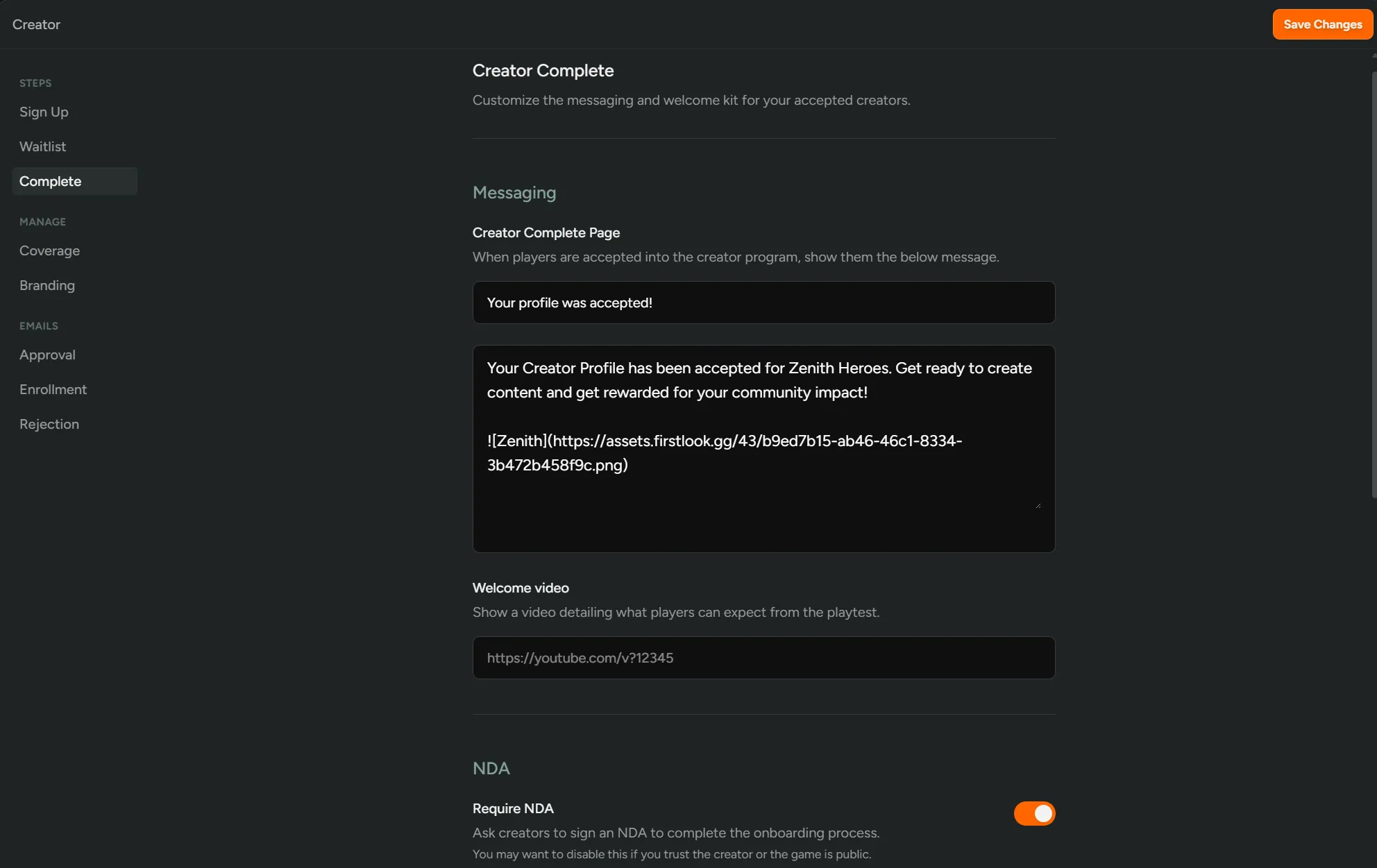
Section titled “Complete”This configures what approved creators land on in their creator dashboard — your welcome message and video, an optional welcome kit, and the keys and Discord roles they receive on approval. You can also require an NDA before they get access. If an application is rejected, the creator sees a system message on-screen. Configure it under Configuration → Creators → Complete.
Coverage
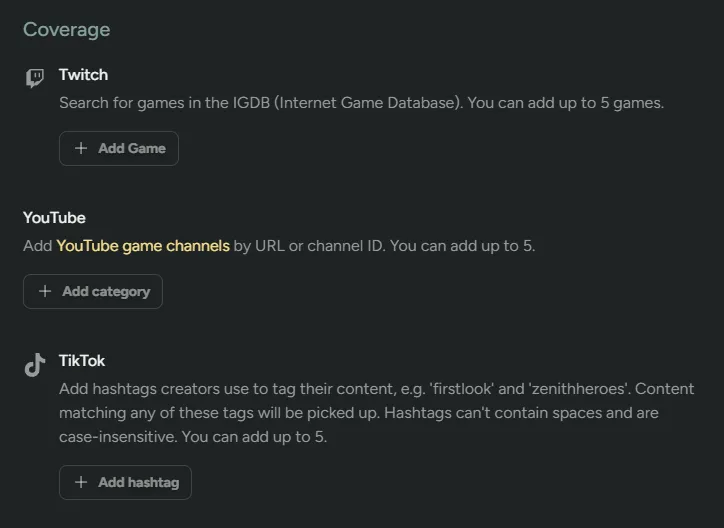
Section titled “Coverage”Coverage defines which creator content is tracked across your entire program — Twitch content is matched by game, YouTube by channel, and TikTok and Instagram by hashtags, with up to 5 filters per platform. Configure it under Configuration → Creators → Coverage.
Individual campaigns can narrow this further, and support tag matching on Twitch and YouTube that this page doesn’t — see Content Eligibility. For the full matching rules and content sources, see What content counts.
Branding
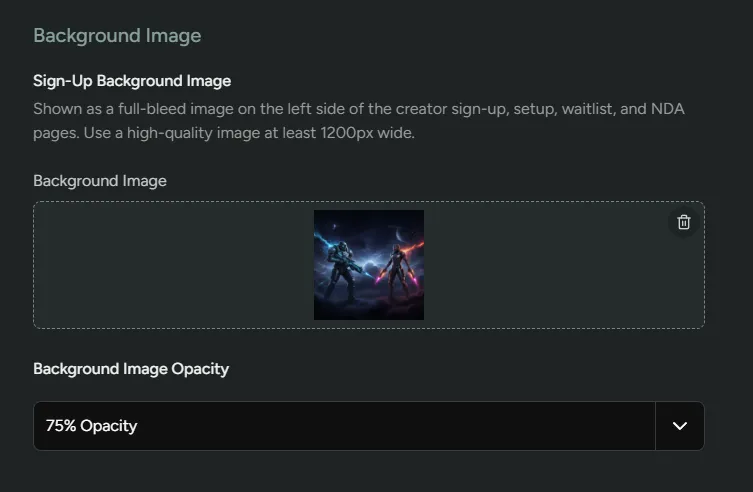
Section titled “Branding”Set a full-bleed background image and overlay opacity shown across the sign-up, setup, waitlist, and NDA pages. Configure it under Configuration → Creators → Branding.
Emails
Section titled “Emails”Three emails are sent automatically over a creator’s lifecycle. Each can be left on the default system template or replaced with a fully custom one using the built-in email composer, under Configuration → Creators → Approval, Enrollment, and Rejection.
| When it’s sent | |
|---|---|
| Approval | Sent when a creator’s application is approved. Includes a CTA that takes the creator to their creator dashboard. |
| Enrollment | Sent when you enroll an existing player as a creator. Includes a Set up Creator Profile CTA linking to your creator sign-up page. |
| Rejection | Sent when a creator’s application is rejected. |
Adding creators manually
Section titled “Adding creators manually”The public sign-up page isn’t the only way in. You can also:
- Enroll existing players — from Dashboard → Players, open a player and click More Actions → Enroll as Creator (or select several and enroll in bulk). This just emails them a link to apply — it doesn’t add them to your program automatically. To invite someone and accept them in one step, use Invites to the Creator role instead.
- Manually add a creator profile — from Creators → Profiles, click Add Creator and enter a name plus Twitch/YouTube/TikTok channel handles (an image is optional). No sign-up is needed — this creates a creator with the
Trackingstatus, useful for prospects you want to watch before they apply.