Unreal SDK Setup
The FirstLook Unreal SDK is an Unreal Engine plugin that will allow you to interface with FirstLook from your Unreal game. The plugin currently supports Steam login, in-game surveys, session tracking, custom events, custom duration events, player lookup, PlayFab identity linking, entitlements, and playtest watermarking.
The primary access point for the FirstLook SDK is the UFirstLookSubsystem which exposes a number of methods and delegates used to interact with FirstLook.
For this setup guide, we will assume you have an Unreal game project named MyGame.
Prerequisites
Section titled “Prerequisites”Acquire the FirstLookSDK from the admin dashboard.
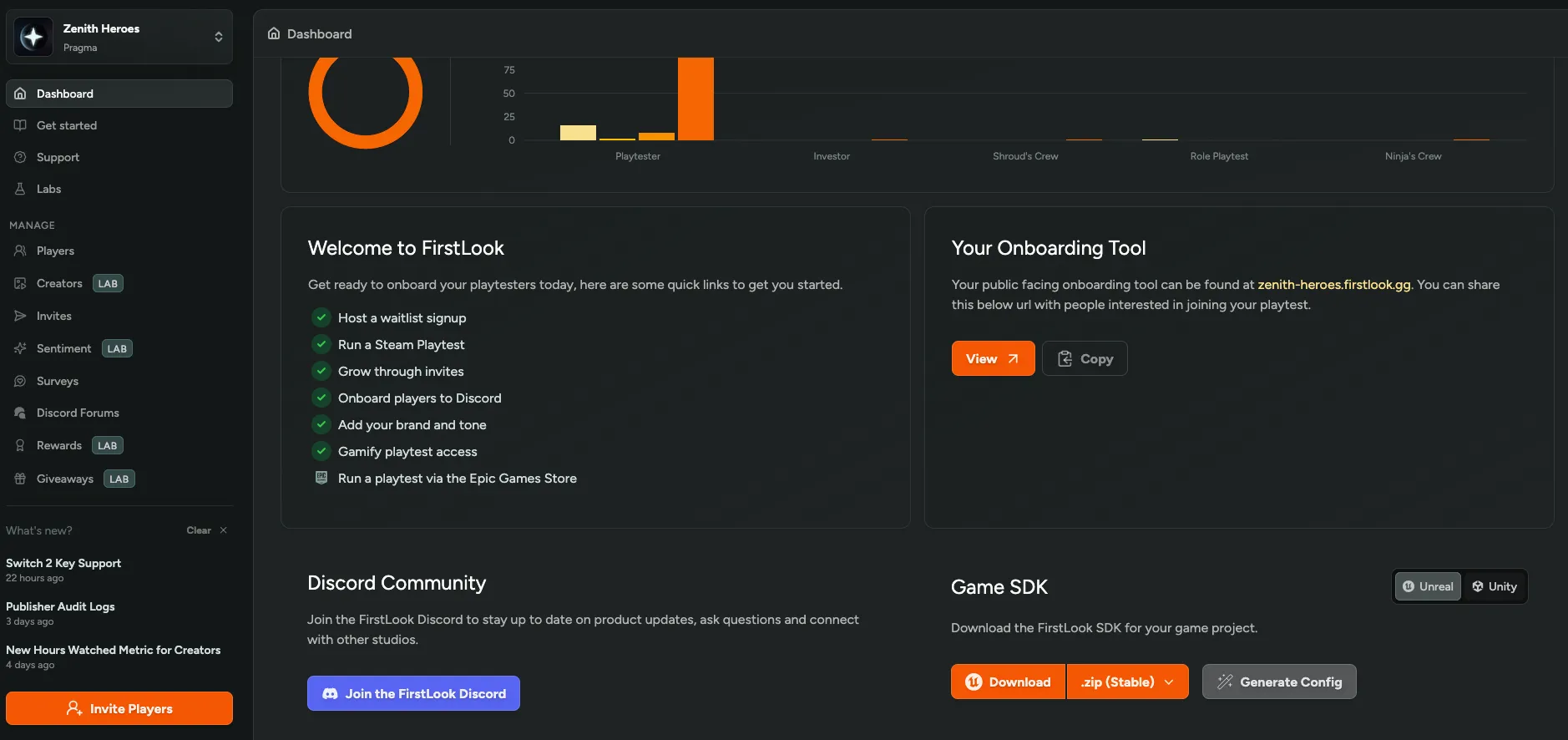
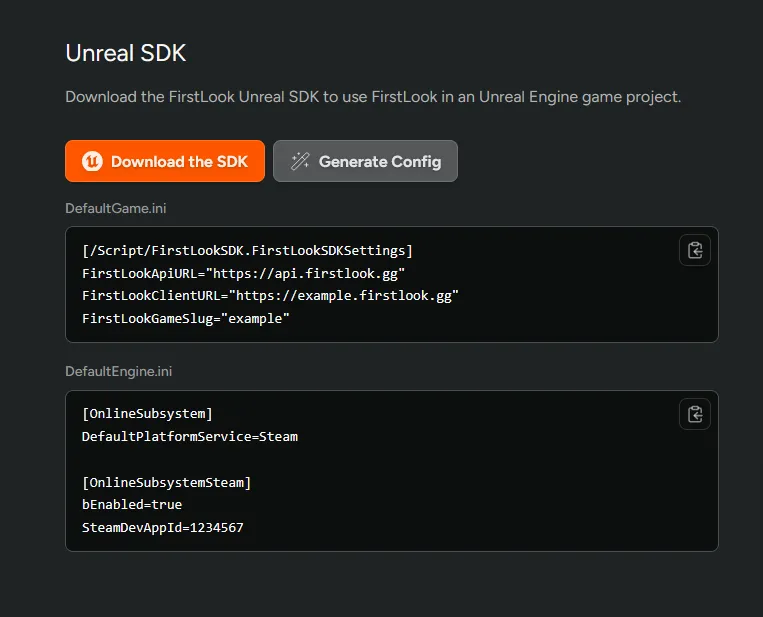
- Generate Unreal SDK configs.
- Setup your Steam game in FirstLook. See the Steam Integration.
Invite a test player to your playtest with their Steam account linked. See the Inviting Players.
Setting up the FirstLookSDK Plugin in Unreal
Section titled “Setting up the FirstLookSDK Plugin in Unreal”Now that you’ve acquired the FirstLookSDK and set up your game in FirstLook, we can install the plugin into your Unreal project.
Move the
FirstLookSDKplugin toMyGame/Plugins/FirstLookSDK. Create theMyGame/Pluginsdirectory if one does not already exist.Register the
FirstLookSDKplugin in theMyGame.uprojectfile."Plugins": [{"Name": "FirstLookSDK","Enabled": true}]Add the
FirstLookSDKplugin as a dependency in theMyGame.Build.csfile.PrivateDependencyModuleNames.AddRange(new string[] {"FirstLookSDK"});In the Unreal Editor, configure the
FirstLookSDKplugin settings forFirstLookApiURL,FirstLookClientURL, andFirstLookGameSlugunder:Edit > ProjectSettings > Plugins > FirstLook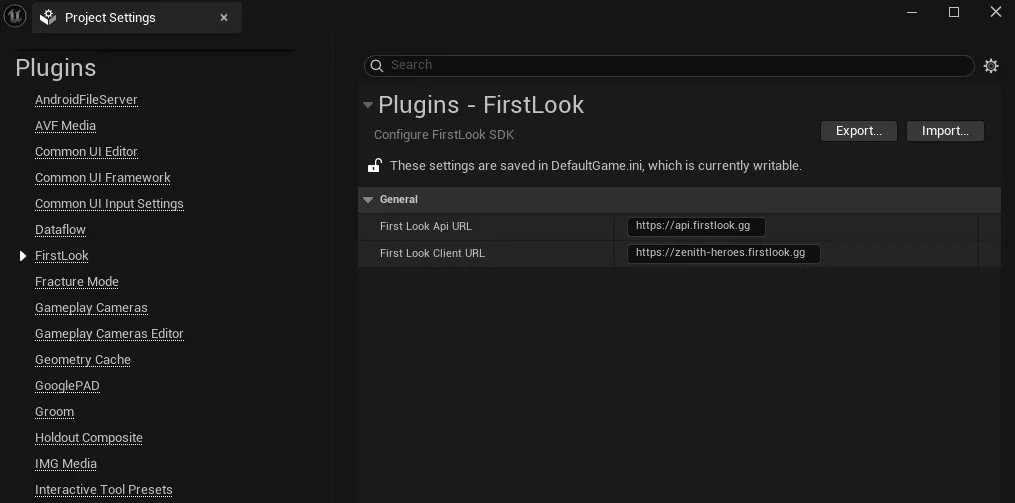
Alternatively, configure the plugin in the
DefaultGame.inifile:[/Script/FirstLookSDK.FirstLookSDKSettings]FirstLookApiURL="https://api.firstlook.gg"FirstLookClientURL="https://<game-slug>.firstlook.gg"FirstLookGameSlug="<game-slug>"(Replace
<game-slug>with your FirstLook game slug)
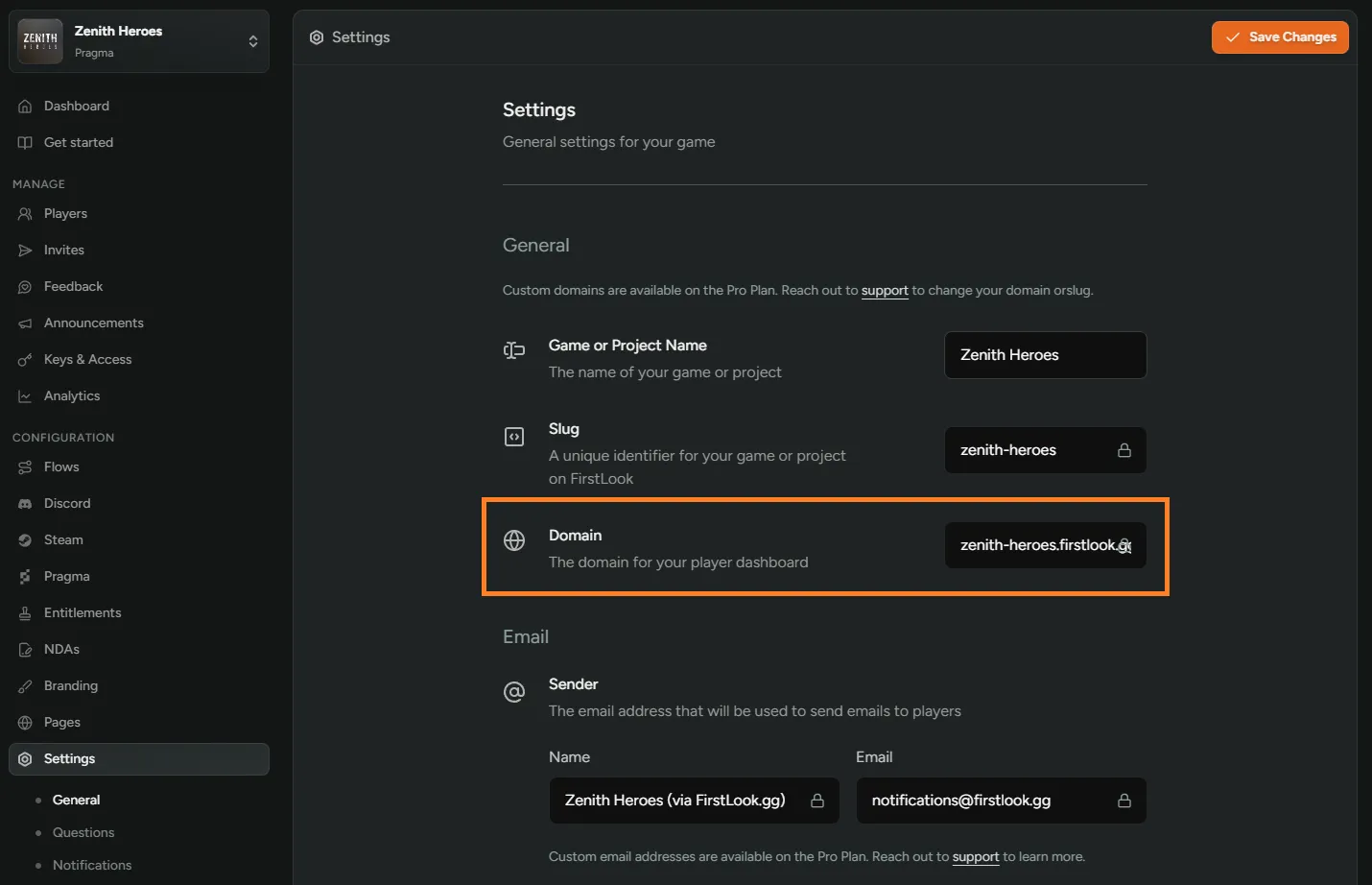
To find your client URL, check your domain from your FirstLook settings:
Configure
OnlineSubsystemSteamin theDefaultEngine.inifile.[OnlineSubsystem]DefaultPlatformService=Steam[OnlineSubsystemSteam]bEnabled=trueSteamDevAppId=<steam-app-id>(Replace
<steam-app-id>with your Steam app ID)The SDK reads the Steam app ID from the running Steam client, falling back to
SteamDevAppIdonly when Steam is unavailable. A single packaged build can therefore be shipped against multiple Steam app IDs, it reports whichever app the player actually launched.SteamDevAppIdis still required soOnlineSubsystemSteamcan initialise, and it remains the value used in the editor.Setup Unreal
CommonUI.Follow Step 1 of this guide to set the default
Game Viewport Client ClasstoCommonGameViewportClient.
Testing out FirstLook Steam Login
Section titled “Testing out FirstLook Steam Login”Now that the FirstLookSDK Unreal plugin is properly setup, FirstLook Steam login will work out of the box since it is automatically called during the FirstLook subsystem initialization. There are just a few steps we need to take in order to test the integration locally.
In the Unreal Editor, enable logging for Standalone Game mode
Under
Edit > Editor Preferences, navigate to:Level Editor > Play > Play in Standalone Game > Additional Launch ParametersAdd
-logas a launch parameter
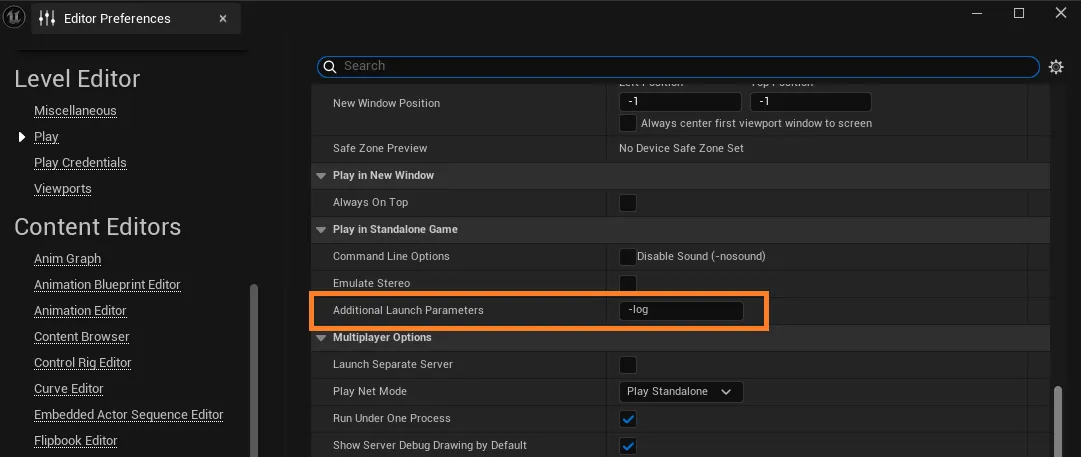
Play as Standalone Game
In the output log, you should see log line indicating a successful login from the
LogFirstLookSDKlog categorye.g.
LogFirstLookSDK: Verbose: Login succeeded.
Authentication State
Section titled “Authentication State”The subsystem authenticates once, while it initializes: with Steam when a Steam ticket and app ID are available, otherwise anonymously. Calls made before authentication finishes are not queued. The SDK skips them and logs a single warning:
LogFirstLookSDK: Warning: FirstLook is not authenticated yet; <url> was skipped. Wait for OnFirstLookReady before calling the SDK.
A skipped call usually gets no reply, so its delegate never fires. A few calls answer immediately instead, so bind their delegates before calling: entitlement calls fire their failure delegate with 401 and Not authenticated, and PostEvent, GetFeedbackSurvey, and GetTriggeredSurveys report no survey available.
If authentication fails, the SDK logs that every FirstLook API call is skipped for this session and fires OnAuthenticationFailed. A failed login lasts until the game restarts.
OnFirstLookReady and OnAuthenticationFailed are native events, so bind them with AddUObject or AddLambda. Each fires once, so check IsAuthenticated() and HasAuthenticationFailed() first in case authentication finished before you bound.
void UMainMenu::NativeConstruct(){    Super::NativeConstruct();
    if (UFirstLookSubsystem* FirstLook = GetOwningLocalPlayer()->GetSubsystem<UFirstLookSubsystem>())    {        if (FirstLook->IsAuthenticated())        {            HandleFirstLookReady();        }        else if (FirstLook->HasAuthenticationFailed())        {            HandleFirstLookFailed();        }        else        {            FirstLook->OnFirstLookReady.AddUObject(this, &UMainMenu::HandleFirstLookReady);            FirstLook->OnAuthenticationFailed.AddUObject(this, &UMainMenu::HandleFirstLookFailed);        }    }}
Call Is Authenticated before any FirstLook node, and Has Authentication Failed to tell “not yet” apart from “failed for this session”. The ready and failed events are C++ only.
Testing out In-Game Surveys
Section titled “Testing out In-Game Surveys”Now that you are able to successfully login to FirstLook, you will be able to use the FirstLook subsystem to trigger in-game surveys.
Create a survey with game client distribution enabled. See the Creating a Survey
Setup a trigger for your newly created survey. See the Setting Up Triggers.
Register the survey delegates in Unreal:
UFirstLookSubsystem::OnNewNativeSurveyAvailable:The
WBP_Survey_Screenwidget should be displayed when this delegate is called. This widget can be found under:MyGame/Plugins/FirstLookSDK/Content/UI_Survey/Widgets/WBP_Survey_Screen.uasset
UFirstLookSubsystem::OnNewBrowserSurveyAvailable:Hooked up by default to show a Steam browser overlay using
UFirstLookSubsystem::ActivateSurveyBrowserOverlay
Make a call to
UFirstLookSubsystem::PostEventwith the trigger you created for your survey. If the trigger condition is met, this will trigger one of the delegates that we setup in the previous step depending on the configured survey distribution channel.
Sessions and Events
Section titled “Sessions and Events”Session Tracking
Section titled “Session Tracking”The FirstLook SDK automatically tracks player sessions without any additional code on your part. A session begins when the UFirstLookSubsystem initializes, and ends when the game client shuts down gracefully. Players who haven’t created a FirstLook account yet are still tracked — they’ll appear as Unlinked players in your dashboard, with their Steam account associated if they’re signed in.
Once sessions are being recorded, you’ll see player activity and session duration data on the Analytics page under the Retention tab, as well as on each individual Player Profile.
Custom Events
Section titled “Custom Events”Beyond automatic session tracking, you can instrument your own gameplay events to capture whatever matters most to your studio — hero selections, match outcomes, store purchases, and more. Use the PostCounterEvent method on the UFirstLookSubsystem to send a named counter with an integer value:
UCLASS()class FIRSTLOOKSDK_API UFirstLookSubsystem : public ULocalPlayerSubsystem{public:    // ...    UFUNCTION(BlueprintCallable, Category = FirstLook)    void PostCounterEvent(FString CounterName, int32 Count);
    UFUNCTION(BlueprintCallable, Category = FirstLook)    void PostCounterEventWithParam(FString CounterName, FString Param, int32 Count);    // ...}
Example
Section titled “Example”Below is an example of posting a counter event from a UCommonActivatableWidget. In this case, we’re recording that a player selected a hero from the loadout screen:
void UMainMenu::HandleSendCounterEventClicked(){ if (ULocalPlayer* OwningLocalPlayer = GetOwningLocalPlayer(); OwningLocalPlayer != nullptr) { if (UFirstLookSubsystem* FirstLookSubsystem = OwningLocalPlayer->GetSubsystem<UFirstLookSubsystem>()) { FirstLookSubsystem->PostCounterEvent("loadout.hero-a-selected", 1); } }}Naming and Grouping Events
Section titled “Naming and Grouping Events”Event names follow a <category>.<event-type> convention. When you use this pattern, FirstLook will automatically group related events together on the Analytics page and on Player Profiles, making it easy to browse metrics by category.
Choose a category namespace that reflects where the event occurs in your game — for example, match, lobby, menu, store, or in-game. You’re free to define as many categories as you need.
Parameters
Section titled “Parameters”Use PostCounterEventWithParam to split one event into variants, such as the level a player started or the item they bought, without defining a new event name for each. The same function is available in Blueprints as the Post Counter Event With Param node.
void UGameplayHud::HandleLevelStarted(const FString& LevelId){ if (ULocalPlayer* OwningLocalPlayer = GetOwningLocalPlayer(); OwningLocalPlayer != nullptr) { if (UFirstLookSubsystem* FirstLookSubsystem = OwningLocalPlayer->GetSubsystem<UFirstLookSubsystem>()) { FirstLookSubsystem->PostCounterEventWithParam("level.started", LevelId, 1); } }}FirstLook stores the variant as level.started#forest_3, charts it under the base event on the Analytics page, and sums every variant into the base total. Parameters are trimmed and lowercased, may be at most 64 characters, and must not contain #. An empty parameter sends a plain event, and PostCounterEvent keeps working unchanged. Keep the set of values small, because each distinct parameter is tracked as its own variant.
Custom Duration Events
Section titled “Custom Duration Events”Counter events record that something happened, but sometimes you need to know how long something took. Duration events let you measure elapsed time between two explicit points in your game — a match, a loading screen, time spent in a menu, or any other span you want to track.
The SDK exposes a StartDurationEvent / EndDurationEvent pair on the UFirstLookSubsystem:
UCLASS()class FIRSTLOOKSDK_API UFirstLookSubsystem : public ULocalPlayerSubsystem{public:    // ...    UFUNCTION(BlueprintCallable, Category = FirstLook)    void StartDurationEvent(FString DurationName);
    UFUNCTION(BlueprintCallable, Category = FirstLook)    void EndDurationEvent(FString DurationName);    // ...}
Call StartDurationEvent when the activity begins and EndDurationEvent when it finishes. The SDK handles timing and delivery — you just provide a name.
Example
Section titled “Example”Below is an example that tracks how long a player spends in a match. StartDurationEvent is called when the match begins, and EndDurationEvent when it ends:
void AMyGameMode::OnMatchStart(){    for (APlayerController* PC : GetWorld()->GetPlayerControllerIterator())    {        if (ULocalPlayer* LP = PC->GetLocalPlayer())        {            if (UFirstLookSubsystem* FirstLook = LP->GetSubsystem<UFirstLookSubsystem>())            {                FirstLook->StartDurationEvent("match.round");            }        }    }}
void AMyGameMode::OnMatchEnd(){    for (APlayerController* PC : GetWorld()->GetPlayerControllerIterator())    {        if (ULocalPlayer* LP = PC->GetLocalPlayer())        {            if (UFirstLookSubsystem* FirstLook = LP->GetSubsystem<UFirstLookSubsystem>())            {                FirstLook->EndDurationEvent("match.round");            }        }    }}
Naming and Grouping Events
Section titled “Naming and Grouping Events”Duration event names follow the same <category>.<event-type> convention as counter events. FirstLook automatically groups them by category prefix on the Analytics page.
Build Versions
Section titled “Build Versions”Sessions, counter events, and duration events each record a build_version. FirstLook stores it as opaque text, so the format is entirely your studio’s choice: a semver, a CI build number, a branch-plus-commit string. Pick one convention and keep it stable, since the build filters on player filters match exact values.
By default the SDK reads your project version, so there is nothing to wire up: UFirstLookSubsystem reads ProjectVersion from [/Script/EngineSettings.GeneralProjectSettings] at startup, which is the value you set in Project Settings > Project > Description > Version.
To supply your own value instead, call OverrideBuildVersion (available in Blueprint and C++):
FirstLook->OverrideBuildVersion(TEXT("1.4.2"));Players
Section titled “Players”Current Player
Section titled “Current Player”Call GetCurrentPlayer and bind OnCurrentPlayerAvailable to read the authenticated player’s FirstLook record, for example to decide whether to show a claim prompt.
void UMainMenu::RefreshPlayer(){    UFirstLookSubsystem* FirstLook = GetOwningLocalPlayer()->GetSubsystem<UFirstLookSubsystem>();    FirstLook->OnCurrentPlayerAvailable.AddUniqueDynamic(this, &UMainMenu::HandleCurrentPlayer);    FirstLook->GetCurrentPlayer();}
// Declared as a UFUNCTION, as AddDynamic requires.void UMainMenu::HandleCurrentPlayer(const FFirstLookCurrentPlayerResponse& CurrentPlayer){    if (CurrentPlayer.player.IsUnlinked())    {        GetOwningLocalPlayer()->GetSubsystem<UFirstLookSubsystem>()->GetPlayerClaim();    }}
Bind On Current Player Available, then call Get Current Player. Break the result and compare Player > State to unlinked; the IsUnlinked() and IsLinked() helpers are C++ only.
FFirstLookCurrentPlayerResponse carries player (id, state), steam (steam_id, empty when no Steam account is linked), discord (discord_id), and role (id, name). state is the player’s state as a lowercase string.
OnCurrentPlayerAvailable fires only on success. Failures are logged as GetCurrentPlayer failed: ....
Onboard Unlinked Players
Section titled “Onboard Unlinked Players”The SDK creates new players in the Unlinked state. You can give these players a link that lets them claim their account and onboard to complete their profile, unlocking emails, rewards, Discord, friend invites, and everything else their role provides.
From Game Flow
Section titled “From Game Flow”To onboard unlinked players, first configure the From Game flow in the dashboard.
- Enable the Unlinked Claiming toggle on the SDK configuration page.
- Configure the Claim, Onboarding, and Complete steps of the From Game flow.
- Optional - configure the role.
Provide Claim Link
Section titled “Provide Claim Link”After the From Game flow is set up, your game client can call the SDK method UFirstLookSubsystem::GetPlayerClaim and bind to the OnPlayerClaimAndCodeAvailable delegate. When the delegate is triggered, it provides a URL and a Base64-encoded QR code. Present this link or QR code to the player to allow them to complete email verification and any onboarding steps configured in the From Game flow.
Linking External Identities
Section titled “Linking External Identities”After authentication has finished, call LinkIdentity with the provider name and the player’s ID on that service so FirstLook can match the two records. PlayFab is currently the only supported provider:
FirstLook->LinkIdentity(TEXT("playfab"), PlayFabId);LinkIdentity reports its result only in the log. A failed link logs Failed to link identity playfab (response code ...) with the reason: 403 if linking is not enabled for your game (contact FirstLook), 409 if the ID belongs to another player, and 422 if it is empty or longer than 64 characters. Relinking the player’s own ID succeeds, so it is safe to call on every startup.
Entitlements
Section titled “Entitlements”Entitlements are in-game items you grant to players from FirstLook. The SDK delivers entitlements of the FirstLook type: create one under Entitlements in the dashboard, then grant it to players, for example with the Grant Entitlement bulk action. Your game fetches a player’s outstanding entitlements, grants the items, and redeems each one so it is not delivered again. Pragma entitlements are delivered through Pragma instead and don’t appear here. If Entitlements doesn’t appear in your dashboard, contact FirstLook to enable it.
| Call | Success | Failure |
|---|---|---|
GetEntitlements() | OnEntitlementsAvailable(Entitlements), an empty array when there are none | OnEntitlementsRequestFailed(StatusCode, Error) |
RedeemEntitlement(EntitlementId) | OnEntitlementRedeemed(EntitlementId, RedeemedAt) | OnEntitlementRedeemFailed(EntitlementId, StatusCode, Error) |
void UInventoryWidget::NativeConstruct(){    Super::NativeConstruct();
    if (UFirstLookSubsystem* FirstLook = GetOwningLocalPlayer()->GetSubsystem<UFirstLookSubsystem>())    {        FirstLook->OnEntitlementsAvailable.AddDynamic(this, &UInventoryWidget::HandleEntitlements);        FirstLook->GetEntitlements();    }}
void UInventoryWidget::HandleEntitlements(const TArray<FFirstLookEntitlement>& Entitlements){    UFirstLookSubsystem* FirstLook = GetOwningLocalPlayer()->GetSubsystem<UFirstLookSubsystem>();    for (const FFirstLookEntitlement& Entitlement : Entitlements)    {        // Key the grant on Entitlement.id so a retried redeem grants the item once.        GrantItemOnce(Entitlement.id, Entitlement.sku);        FirstLook->RedeemEntitlement(Entitlement.id);    }}
Bind On Entitlements Available, then call Get Entitlements. Loop over the array, grant each item once by its Sku, and call Redeem Entitlement with its Id. Bind On Entitlement Redeem Failed to catch failures.
Each FFirstLookEntitlement carries id, entitlement_type, name, sku, redeemable_type_id, and created_at. Match items on sku, the Entitlement ID you set in the dashboard, and never on name, which is a display string that can be translated or renamed.
Redeeming is one-shot. Redeeming the same entitlement again fails with 400 and Entitlement already redeemed, which usually means an earlier attempt succeeded, so treat it as done.
Watermark Overlay
Section titled “Watermark Overlay”The SDK can watermark your playtest builds. Each session gets a unique code, and the SDK tiles it across the screen at an angle, drifting slowly, with the center always covered so cropping can’t remove it. If a screenshot or stream leaks, the code traces it back to the player and session it came from.
- On the SDK configuration page, turn on Enable Watermark under Playtest Watermark, then click Save Changes.
- After the session starts, the SDK fetches the session’s code and draws the overlay on the first local player’s viewport automatically.
- To trace a leak, enter the code on the Search watermark page to find the player and session it belongs to.
FirstLook controls only whether the watermark is on. How it looks is set in your project, under Edit > Project Settings > Plugins > FirstLook in the Watermark section, or in DefaultGame.ini:
[/Script/FirstLookSDK.FirstLookSDKSettings]WatermarkOpacity=0.18WatermarkTileDensity=5.0WatermarkAngleDegrees=30.0WatermarkDriftSpeed=0.5bWatermarkIncludeCenter=True| Setting | Default | Range | Effect |
|---|---|---|---|
WatermarkColor | White | Text color | |
WatermarkOpacity | 0.18 | 0 to 1 | Text opacity |
WatermarkTileDensity | 5.0 | 1 to 12 | Roughly how many codes fit across the screen width |
WatermarkAngleDegrees | 30.0 | 0 to 90 | Tilt of the grid |
WatermarkDriftSpeed | 0.5 | 0 to 2 | 0 holds the grid still |
bWatermarkIncludeCenter | true | Keeps the screen center covered |
OnWatermarkEnabled fires once per session when the overlay appears, carrying the code. The overlay renders itself, so bind it only if you want to tell players their session is watermarked. It is available in Blueprint as On Watermark Enabled.
If watermarking is not enabled for your game, the SDK logs Watermark: watermarking is not enabled for this game. Contact FirstLook to enable it. and the game runs without an overlay. Transient fetch failures are retried, and a fetch that keeps failing leaves the game running without one.