Tags
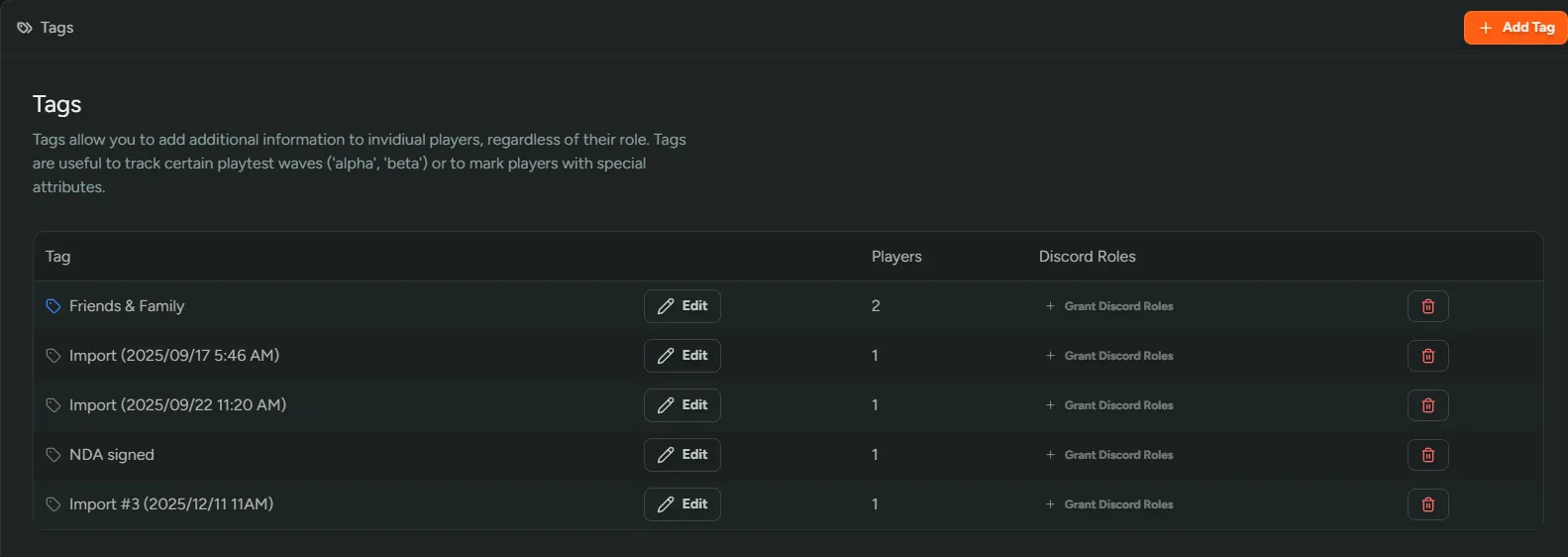
Tags can be managed from Settings → Tags. Here you can add, edit and delete tags. They are incredibly helpful when assigning to cohorts of players which can later be filtered.
Manual Tags
Section titled “Manual Tags”Manual tags are assigned and removed by hand. They’re ideal for one-off groupings like event invitees or hand-picked beta testers.
Creating a New Tag
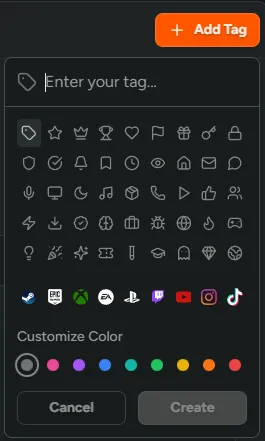
Section titled “Creating a New Tag”To create a new tag, select Add Tag. When adding a new tag you’ll be able to create a tag name, assign an icon and color.
Assigning and Removing Tags
Section titled “Assigning and Removing Tags”You can tag individual players from the player detail page, or tag many players at once using Bulk Actions on the Players list. Tags can also be removed from either location.
Smart Tags
Section titled “Smart Tags”Smart Tags assign themselves. You define a set of filter conditions and FirstLook tags every player who matches. A “High Engagement” tag that requires 10+ hours of playtime adds players as they cross that threshold and drops them when they no longer qualify. Membership re-evaluates whenever player data changes, with a full reconciliation every 3 hours as a safety net.
Smart Tags accept the same conditions as the Players search (player role, analytics events, survey responses, and other player filters) and work everywhere regular tags do: filtering, announcements, Discord role grants, and bulk actions. The only difference is that membership is automatic.
Creating a Smart Tag
Section titled “Creating a Smart Tag”- Select Add Tag to open the tag editor
- Enter a tag name, icon, and color
- Select Make Smart Tag… to open the criteria editor
- Define your filter conditions. These are the same filters available on the Players search page.
- Review the Matched Players count at the bottom to preview how many players will be tagged
- Select Save as Smart Tag to confirm the criteria
- Back in the tag editor, select Create to save the tag
FirstLook will immediately evaluate the criteria and tag all matching players.
Editing Smart Tag Criteria
Section titled “Editing Smart Tag Criteria”To update the filter conditions on an existing Smart Tag, click Edit on the tag’s row in the Tags list, then select Edit Smart Tag Criteria. Adjust your conditions and select Update Criteria, then select Save in the tag editor to apply. FirstLook will re-evaluate the tag and update membership, adding newly matched players and removing players who no longer qualify.
Removing a Smart Tag
Section titled “Removing a Smart Tag”If you no longer want a tag to be automatic, you can convert it back to a manual tag. Open the Smart Tag criteria editor and select Remove Smart Tag. This will:
- Remove all auto-assigned players from the tag
- Convert the tag back to a manual tag that you can assign by hand
How Smart Tags Stay in Sync
Section titled “How Smart Tags Stay in Sync”- When a player’s data changes (new analytics events, role changes, profile updates), their Smart Tag membership re-evaluates immediately.
- When you update a Smart Tag’s filter conditions, a full re-evaluation runs against all players.
- Every 3 hours, all Smart Tags across all games are fully re-evaluated as a safety net to catch changes that weren’t triggered by the event-driven paths.
Smart Tag Restrictions
Section titled “Smart Tag Restrictions”Because Smart Tag membership is managed automatically, you cannot manually add or remove players from a Smart Tag. The tag picker on the player detail page and bulk actions will show Smart Tags as read-only. To change who is tagged, update the Smart Tag’s filter criteria instead.
Discord Roles
Section titled “Discord Roles”Both manual tags and Smart Tags can grant Discord roles. To add a Discord role, navigate to the tag and select + Grant Discord Roles. Select the Discord role from the list and click Save.
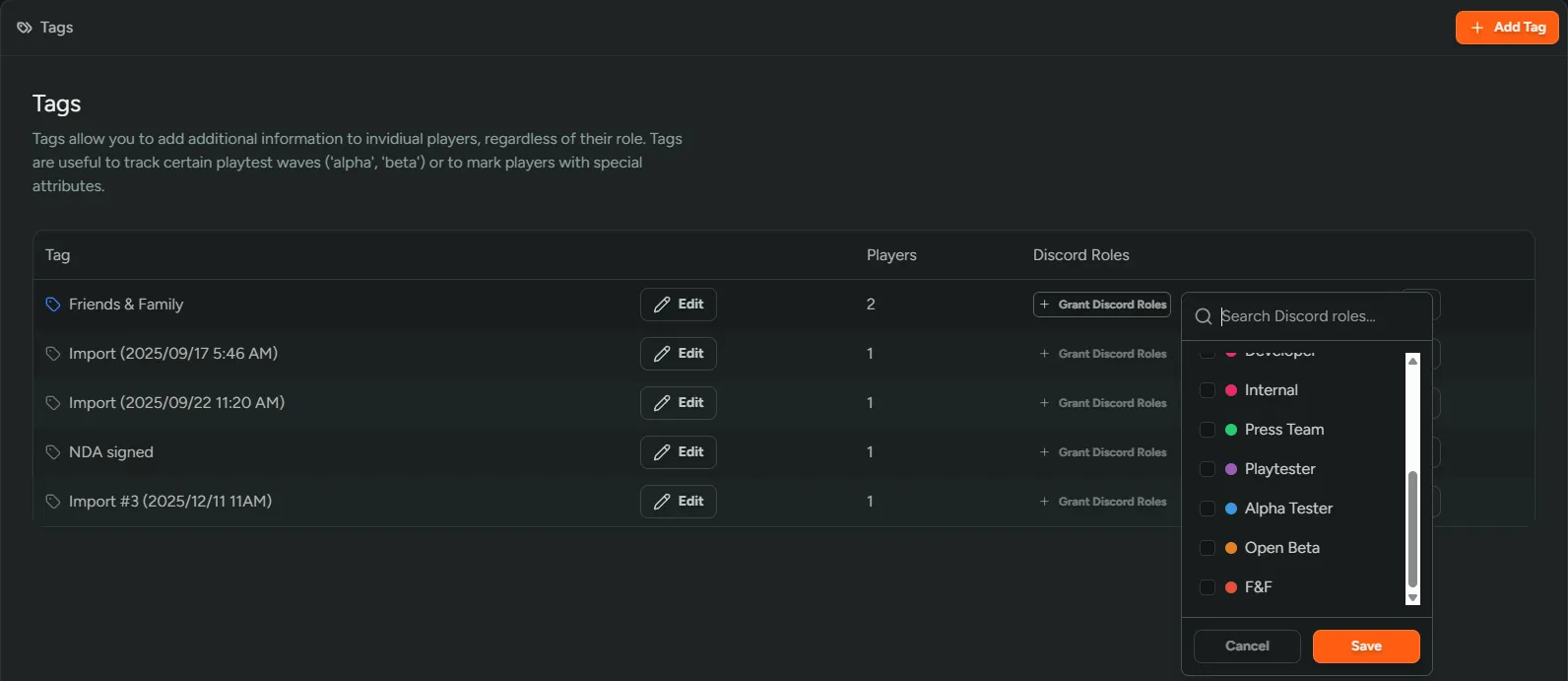
When you assign Discord roles to a tag, all players with that tag automatically receive those roles, and they’re removed when the tag is removed. With Smart Tags, players gain and lose Discord roles automatically as they enter and leave the tag.
How role assignment works in combination with Player Roles:
- Players receive Discord roles from both their combined Player Role and all assigned tags
- When a player’s Player Role changes, any Discord roles granted by tags are preserved
- Updating the Discord roles on a tag automatically updates all players with that tag
- Removing a tag from a player removes the Discord roles granted by that tag, unless those same roles are still granted by the Player Role or another tag
- Deleting a tag removes its Discord roles from all players, unless those roles are still granted by the Player Role or another tag