Retention and Events
Retention
Section titled “Retention”Track how your players are engaging with your game over time using data collected directly from the game client via the FirstLook SDK. Use the date picker to select a time range — the graphs will automatically bucket values by hour, day, or week depending on the window you’ve chosen.
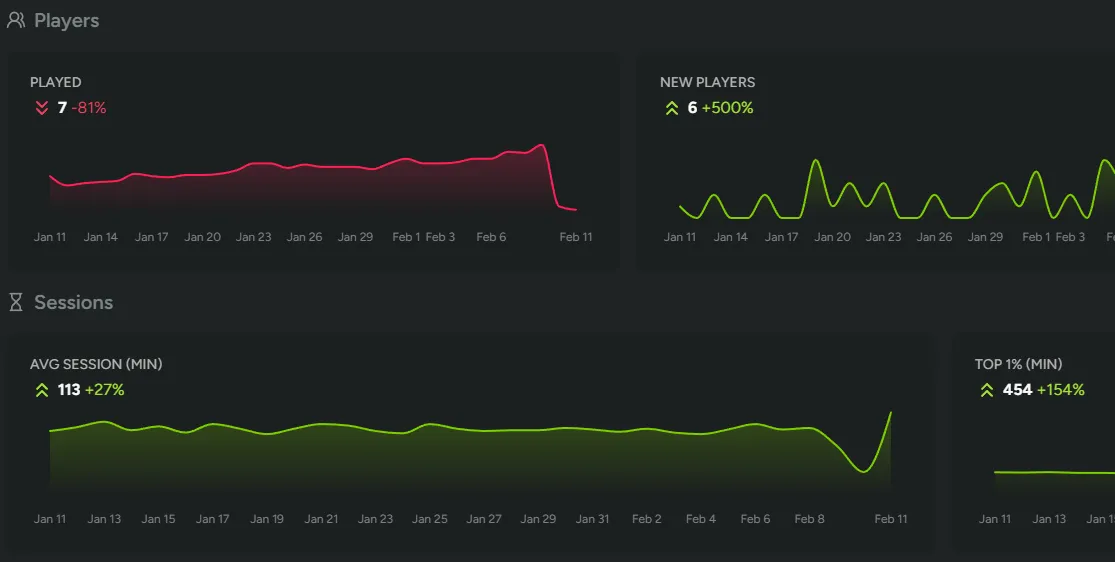
Players
Section titled “Players”Get a high-level view of your player population across the selected time range:
- Played - The number of unique players who launched a session.
- New Players - First-time players who were seen for the first time during this period.
- Total Players - Your cumulative player count.
Sessions
Section titled “Sessions”Understand how long players are spending in your game per session:
- Average Session Length - The mean session duration in minutes across all players.
- Top 1% Session Length - How long your most engaged players are playing, measured by the 99th percentile session duration.
Classic Retention
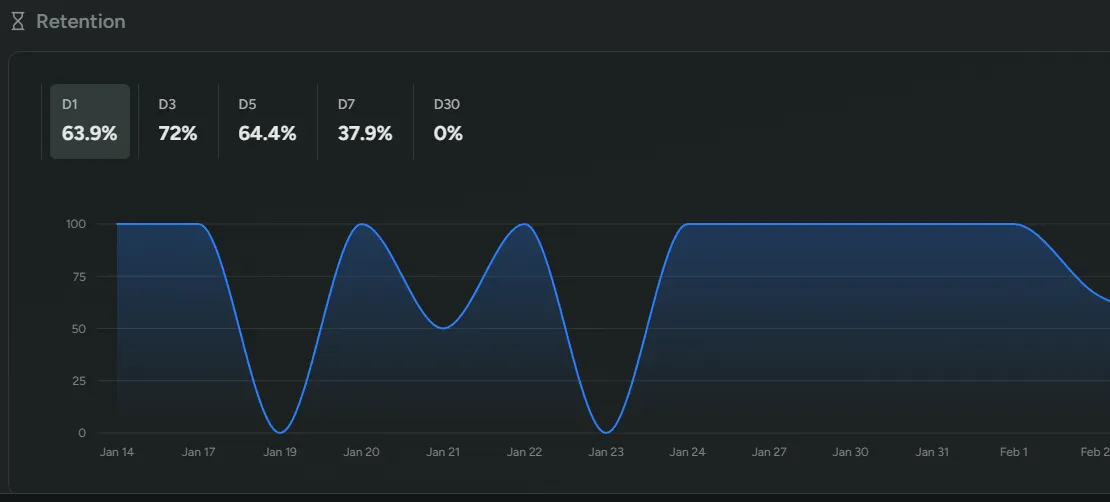
Section titled “Classic Retention”Measure how well your game brings players back with classic day-based retention:
- Classic Retention - D1, D3, D5, D7, D30.
Classic retention tracks the percentage of a cohort that returns on a specific day after first playing. For example, D1 retention tells you how many players came back the very next day, while D30 gives you a picture of long-term stickiness. These metrics are especially useful for evaluating onboarding effectiveness and sustained engagement.
Events
Section titled “Events”Monitor custom gameplay events that your studio has instrumented through the FirstLook SDK. Each event consists of two parts:
- Name - A dot-separated identifier following the pattern
<category>.<event-name>, such asmatch.killsorstore.purchase. - Value - A non-zero integer representing a count or quantity.
- Parameter - An optional string that splits the event into variants. See Parameters below.
Events are charted individually and grouped by their category prefix, making it easy to compare related metrics at a glance. For details on sending events from your game client, see the SDK Setup guide.
Parameters
Section titled “Parameters”A counter event can carry one optional string parameter that splits it into variants without creating a new event name for each. Sending level.started with the parameter forest_3 records a start of that specific level, while the plain level.started total still answers how many levels were started overall.
FirstLook stores each variant as <name>#<parameter> and derives the base event by summing its variants, so the base total always matches its parts. On the Events tab, an event with parameters shows its usual graph followed by a By parameter card. The card’s header lists the parameters with the largest totals in the selected date range. Expand it to see a stacked chart of the ten largest parameters, with any remaining ones folded into a single +N more series, and a collapsible graph for each parameter below the chart.
Parameters follow a few rules:
- They are trimmed and lowercased, so
Forest_3andforest_3are the same variant. - They may be at most 64 characters, and neither the event name nor the parameter may contain
#. - A blank parameter is treated as no parameter, and events sent without one behave exactly as before.
Each recorded event counts once toward your plan’s event usage whether or not it carries a parameter; the derived base total is not counted again. Every distinct parameter is tracked as its own variant, so keep the set of values small: level names, weapon types, or store items work well, while free text or per-player values do not. Excluding an event from analytics excludes all of its parameters with it. For how to send parameters from your game client, see the Unity and Unreal guides.
Duration Events
Section titled “Duration Events”Track how long in-game activities take using duration events from the FirstLook SDK. While counter events record that something happened, duration events measure how long it lasted — match length, time spent in a menu, loading times, or any other timed span.
Each duration event is defined by:
- Name - A dot-separated identifier following the same
<category>.<event-name>pattern as counter events, such asmatch.roundormenu.loadout. - Start / End - The SDK records timestamps when you call
StartDurationEventandEndDurationEvent. FirstLook calculates the elapsed time automatically.
Duration events are displayed on the Events tab with three graphs per event:
- Count - How many times the event was completed in each time bucket.
- Average Duration (min) - The mean duration in minutes across all players.
- Top 1% Duration (min) - The average duration among the top 1% longest instances, measured by the 99th percentile. This highlights your most extreme outliers — useful for spotting unusually long matches, stalled loading screens, or other activities that may warrant investigation.
Like counter events, duration events are grouped by their category prefix. Use the date picker to select a time range, and the graphs will automatically bucket by hour, day, or week. For implementation details, see the SDK Setup guide.