Saved Views
You can now save your go-to ways of looking at Players as views! A view keeps its filters, columns, and sort, and every admin with access to the Players Table on your game can open it. Switch between views and segments from the menu next to Players or from the sidebar, and star the ones you use most to keep them at the top of your sidebar.
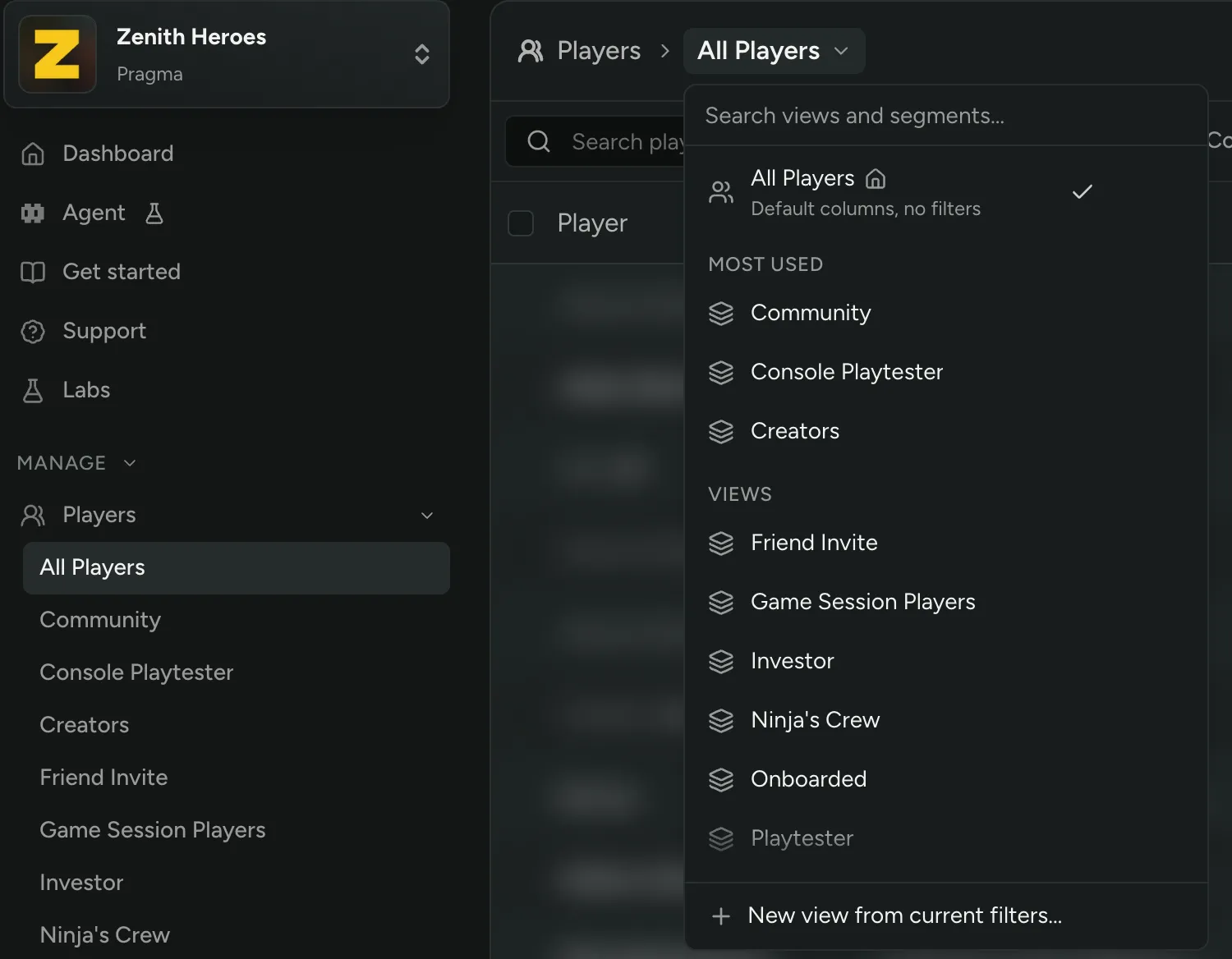
To make one, set up your filters, columns, and sort, then click Save as view…, or New view from current filters… in the switcher.
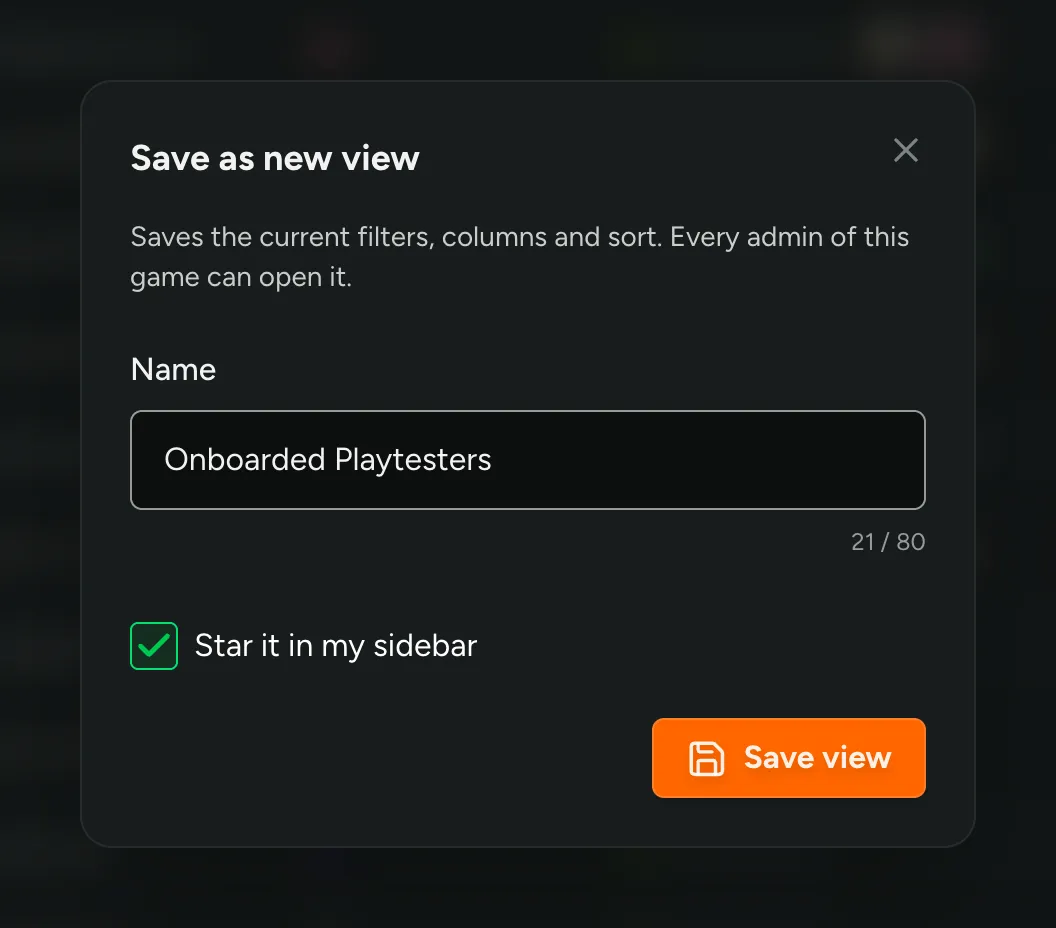
If you change the filters, columns, or sort on a view you’ve opened, a dot next to its name shows it has unsaved changes. Click Reset to go back to the saved version, Save view to update it for everyone, or Save as new view… from the arrow next to it to keep the original.

Rename or delete a view from its ⋯ menu, or set it as your landing view so it is the default view whenever you open Players. Your saved filters and the role pages under Players are now views too.