Overview
The Creators section is where you will be running your creator programe from. Here you can review applications, manage your active creator roster, track the videos and streams they’re publishing across every connected platform, and run campaigns that reward them for the coverage that matters most to you.
Profiles
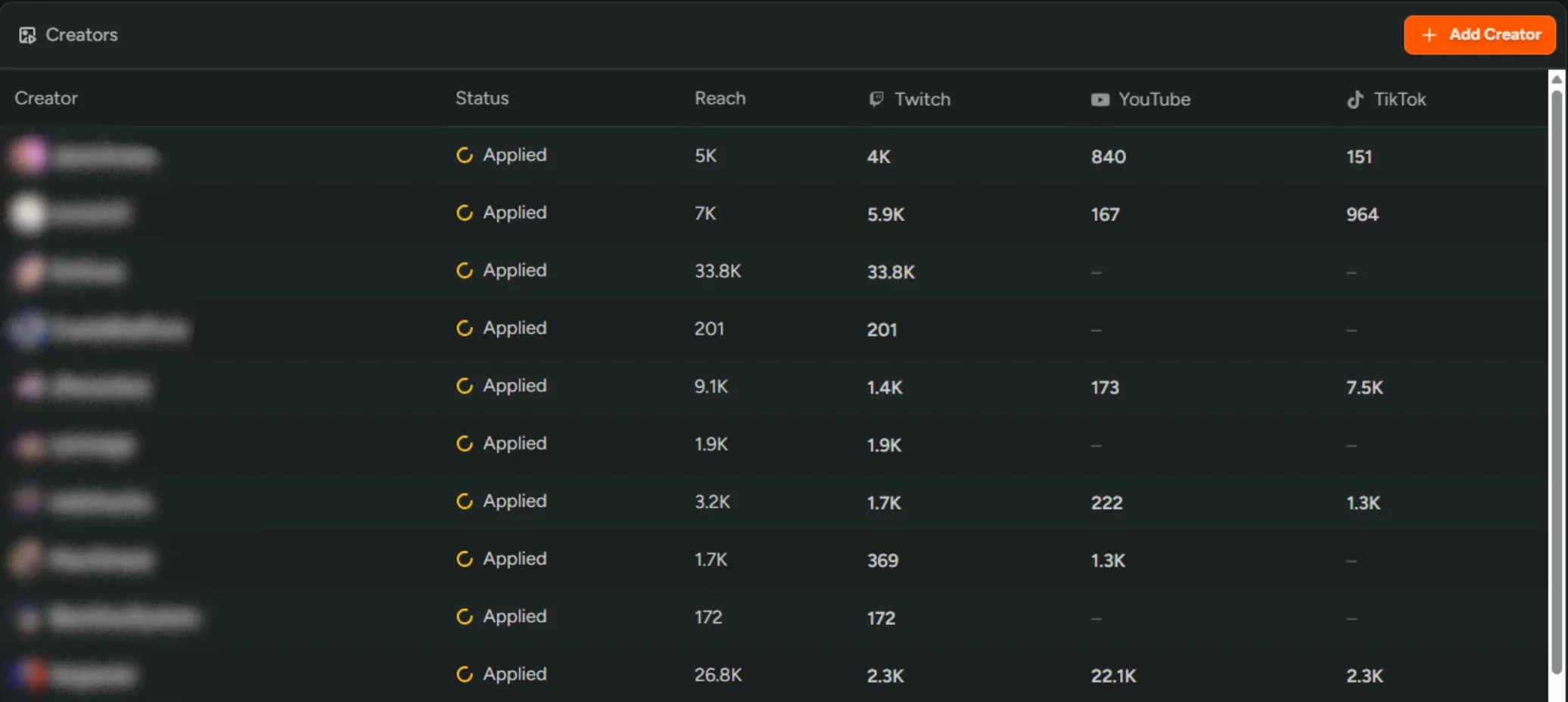
Section titled “Profiles”From Creators → Profile you can view all of your creators in one place. You can approve/reject their application to your program, view their current status, and see all of their reach and individual platform statistics.
The status of the creator will indicate the following:
Applied- Has applied to join your Creator Program.Active- Has been accepted onto your Creator Program.Rejected- Has been rejected from your Creator Program.Denied- Has been denied access to your Creator Program.Tracking- Manually added creators or those who have been moved from ‘Untracked’ to ‘Tracked’, will have a ‘Tracking’ status - see Tracking potential Creators.Untracked- Creators who have been automatically added to the platform via content filtering.
Per-creator view
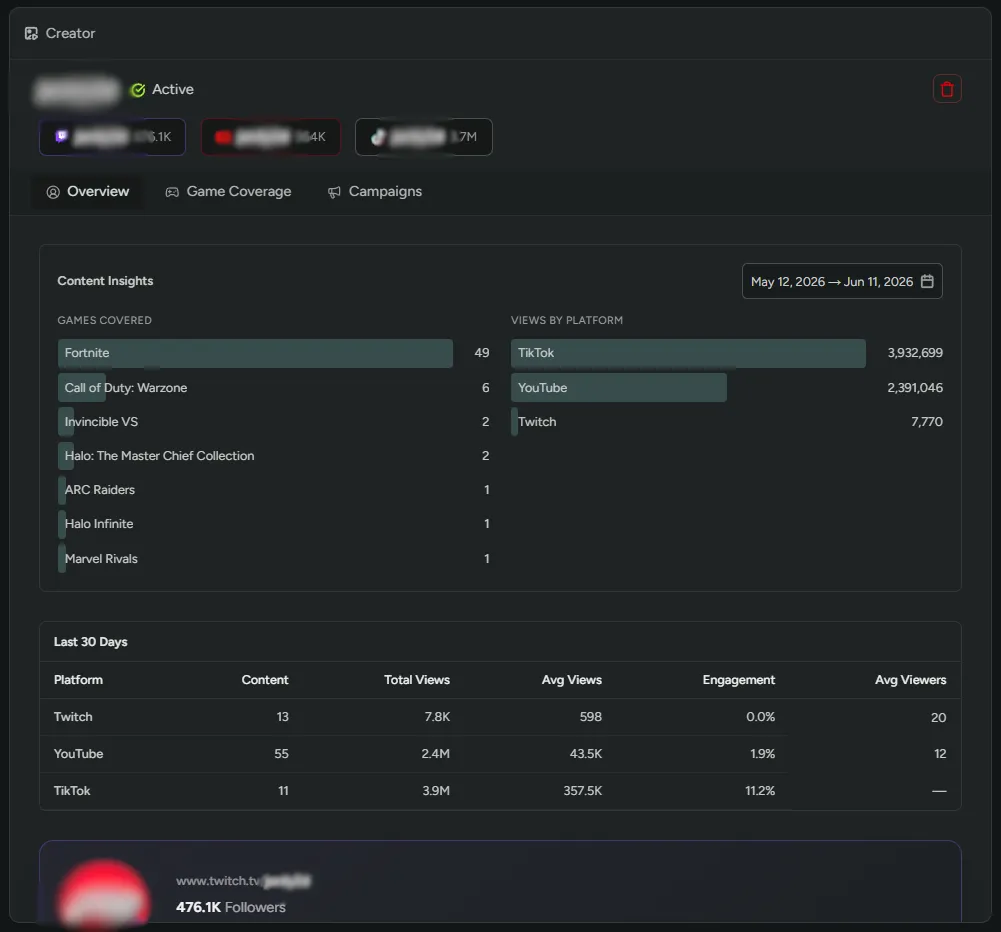
Section titled “Per-creator view”Click any creator to view their individual profile. From here you can decide whether to accept their application, view all of their stats, review the campains they are looking to join and which are being actively worked on. You can also see all the content they are producing.
Enroll players as Creators
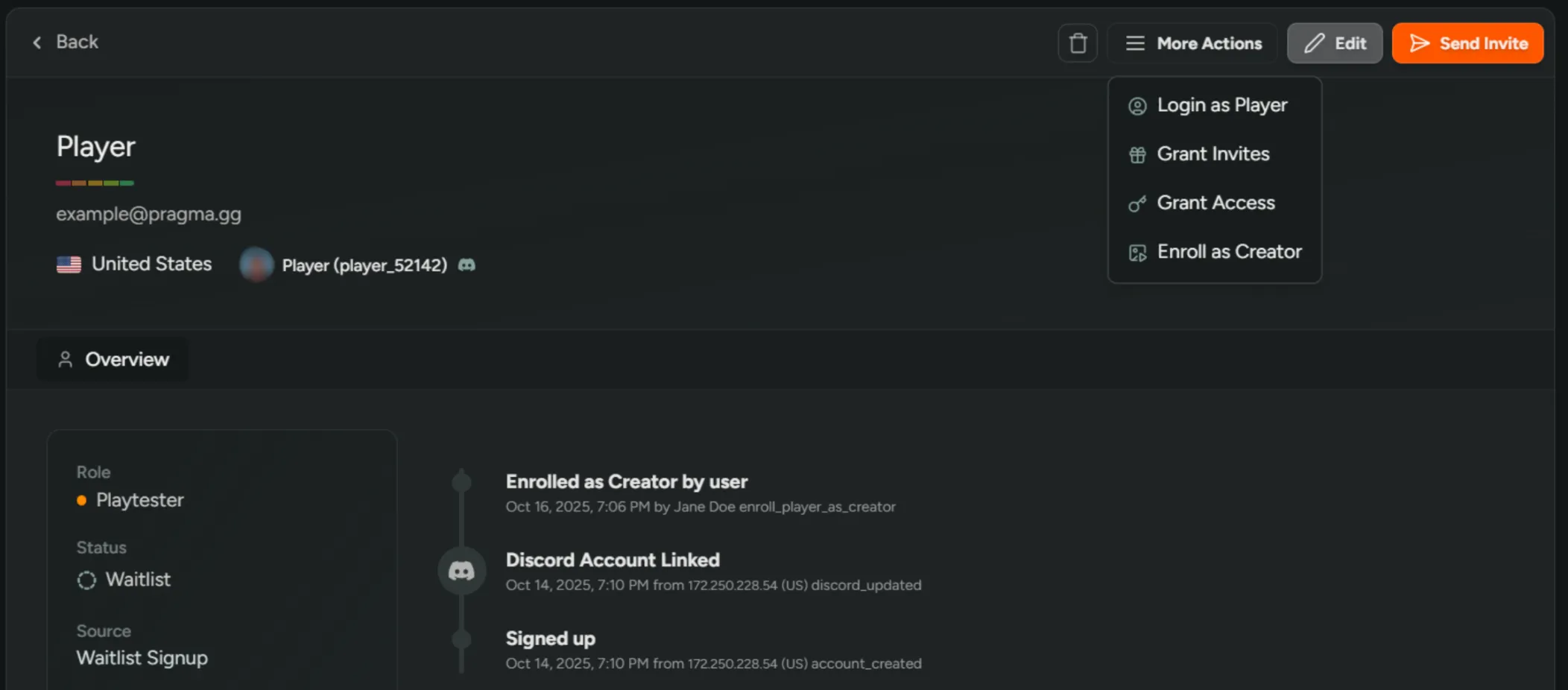
Section titled “Enroll players as Creators”Invite engaged playtesters to your creator program.
- Open the player in Dashboard → Players.
- Click ‘More Actions’ → ‘Enroll as Creator’.
- The player will receive an email inviting them to join the program, with a link to your creator landing page.
Tracking potential Creators
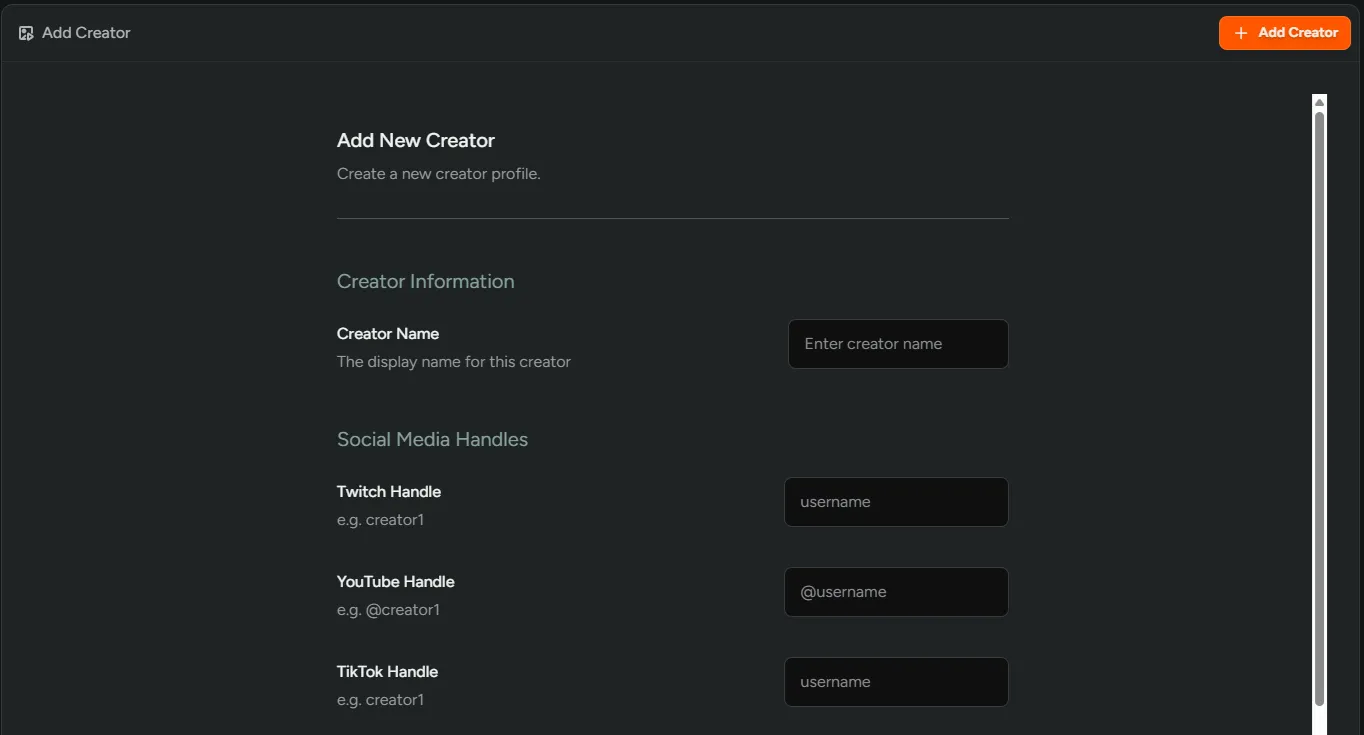
Section titled “Tracking potential Creators”Keep a list of prospects you’d like to work with before they apply.
- Go to Dashboard → Creators and click ‘Add Creator’.
- Enter their name and social handles.
- Click ‘Add Creator’ and they will appear as ‘Tracking’ in the table.
- Their content will populate within a few minutes.
Content
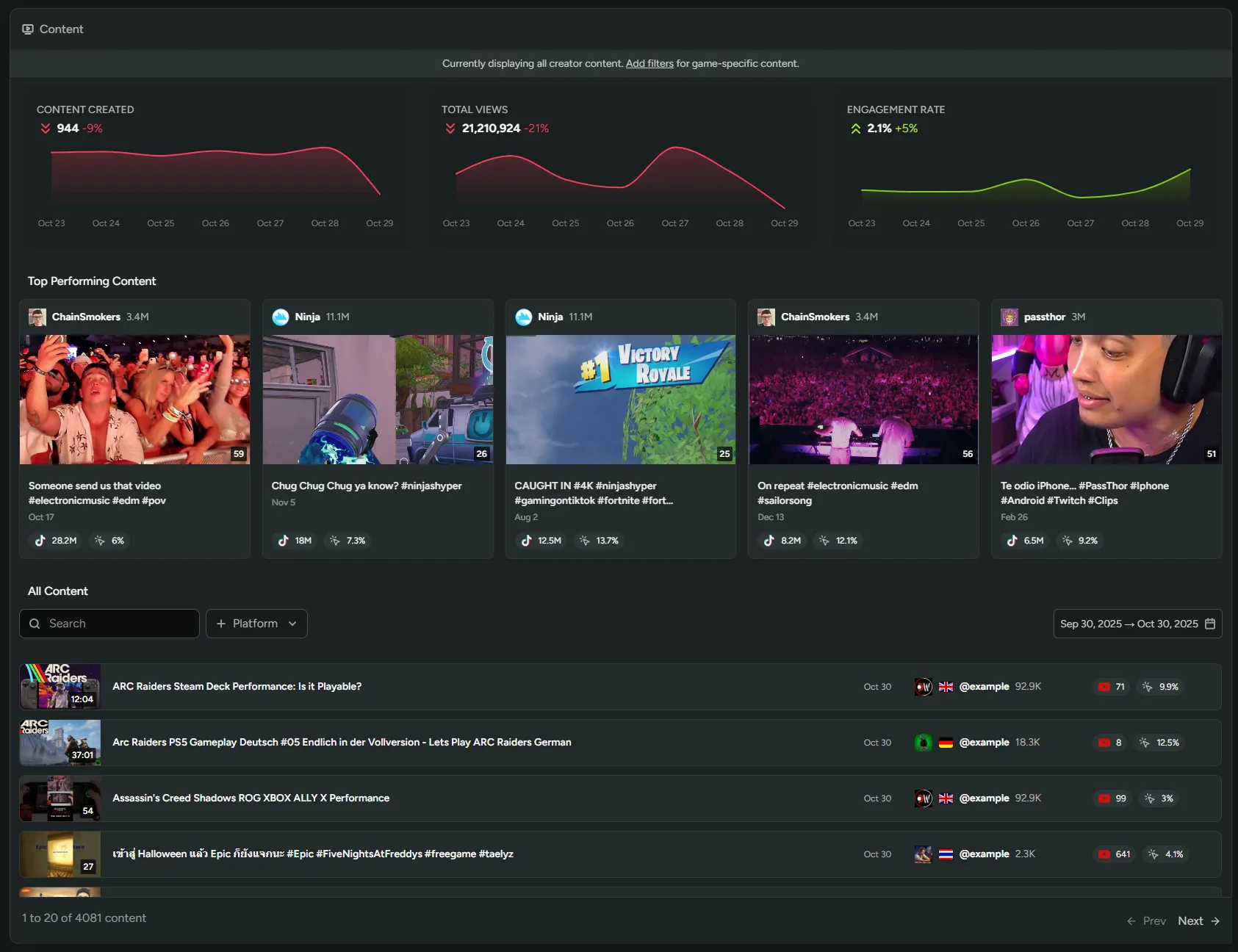
Section titled “Content”Navigate to Creators → Content to monitor and analyze content from all your creators.
Five metrics are displayed as columns, each with its own sparkline chart for the selected date range:
| Metric | Description |
|---|---|
| Content Created | Total number of videos and streams published by your creators. |
| Total Views | Combined view count across all tracked content. |
| Hours Streamed | Total live streaming time across all creators, in hours. |
| Hours Watched | Total hours watched by viewers across all streams. |
| Engagement Rate | Average engagement rate across all content as a percentage. |
Top Performing
Section titled “Top Performing”A grid of up to four content cards showing the highest-viewed pieces of content in the selected date range. Each card shows:
| Field | Description |
|---|---|
| Creator | Avatar, name, country flag, and follower count. Links to the creator’s profile. |
| Thumbnail | Links to the content on its platform, with a duration overlay in the bottom-right corner. |
| Title | Links to the content. |
| Published date | When the content was published. |
| Platform badge | Source platform (Twitch, YouTube, or TikTok) with view count. |
| Engagement | Like and comment counts. |
All Content
Section titled “All Content”A paginated table of all content linked to your game, 20 rows per page. The footer shows the current range and total (e.g. 1 to 20 of 143 content). Each row shows:
| Column | Description |
|---|---|
| Thumbnail | With duration overlay, links to the content. |
| Title | Links to the content. |
| Published date | When the content was published. |
| Creator | Avatar, name, country flag, and follower count, linking to their profile. |
| Platform badge | Source platform with view count. |
| Engagement | Likes and comment counts. |
Filtering
Section titled “Filtering”Use the filter bar to narrow down results. Filters and the date range picker work together.
| Filter | Description |
|---|---|
| Content Title | Search by keyword in the content title. |
| Creator Status | Filter by the creator’s program status — Applied, Active, Tracking, or Untracked. |
| Platform | Filter to a specific platform — Twitch, YouTube, or TikTok. |
The date range picker in the top-right defaults to the last 30 days. You can set any custom range to see content from a specific period.
Adding content manually
Section titled “Adding content manually”Use the Add Content button to manually link a piece of content to your game. This is useful for content that wasn’t automatically detected — for example, a video that doesn’t match your coverage filters but is still relevant to your program.
Apply content filters
Section titled “Apply content filters”Go to Configuration → Settings → Creator to add the games you want to filter content by.
The Content page shows all creator content linked to your game across your entire creator roster. Unlike the campaign content view, it is not gated by a start date - content is always shown, scoped to whatever date range you select.