How to List My Game on player.gg
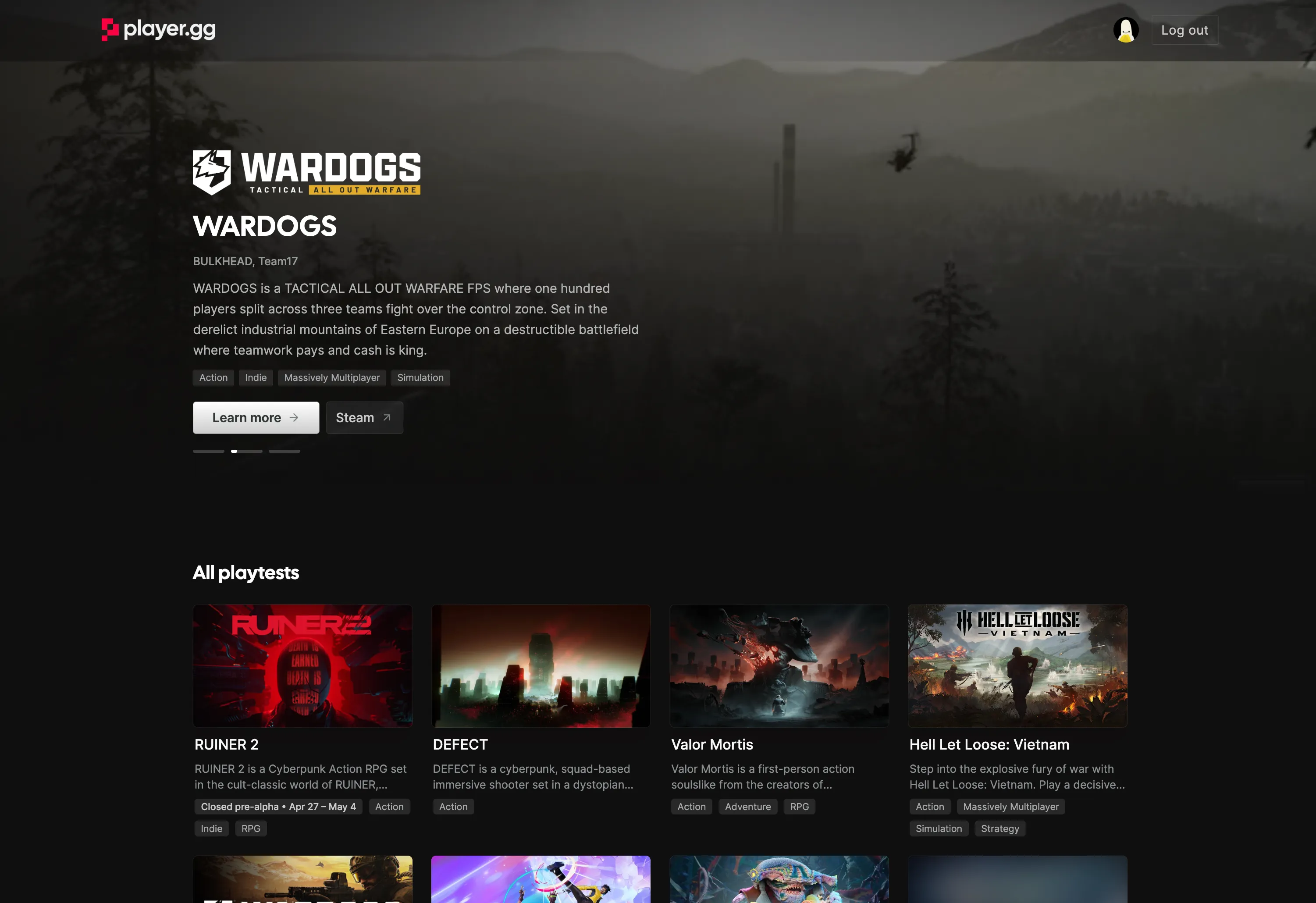
player.gg is FirstLook’s public destination for players looking for new games and upcoming playtests. Listing your game gives players a public page where they can discover your game, follow updates, wishlist across platforms, and sign up for your playtest through your existing FirstLook flow.
For most studios, the setup is lightweight: connect your Steam or IGDB data, review the public page, choose how players should sign up, then enable the listing.
Before You Start
Section titled “Before You Start”Make sure you have:
- A free FirstLook studio account with access to the game you want to list.
- A default sign-up flow for players who join from player.gg.
- A Steam App ID or IGDB page if you want FirstLook to auto-populate the listing.
- Access to generate a Steam Publisher WebAPI Key for verification.
- Any playtest dates or event windows you want to promote.
If your game is confidential, do not publish the listing until Confidential Mode has been enabled by the player.gg team. Reach out to FirstLook before turning the listing on.
1. Connect Your Game Data
Section titled “1. Connect Your Game Data”Your player.gg page can be populated automatically from Steam or IGDB. This usually covers the game description, tags, images, screenshots, trailer, and other public metadata.
Connect your Steam App ID under Settings -> Steam. Steam data is used for store assets, screenshots, trailers, and wishlist routing.
Steam ownership verification is required for certain Steam-related features and for listing your game on player.gg. See Integrate Steamworks for WebAPI Key setup and Understanding Steam Keys, Branches, and Playtests for Steam playtesting guidance. If a Steam WebAPI Key is not an option for your studio, contact FirstLook Support for alternative verification options.
If your game is not on Steam, add your IGDB ID under Settings -> Player.gg -> IGDB ID. IGDB helps fill in catalog metadata, genres, tags, and other game details.
If your game is on Steam, FirstLook can fetch the IGDB ID automatically. When both Steam and IGDB are connected, FirstLook combines the sources to create a richer page.
2. Review Your Public Page
Section titled “2. Review Your Public Page”Open Settings -> Player.gg in the FirstLook admin dashboard and review the generated listing.
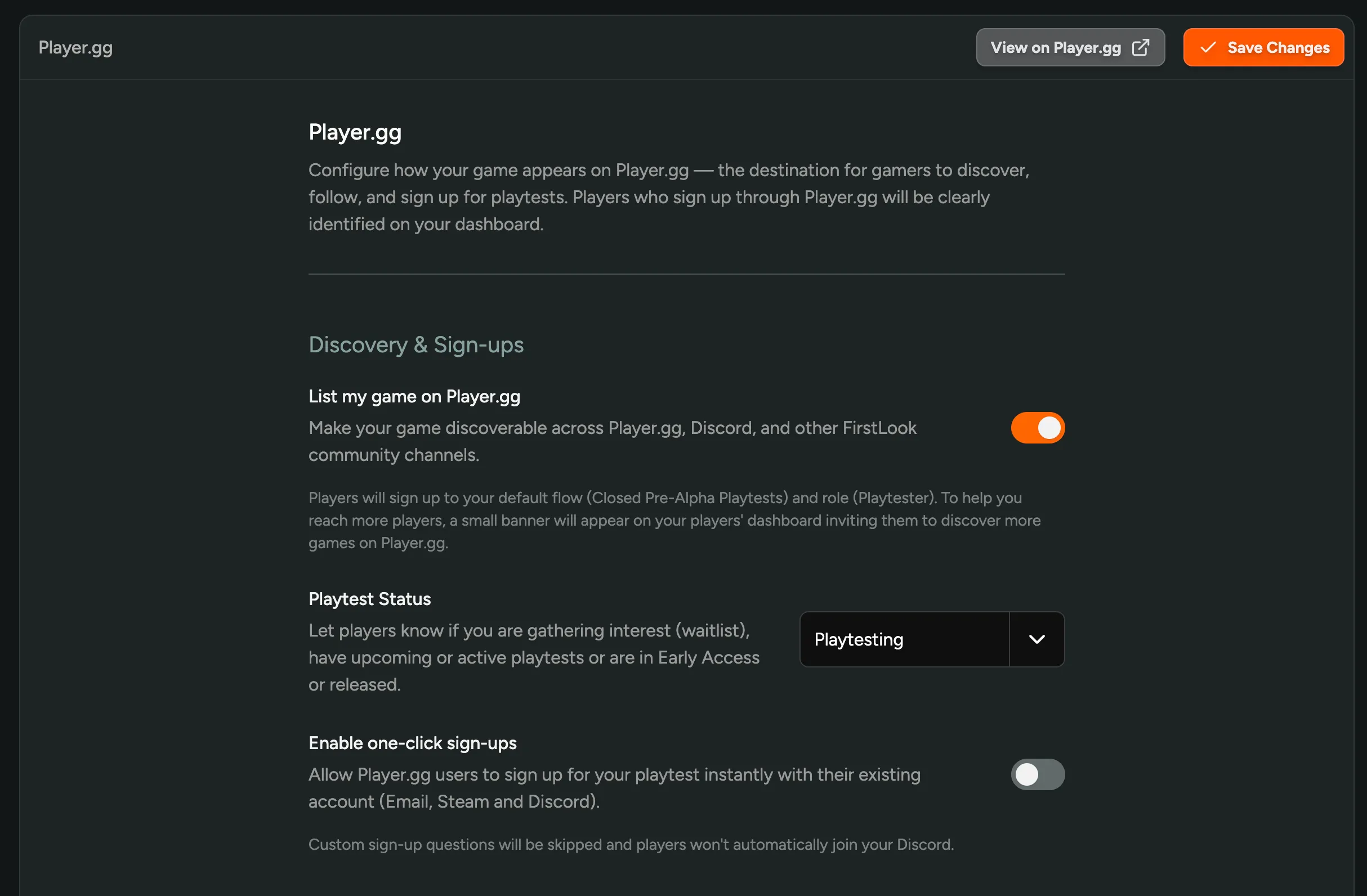
Use Manual Configuration if your game is not on Steam or IGDB yet, or if you want to override synced values. You can set:
- Description - a short summary shown on the game page.
- YouTube Trailer URL - used when no Steam trailer is available.
- Header image - recommended 1920 x 1080 px.
- Logo - best uploaded without padding.
Manual values take priority over synced Steam or IGDB data. You can also add a Custom Call to Action if you want a secondary button next to the automatic wishlist or sign-up actions, such as a Kickstarter page, newsletter, or developer update.
3. Set the Player Journey
Section titled “3. Set the Player Journey”Players who find your game on player.gg are sent into your default waitlist flow. Before publishing, review what those players will see after they sign up.
Check:
- The Sign Up screen explains what players are joining.
- The Waitlist screen sets expectations for next steps.
- The Complete screen includes useful calls to action, such as joining Discord or wishlisting.
- Your Branding settings use the right logo, colors, and images for this game.
- Any custom questions are still relevant for players arriving from public discovery.
The easiest option is to enable one-click sign-ups. This requires no further setup: existing player.gg users can join with their Email, Steam, or Discord account without answering custom sign-up questions. Leave one-click sign-ups off if those questions are important for qualification, region selection, hardware checks, or Discord routing.
4. Choose Your Playtest Status
Section titled “4. Choose Your Playtest Status”Set the status that best describes where your game is right now. This status appears on your player.gg page and helps players understand what signing up means.
- Waitlist - you are gathering interest and no playtest is running yet.
- Playtesting - a playtest is live and players can be invited in.
- Early Access - the game is playable outside closed testing.
- Released - the game has shipped.
- Cancelled - the project is no longer active.
For upcoming tests, keep the status honest. If the build is not live yet, use Waitlist and add a Playtesting Event with the planned dates.
5. Publish Playtesting Events
Section titled “5. Publish Playtesting Events”Playtesting Events are dated windows that appear on your player.gg listing. Use them for closed alpha weekends, beta tests, stress tests, demo windows, or any other scheduled player opportunity.
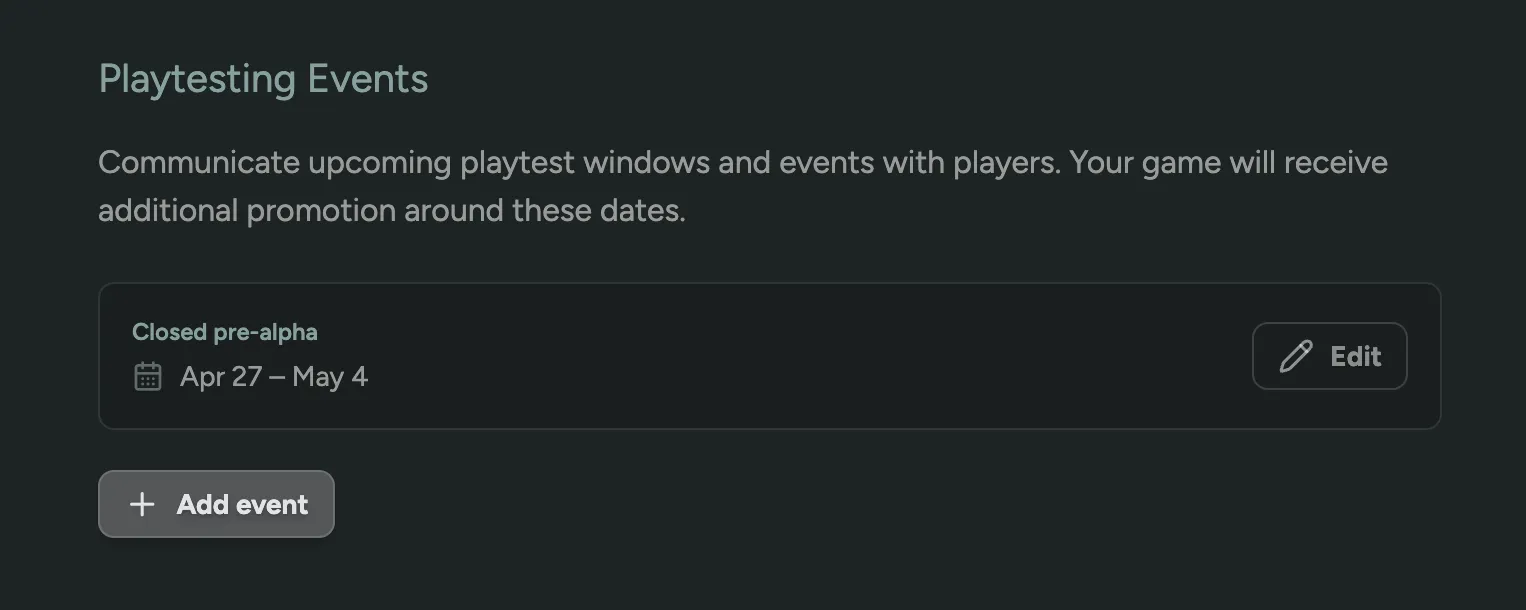
To add one, go to Settings -> Player.gg, find Playtesting Events, then click Add event.
Events help you:
- Give players a clear date to sign up around.
- Generate organic sign-ups before a test weekend.
- Promote a limited window without changing your entire flow.
- Keep players informed when a playtest is not always open.
6. Turn On the Listing
Section titled “6. Turn On the Listing”When the page, player journey, and playtest status are ready, enable List my game on player.gg.
With the listing on, your game can be discovered through player.gg, Discord recommendations, and other FirstLook community channels. With the listing off, the game stays hidden from public discovery and is only reachable through your own invite links, invite codes, and FirstLook sign-up URL.
After publishing, check your game page from a logged-out browser session and confirm:
- Branding, description, screenshots, and trailer look correct.
- Wishlist and store links point to the right destinations.
- The sign-up button sends players into the intended flow.
- Your playtest status and event dates are accurate.
- Player attribution is showing in FirstLook for sign-ups from player.gg.
Summer Game Fest
Section titled “Summer Game Fest”Player.gg is an Official Player Destination for Summer Game Fest 2026. Every game featured at SGF gets a dedicated Player.gg page where players can discover the game, wishlist it, follow updates, and apply for playtests.
For studios featured during Summer Game Fest, a player.gg page can support:
- Cross-platform wishlist capture on Steam, with click-through to PlayStation, Xbox, and Nintendo stores.
- Playtest sign-ups and key distribution for qualified, opted-in players when playtesting is available.
- Follows and Discord routing so you can reach players again after the show.
- Creator interest capture for creators who want to cover the game.
- Media populated from existing store pages, with manual customization available in FirstLook.
Studios distributing playtest keys or redeemables through the SGF program may also qualify for FirstLook x SGF 2026 partner perks, including Playtesting Pro access for new studios, Player.gg promotional email slots, a Player.gg hero feature, and hands-on playtesting support from the FirstLook team.
To prepare for SGF:
- Sign up for FirstLook and verify your studio account.
- Connect your Steam or IGDB data so the player.gg page can be populated.
- Configure wishlist links, sign-up flow, playtest status, and any Playtesting Events.
- Add keys or redeemables if you plan to distribute access.
- Email sgf@firstlook.gg if you need help setting up an SGF listing.
Confidential Games
Section titled “Confidential Games”player.gg can support confidential games. In Confidential Mode, only your game name and the branding you configure yourself are shown to players. Studio name, Steam data, and other catalog details are not revealed.
Confidential Mode is enabled by the player.gg team on request. Contact FirstLook before listing if your game is under NDA, unannounced, or operating under a codename.
Related
Section titled “Related”- Promote on player.gg - detailed settings reference for the player.gg configuration page.
- Inviting Players - invite and manage the players you collect through player.gg.
- Creating a Branded Player Journey - customize the flow players see after they sign up.