Add Keys
Use FirstLook to distribute game keys to players across all major platforms — including Steam, Epic Games Store, PlayStation, and Xbox.
This page walks through the process for Steam keys in particular, however other platforms offer similar experiences.
Overview
Section titled “Overview”When you upload keys to FirstLook, they are automatically assigned to players after they complete the onboarding process. This ensures that only verified, onboarded players receive access to your build.
For more details about key management, formats, and advanced configuration, visit the Keys Management documentation.
Adding Steam Keys
Section titled “Adding Steam Keys”If this is your first time distributing Steam keys for testing, we recommend reading the Steam Keys and Playtest Guide for background on how key distribution works and how to request them on Steam.
Requesting Steam Keys
Section titled “Requesting Steam Keys”You can generate Steam keys in the Steamworks Partner Portal. You need Generate Steam Keys permissions within Steam to do so.
-
Log in to the Steamworks Partner Portal
Visit the Steamworks Partner Portal and log in with your developer account. -
Select your App
Find your game in the list of apps and open it. If you’re using a dedicated Playtest App, select that version instead. -
Request Product Keys
Click the Request Steam Product Keys button.
Enter the number of keys you want (1,000 is a good starting point) and select the key type:- Standard Key for playtests
- Release State Override Key if not using a Playtest App
-
Download the Keys
Once generated, download the.zipfile. Inside, you will find a plain text file with one key per line. -
Upload the Keys to FirstLook
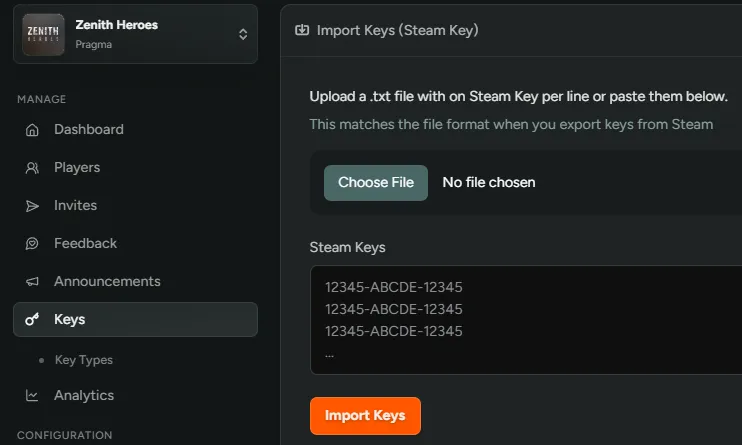
Open your FirstLook Dashboard → Keys. You will notice some placeholder Demo Keys, which will be removed once you add your own.- Click Manage & Import Keys, then choose the Steam Key row.
- Click Choose File to upload your
.txtfile - Or paste the keys directly into the input field
- Click Import to complete the upload.
-
Done!
Your Steam keys are now uploaded. You can add more keys or remove them at any time.Players who sign up for your playtest will automatically receive a key once invited or approved.
Next Steps
Section titled “Next Steps”Once your keys are uploaded, continue setting up your playtest: