Customize your Branding
Adding your branding helps your FirstLook pages and emails feel like an extension of your game - not a third-party tool. A few quick updates can make the entire player experience look polished, trustworthy, and on-brand.
This guide walks you through how to configure some basic branding elements in your FirstLook Dashboard in order to create a branded landing page for your players. For additional customizations, please check out our Branding Configurations page.
Step 1: Check Out Your Dashboard
Section titled “Step 1: Check Out Your Dashboard”Navigate to Configuration → Branding in your FirstLook Dashboard to familiarize yourself with the available branding configurations.
On the left you will see the customization options and on the right you will see the Preview Panel. As you make changes to the different options, you will immediately see the Preview Panel update. Try making a few changes to better understand the impact of your changes on the Preview Content.

Step 2: Upload Your Visuals
Section titled “Step 2: Upload Your Visuals”Your visuals define the first impression players get of your studio and game. In order to grab your players’ attention you will want to upload a logo and background image. You want to create a cohesive experience across all player touchpoints, so make sure to use elements that tie into your existing experiences.
Upload your game’s logo (or studio logo if your game isn’t yet announced).
- Landscape orientation with a transparent background works best.
- Subtle shadows help it stand out against lighter themes.
Key Art
Section titled “Key Art”The key art, or background image, you upload is shown on your across your FirstLook player pages such as your homepage or player dashboard. Use something visually interesting - a screenshot, concept art, or promotional image that sets the tone.
Favicon
Section titled “Favicon”Adding a favicon helps your player-facing site stand out in browser tabs and looks more professional. Using a simplified version of your logo works best.
Step 3: Choose a Theme and Color Palette
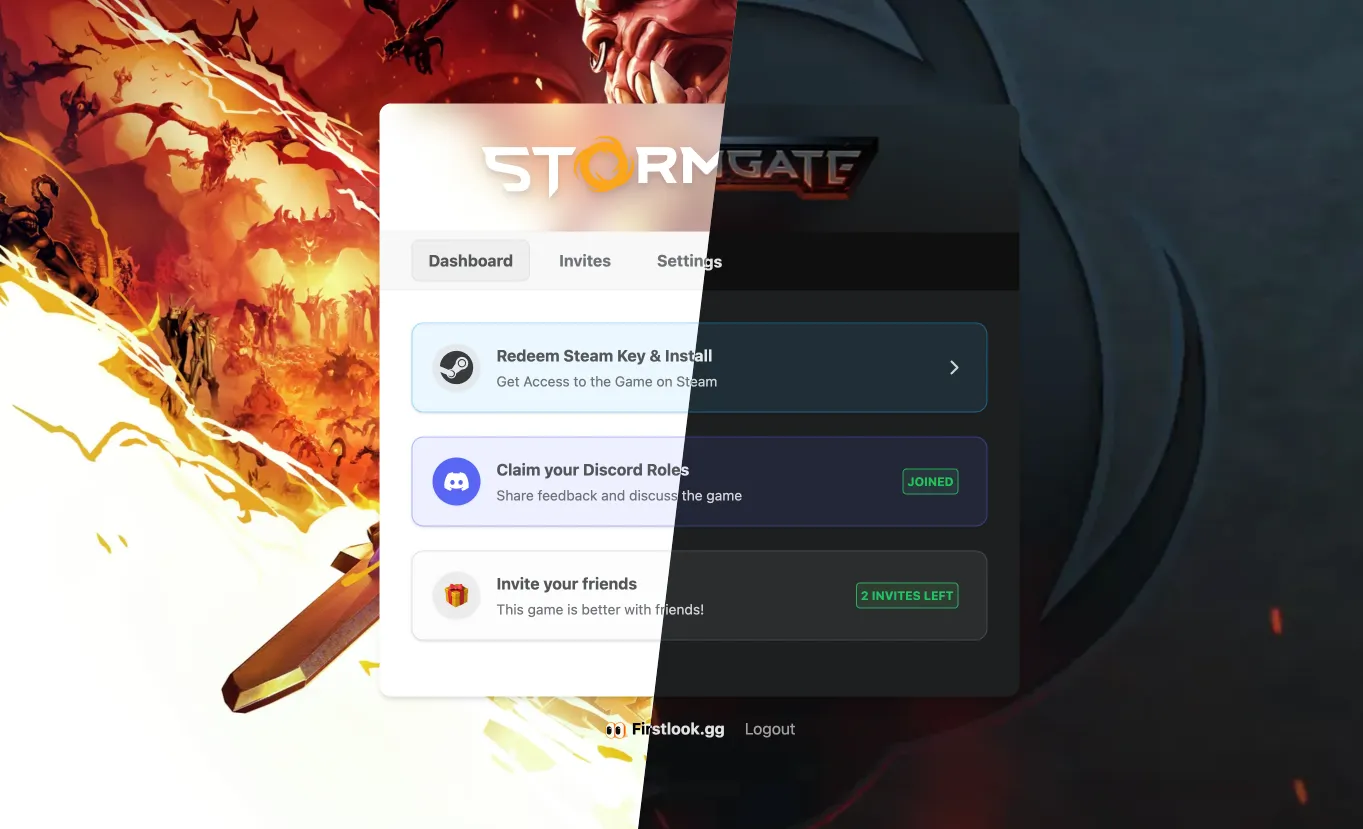
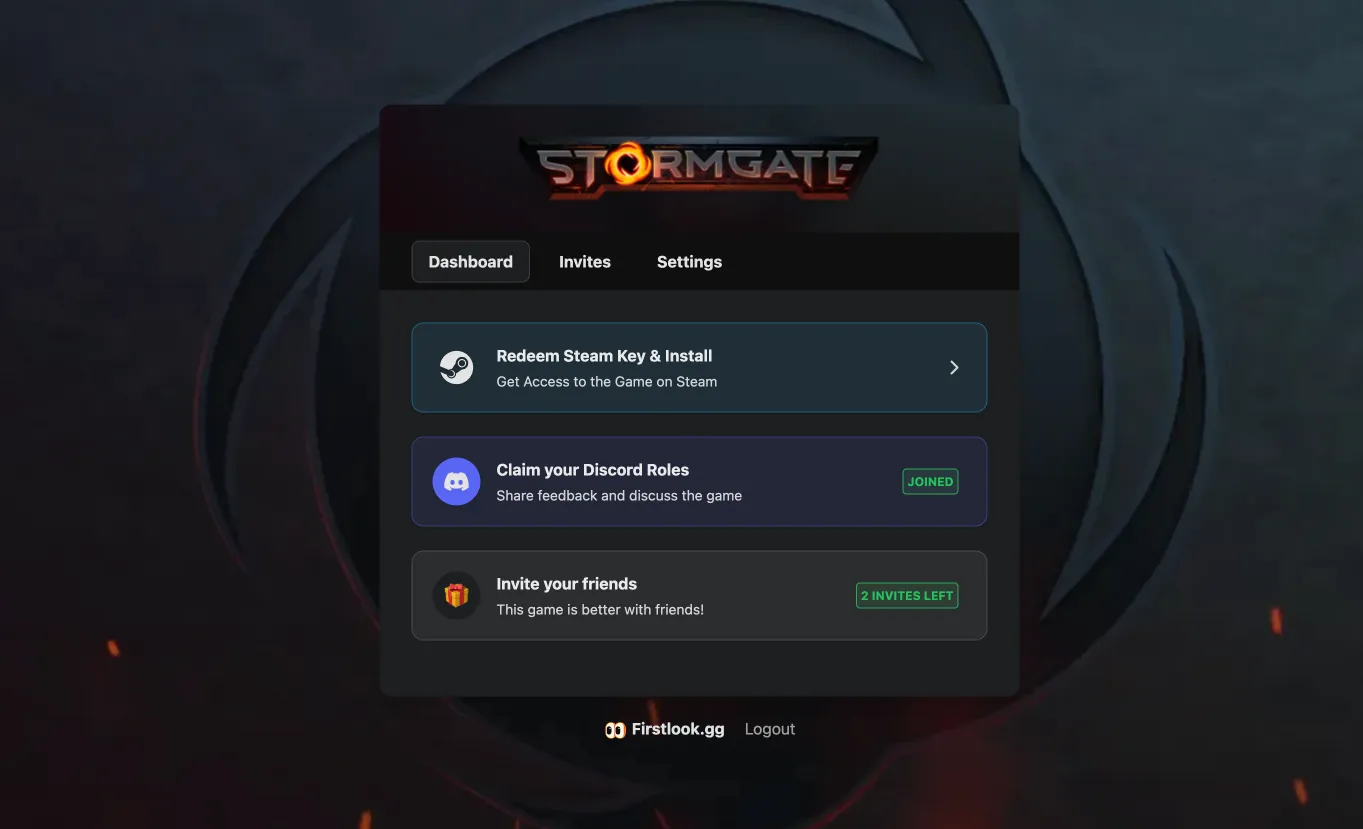
Section titled “Step 3: Choose a Theme and Color Palette”FirstLook supports Light and Dark themes for both the Player Dashboard and emails.
Choose the one that matches your game’s tone, then adjust accent colors for buttons and text.

Tips:
- Light themes work well for cheerful, friendly tones.
- Dark themes suit moody, serious, or sci-fi aesthetics.
- Keep button and text colors readable against your chosen background.
Step 4: Preview and Save
Section titled “Step 4: Preview and Save”Before finalizing your updates:
- Review the live preview in your Dashboard.
- Open the player site and emails in both Light and Dark modes.
- Make sure your images display clearly and your colors remain accessible.
Once everything looks good, click Save — your new branding will apply instantly across FirstLook.