Configure Branding
You can customize the visual appearance of your FirstLook player experience and emails to match your game or studio identity. All branding options can be configured directly inside the FirstLook Dashboard.
Branding Settings
Section titled “Branding Settings”Branding options are located under
Configuration → Branding.
This page allows you to upload images, adjust themes, customize colors, and preview how your changes will appear across player-facing pages and system-generated emails.

Images
Section titled “Images”You can upload several images to personalize the player-facing experience:
Displayed in the Player Dashboard, custom pages and in emails. A landscape logo with a transparent background produces the best results.
Key Art / Background Image
Section titled “Key Art / Background Image”Used as the background on player-facing pages such as the Homepage and some onboarding screens. This can be a screenshot, concept art, or any artwork that represents your game’s visual style.
Email Header (Optional)
Section titled “Email Header (Optional)”Displayed at the top of all system-generated emails.
The image must be at least 460px wide. Height is flexible.
Favicon
Section titled “Favicon”You can upload a custom favicon to display in browser tabs when players visit your FirstLook site.
Favicons should be square (32 × 32 px or 64 × 64 px) and saved as PNG or SVG.
Themes and Colors
Section titled “Themes and Colors”You can choose between Light and Dark themes, which affect both player-facing pages and system emails.
In addition, text and button accent colors may be customized to better match your game’s palette.
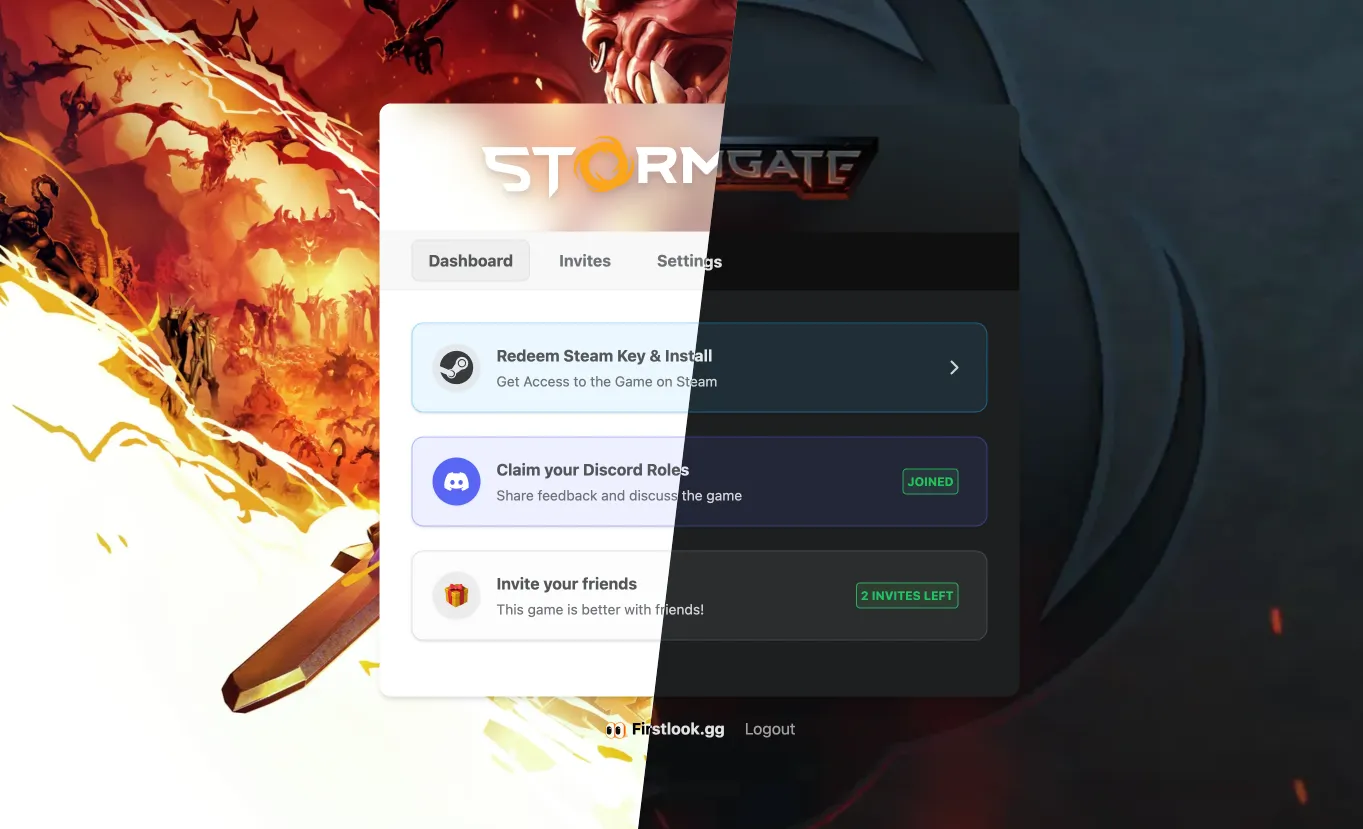

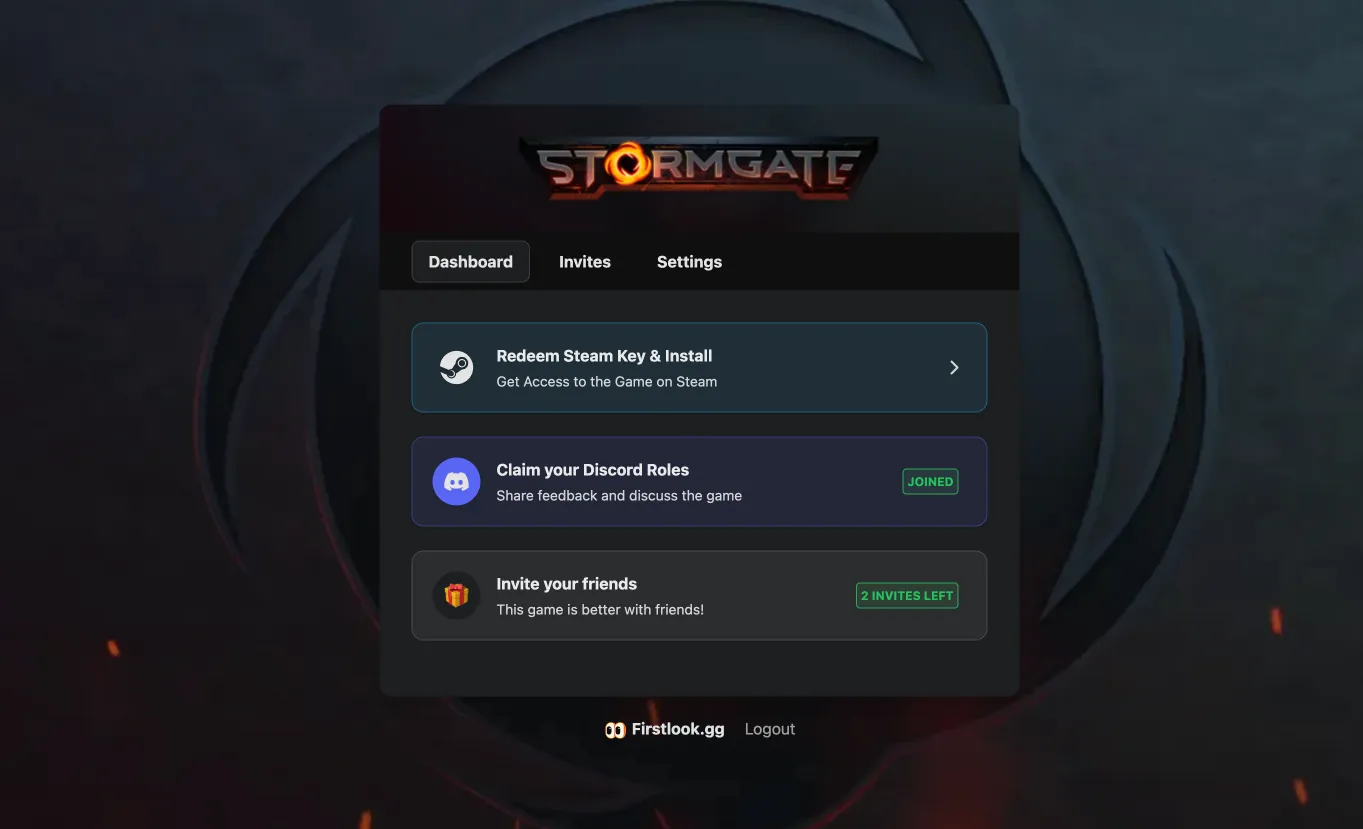
Light themes generally suit bright or upbeat aesthetics, while dark themes may better match atmospheric, sci-fi, or moody styles.
For readability, ensure button and text colors maintain sufficient contrast.