Surveys
Surveys allow you to gather feedback from your players through multiple distribution channels. You can create sophisticated surveys with various question types and distribute them via web, Discord, or directly within your game.
Creating a Survey
Section titled “Creating a Survey”To create a new survey, navigate to the ‘Surveys’ tab and click the ‘Create Survey’ button. The survey editor provides a simple user interface for building and previewing your surveys.
Adding Questions
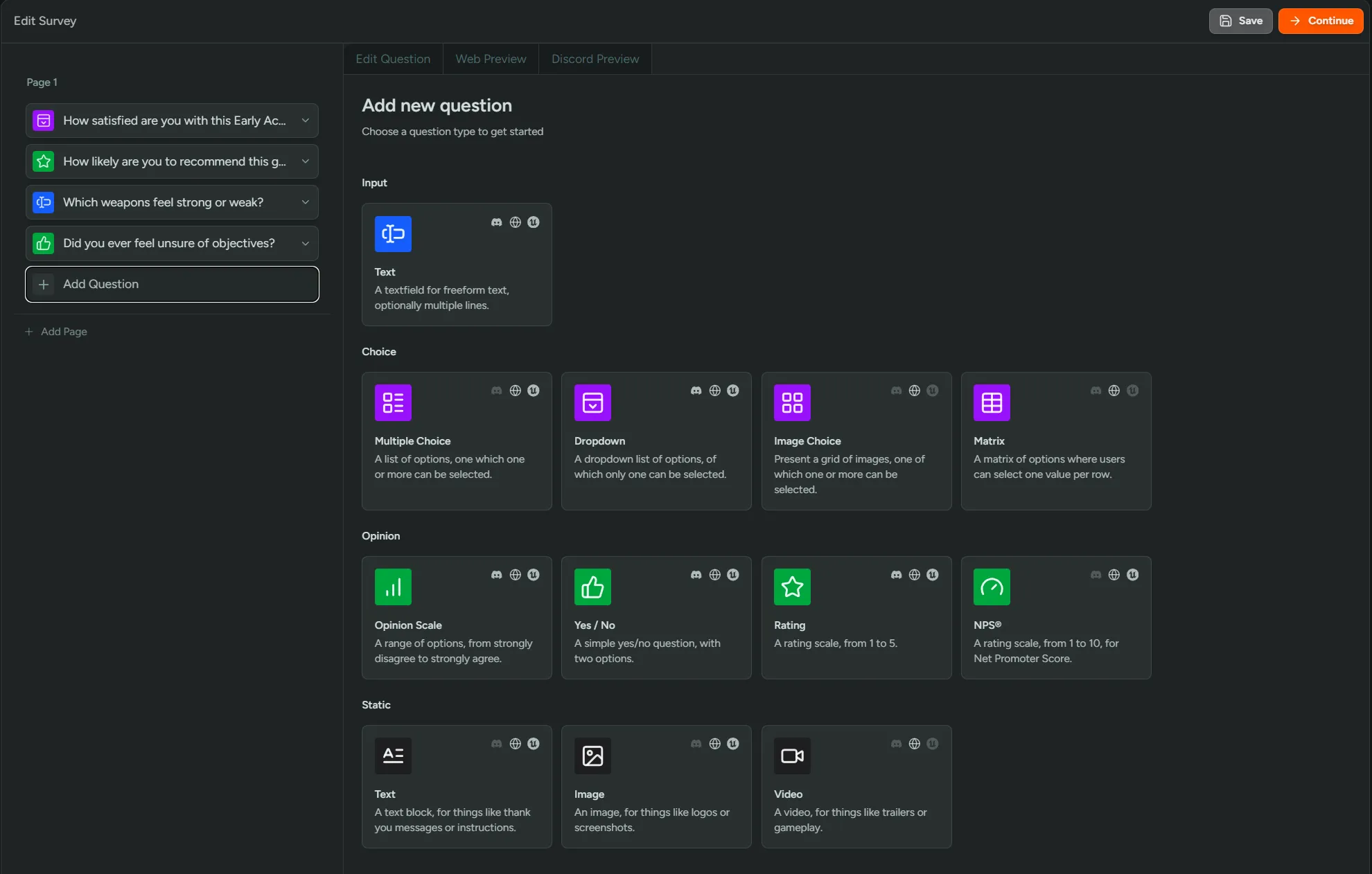
Section titled “Adding Questions”- Click “Add Question” to see all available question types organized by category
- Select a question type to add it to your current page
- Configure the question settings in the edit panel
- Add additional pages
Question Types
Section titled “Question Types”Surveys offer a comprehensive set of question types including free text, multiple choice, single choice, opinion scales, rating scales, NPS surveys, and static content (text, video, and images). Each question type can be configured with various options such as required fields, multiple selections, and custom styling.
Each question type has a symbol above it which highlights which distribution channel it works with. Full list of question types
Previewing Your Survey
Section titled “Previewing Your Survey”See what your survey will look like as you build it.
Web Surveys
Section titled “Web Surveys”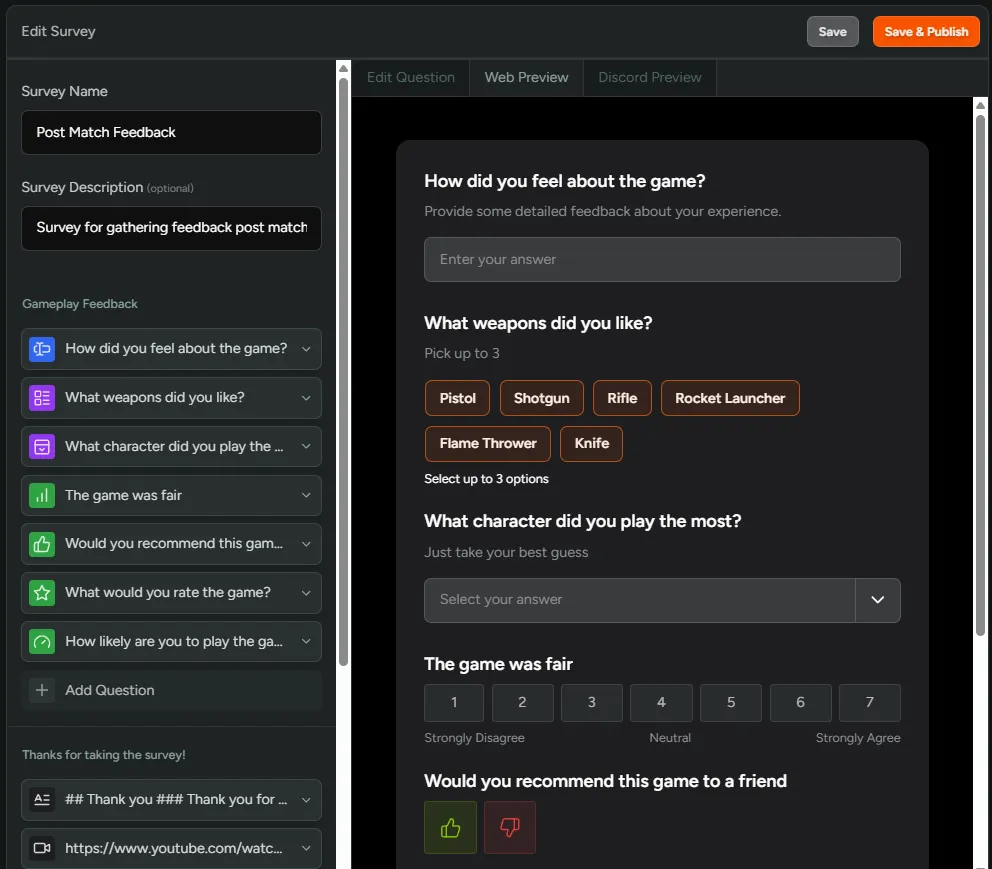
Discord Surveys
Section titled “Discord Surveys”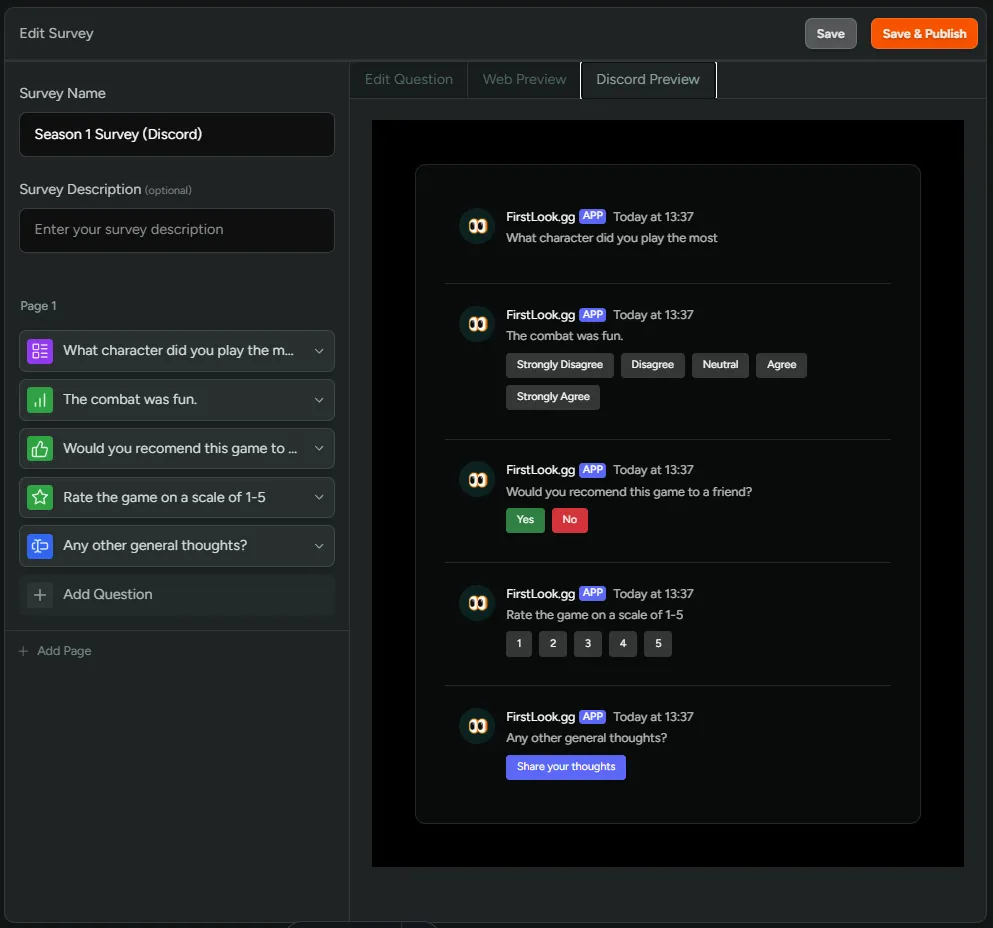
Survey Configuration
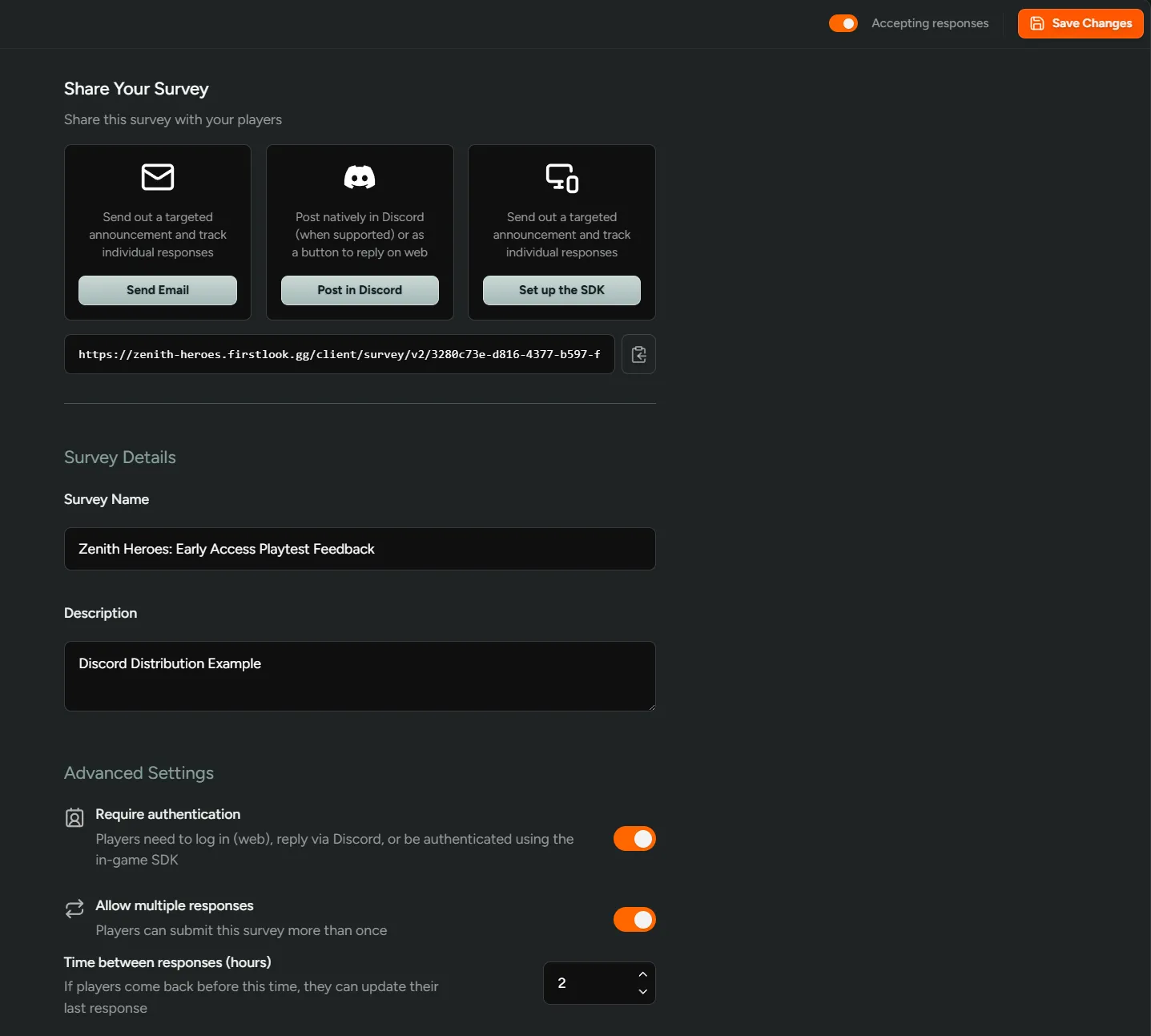
Section titled “Survey Configuration”When you have finished building out your survey and you’re ready to publish, click ‘Continue’. From here you’ll be able to choose the channels you want to distribute through and configure general survey settings.
You can turn surveys on or off at anytime by selecting ‘Accepting Responses’
Distribution Channels
Section titled “Distribution Channels”FirstLook supports multiple distribution channels, allowing you to reach players wherever they are:
Web surveys are published to a dedicated webpage that you can share via email or a custom URL. Using email will utilise our Announcement feature, which gives you the ability to send surveys to specific cohorts within your player base. Web surveys offer the widest variety of question types and provide the most comprehensive survey experience.
- Anonymous Responses – Allow participants to respond without creating an account or logging in
- Full Question Support – Access to all question types and advanced features
- Custom Branding – Match your survey’s appearance to your game’s visual style
Discord Surveys
Section titled “Discord Surveys”Share surveys directly in your Discord server channels. Discord surveys integrate seamlessly with your channels for quick and easy feedback gathering.
- Channel Integration – Surveys appear as interactive messages in your Discord channels
- Limited Question Types – Some advanced question types are not available for Discord due to platform limitations
- Real-time Responses – See responses as they come in through Discord
In-game Surveys
Section titled “In-game Surveys”Use the FirstLook SDK to distribute surveys directly within your game client for the most seamless player experience.
- Native Game UI – Surveys render using native in-game UI for the best player experience
- Customizable Interface – Fully themeable and customizable to match your game’s look and feel
- Steam Web Overlay – Surveys appear in the Steam web overlay, supporting more question types
Managing Responses
Section titled “Managing Responses”Once your survey is published, you can monitor and analyze responses in real-time.
Viewing Survey Results
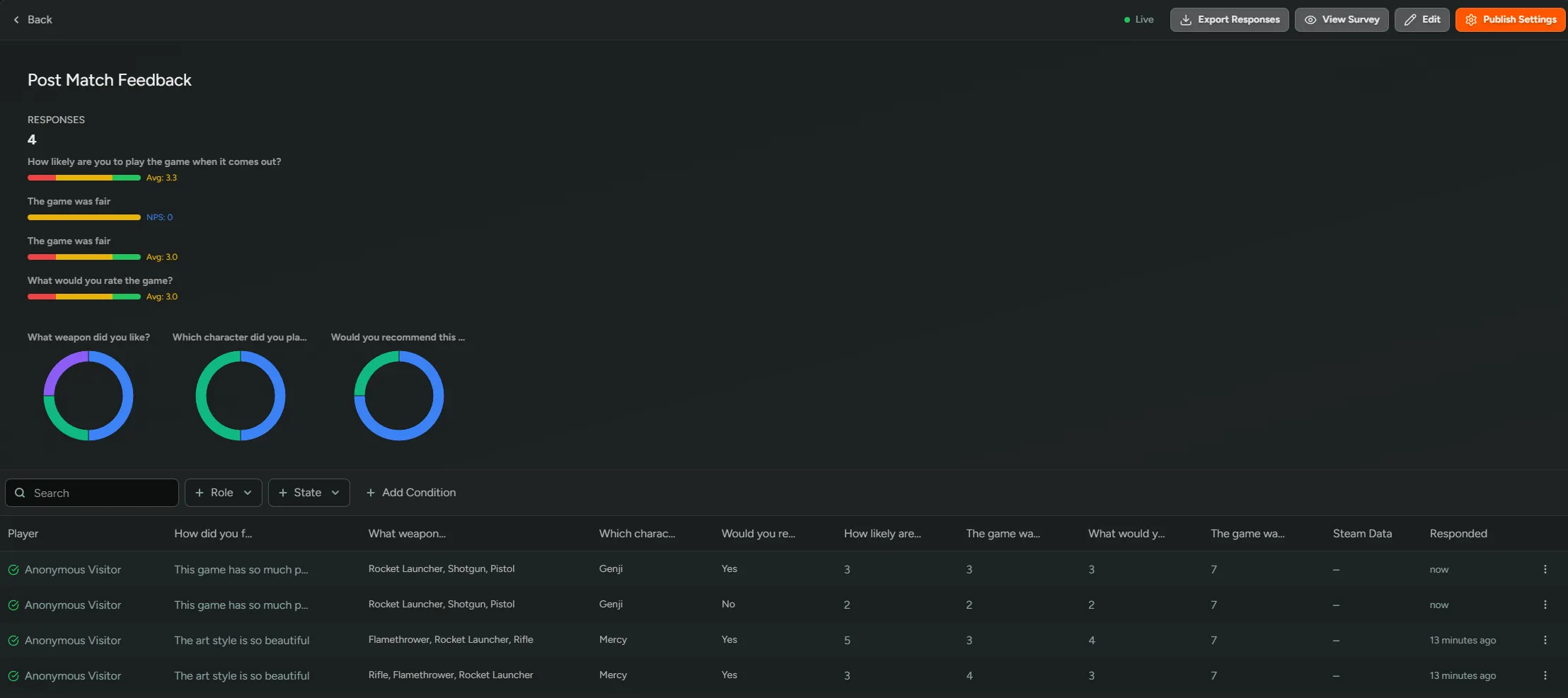
Section titled “Viewing Survey Results”The survey results page provides comprehensive analytics including response counts, question statistics, and individual response data with real-time charts and filtering options. You can also export all responses for analysis in other tools.
Editing Surveys
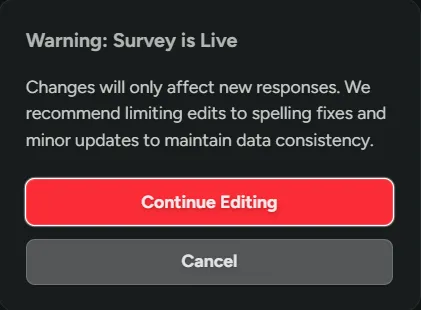
Section titled “Editing Surveys”Once a survey is published you may need to make some edits. To do this, click on Edit which will take you back to the survey builder.
Deleting Responses
Section titled “Deleting Responses”There may be instances where data is incorrectly added and you need to delete certain responses. This can be done by clicking the three little dots at the end of the chosen response and selecting Delete
Exporting Responses
Section titled “Exporting Responses”To export your survey results, click the Export Responses button in the top right corner to download a .csv file. We include player information in these exports like Steam ID and Discord ID. This is really useful if you’re importing this data into your own telemetry pipelines and need a way to match player details.
In-game Survey Integration

Section titled “In-game Survey Integration”FirstLook provides a powerful SDK for seamlessly integrating surveys directly into your game. The SDK includes a pre-built UI that can be fully customized to match your game’s visual style and theme.
Key features of in-game surveys:
- Easy Integration – Simple SDK implementation with minimal code required
- Customizable UI – Adapt the survey interface to match your game’s look and feel
- Native Feel – Surveys appear as a natural part of your game experience
- Full Controller Support – Built for controller or mouse and keyboard navigation
Survey Triggers
Section titled “Survey Triggers”For in-game surveys, you can set up event-based triggers to automatically show surveys to players at specific moments in your game’s user flow. This requires the FirstLook SDK to be integrated into your game.
Survey triggers are based on custom events that your game sends to the FirstLook SDK. When a player triggers an event the specified number of times (threshold), the survey will be shown to them.
Setting Up Triggers
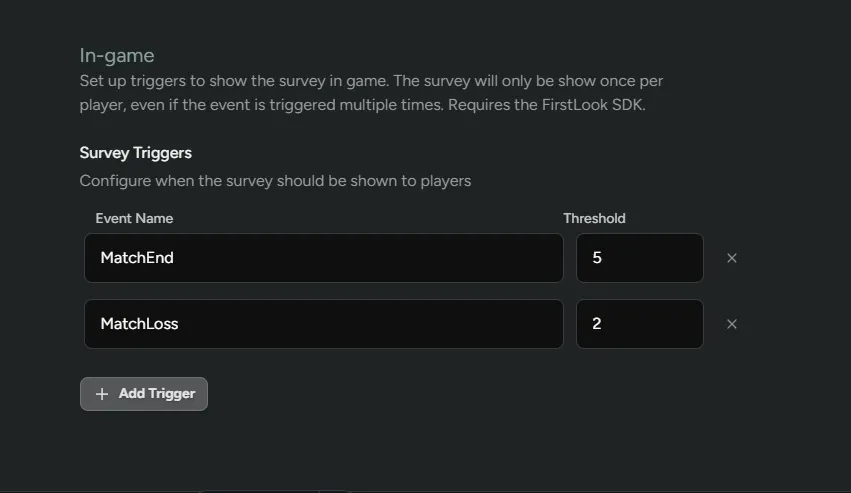
Section titled “Setting Up Triggers”From the “Publish Settings” page under the “In-game” header, add one or more survey triggers.
- Event Name – The name of the event your game sends to the SDK (e.g., “MatchEnd”, “LevelComplete”, “PurchaseMade”)
- Threshold – How many times the event must occur before showing the survey (e.g., 3 means the survey shows after the 3rd occurrence)
Trigger Behavior
Section titled “Trigger Behavior”- Each survey is shown only once per player, even if the event is triggered multiple times
- Triggers are evaluated independently for each player
- You can set multiple triggers for the same survey to cover different scenarios