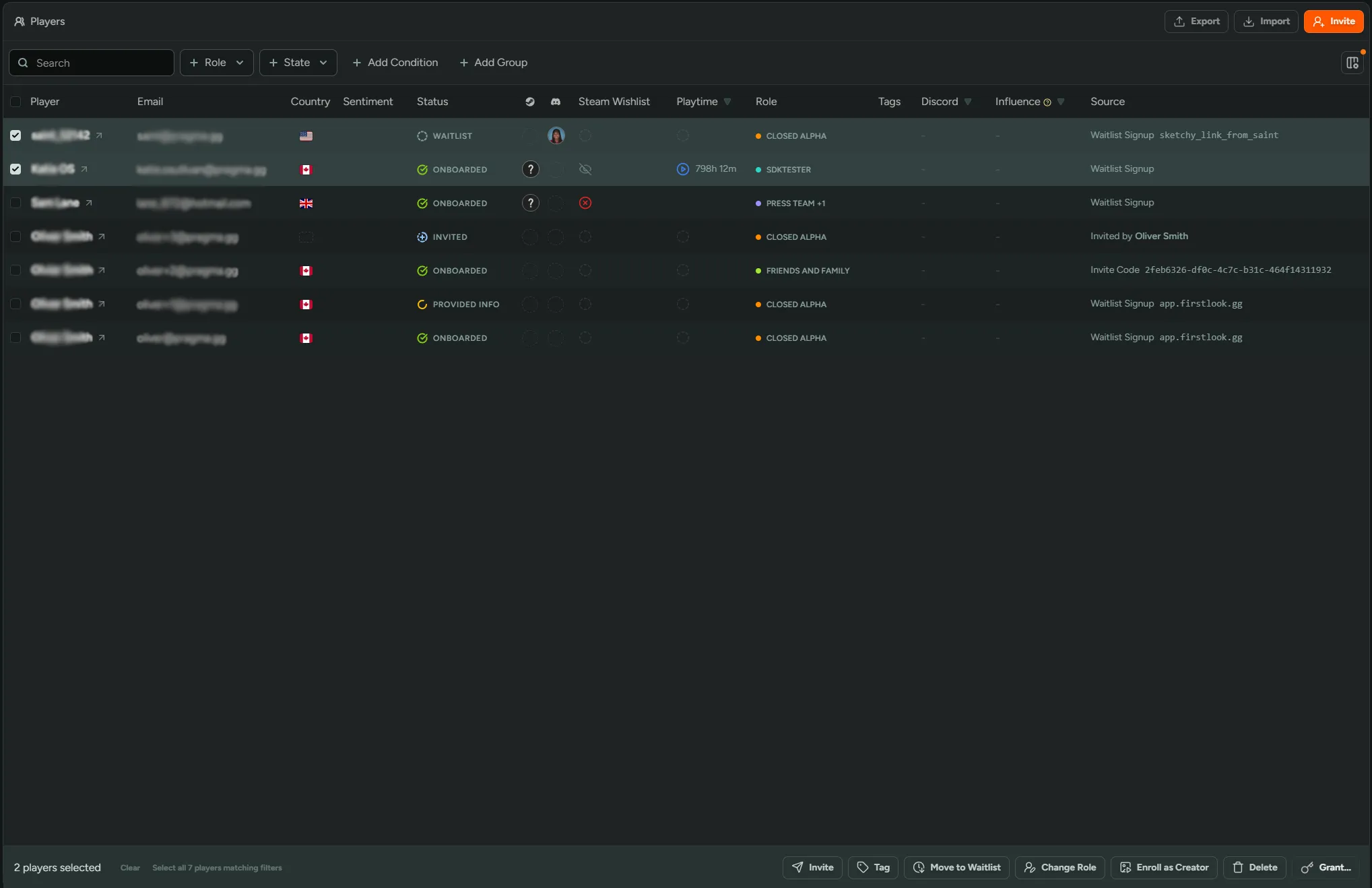
Players
In FirstLook you can manage all of your players in one place. You can find this by navigating to the ‘Players’ tab. From here you can filter your players into different cohorts, send invites and make any changes you might need.
Player Profile
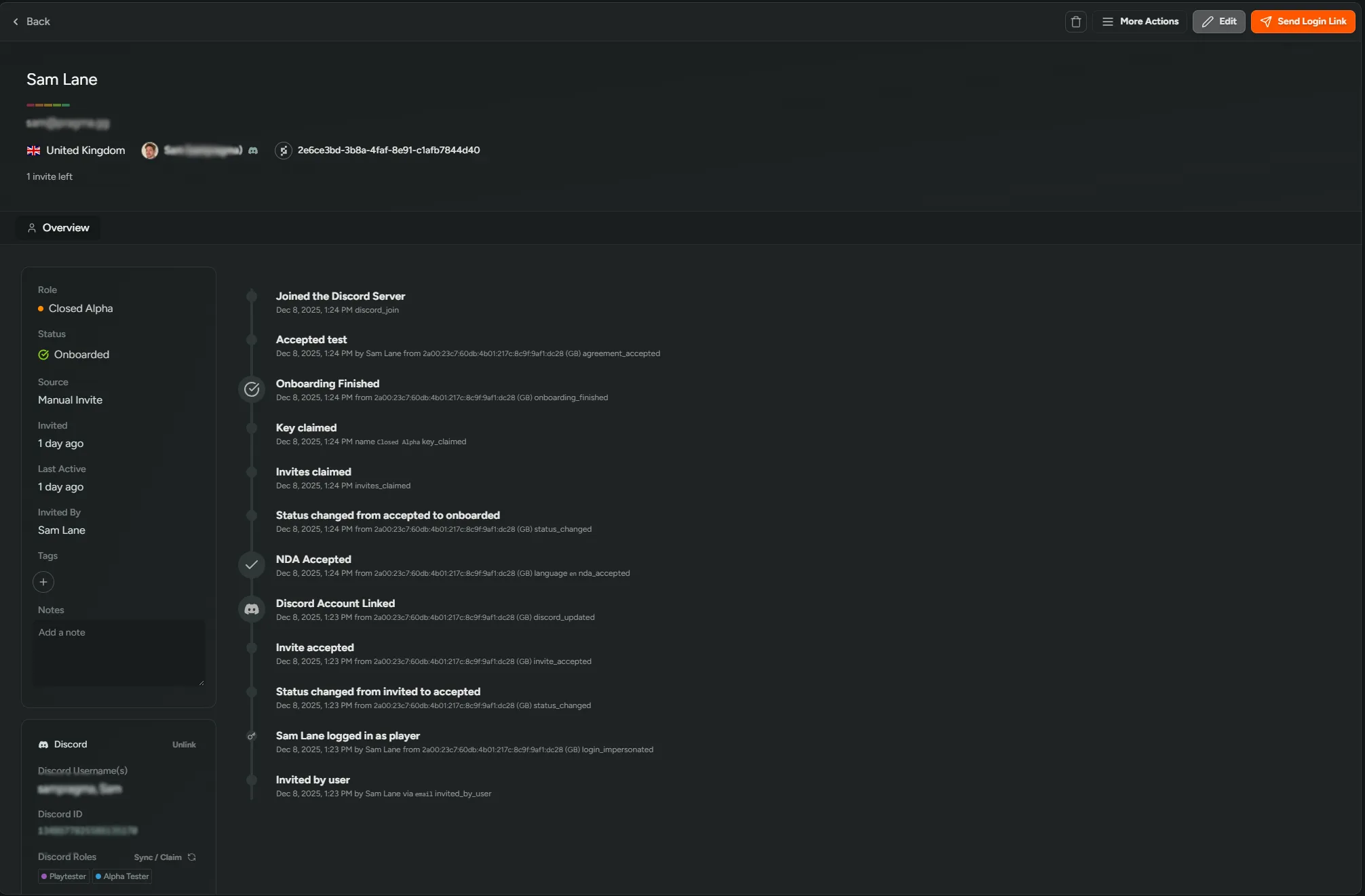
Section titled “Player Profile”To manage players effectively, you’ll need to be able to view and edit their details. This can be done by clicking the players name. Here you’ll be greeted with the following information.
- Audit Log.
- General player information (name, email, source etc).
- Tags.
- Notes.
- Platform connections (Discord, Steam, PlayStation, Xbox, Epic).
- Answers to sign-up/onboarding questions.
From the player profile you’ll be able to take various actions:
Login as Player - Impersonate a player to troubleshoot or quickly check what a player is seeing in their dashboard.
Grant Invites - Grant the player a certain number of invites.
Grant Access - Grant the player access to a key or branch.
Grant Points - Grant the player points towards Rewards.
Enroll as creator - Enroll the player onto your Creator program.
Edit - Edit the player’s profile.
Invite - Invite the player to start their onboarding. If the player’s already invited, use this button to resend the invite email.
Delete - You can delete the player with various different advanced options e.g. deleting from discord, wiping information now or in 30 days, banning the player and the ban duration. You can also ban the entire domain.
Playtime
Section titled “Playtime”If your game uses the FirstLook SDK, each player’s profile will include a breakdown of their in-game activity. This gives you a detailed picture of how an individual player is engaging with your game:
- Last Active In Game - The most recent time this player launched a session.
- Sessions - How many total sessions the player has logged.
- Total - Cumulative playtime across all sessions.
- Avg. Daily - Their average daily playtime over the last two weeks.
- Avg. Session - Mean session length across all recorded sessions.
- Last 2 Weeks - Total time spent in-game over the past two weeks.
- Avg. Weekly - Their average weekly playtime across all recorded history.
- Longest Session - The single longest session on record.
- First Session - When the player first launched your game.
You can filter and segment players by any of these playtime stats using the Conditions filter, and perform Bulk Actions on the results.
Events
Section titled “Events”The Events tab on a player’s profile shows every custom event that has been recorded for that player. Events are organized into collapsible groups by their category prefix — for example, all match.* events appear together — with each entry showing the event name, its cumulative value, and when it was last recorded. This includes both counter events and duration events. To learn how to instrument custom events in your game client, see the SDK Setup guide.
Filters
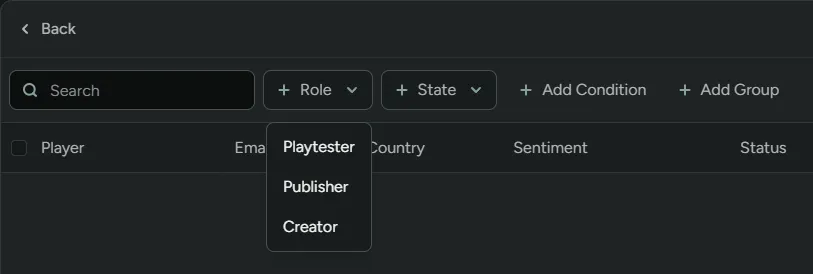
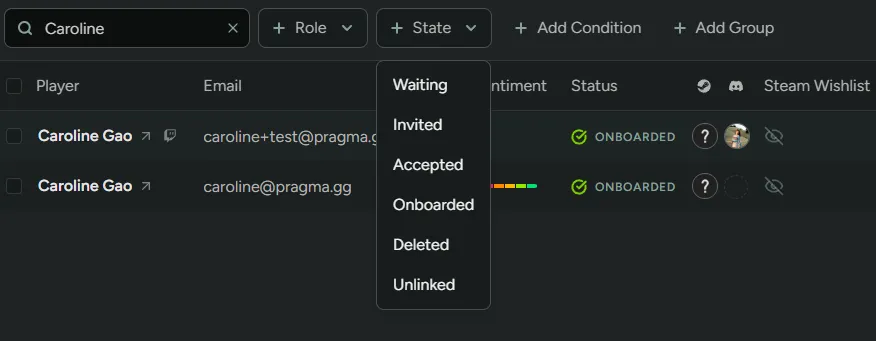
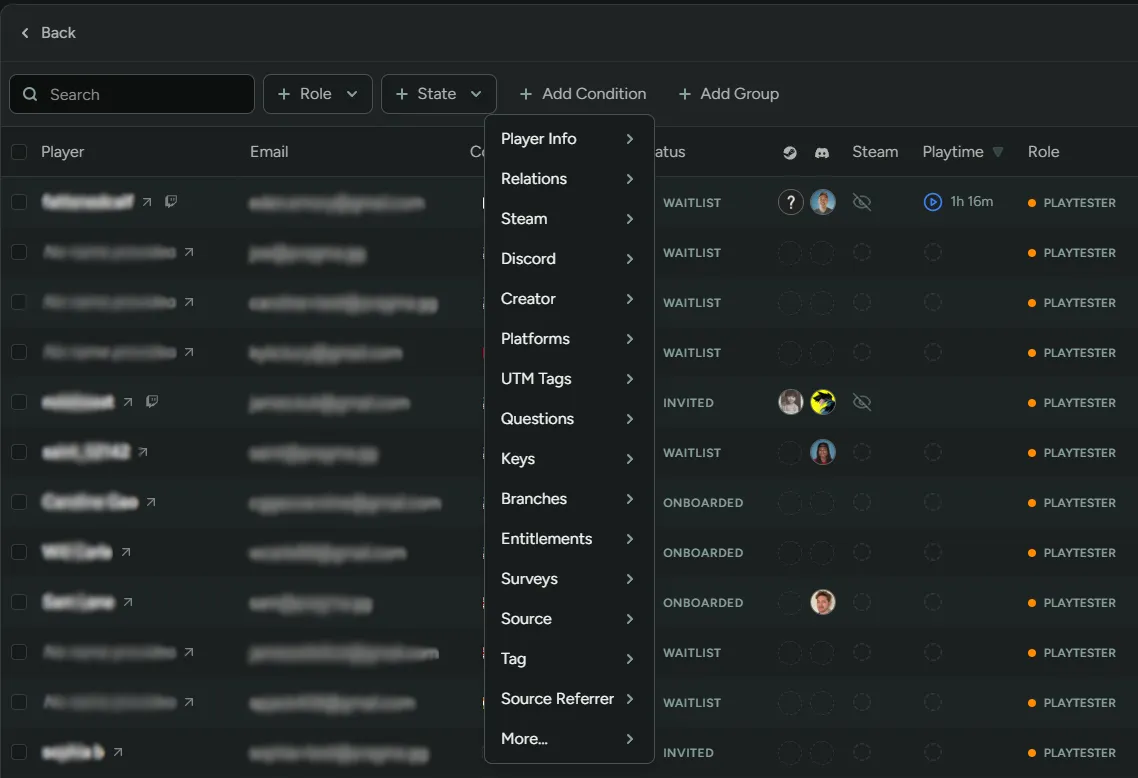
Section titled “Filters”Being able to segment players into cohorts is a really powerful tool. Thankfully in FirstLook, that’s made simple. You can filter players by ‘Roles’ and ‘States’ by selecting options from the dropdown menu. Additionally we have a huge list of filters available to further segment your player base.
Filter by a specific Flow Role
Waiting - The player is on the waitlist.
Invited - An invite has been sent to the player.
Accepted - The player has accepted the invite.
Onboarded - The player has finished onboarding.
Deleted - The player has been deleted.
Unlinked - The player has not yet made a FirstLook account. Please see the FirstLook SDK.
Condition
Section titled “Condition”In FirstLook you can filter a player by a number of different conditions. You can do this by selecting +Add Condition and choosing from the list of filters you wish to segment players by.
Group {#groups}
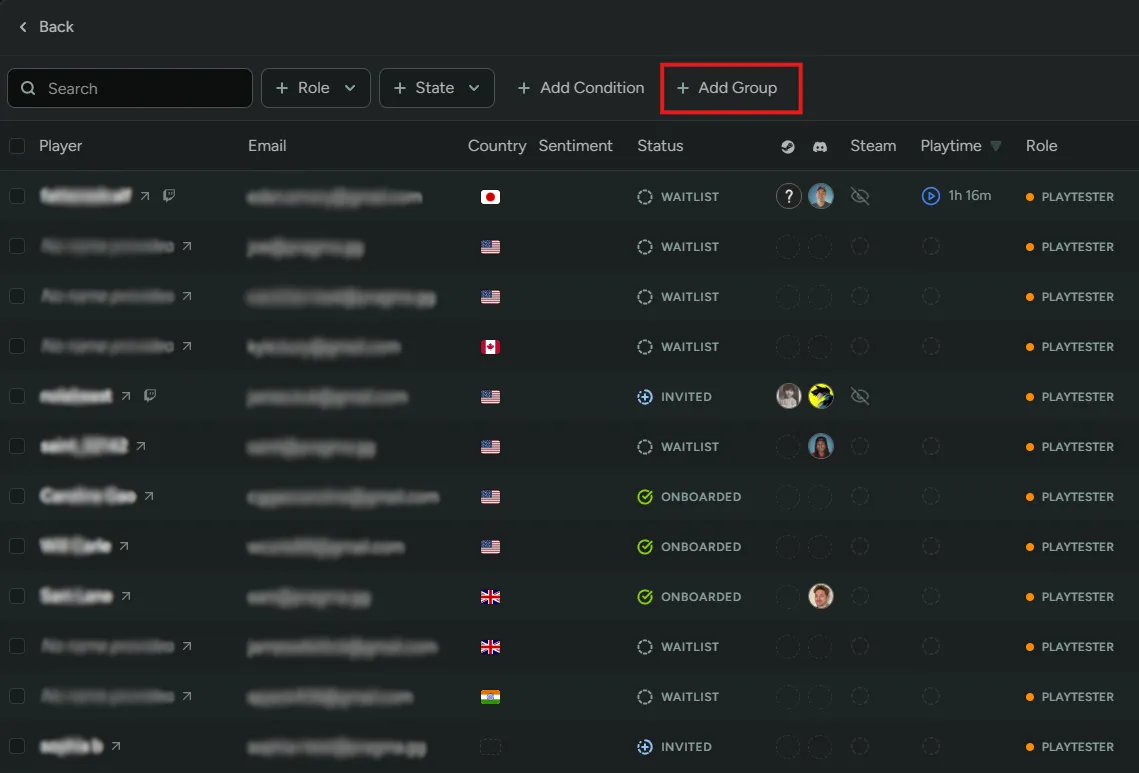
Section titled “Group {#groups}”You can filter players using AND | OR statements. This can be done from the +Add Group tab. Add the specific filter required and then select +Add to utilize the AND statement.
For OR statements use Add new ‘or’ group to add the next filter you wish to search against. This can be done as many times you want.
Save Filters
Section titled “Save Filters”If you need to save your filtered lists to be used another day and by other members of your team, you can do that using the save button. You’ll be able to give the new list a name and it will appear in a drop down you can then access at any time. In the picture below, we’ve saved a list for onboarded players.

Bulk Actions
Section titled “Bulk Actions”When you need to make changes across a wider cohort of players, performing bulk actions will be most time-effective way. To do this, either select individual players or select the entire list. You can perform the following:
Invite - Send an invite.
Tag - Add or remove tags.
Move to Waitlist - Move selected players back to the waitlist, so they can be re-invited to another playtest.
Change Role - Change roles for selected players.
Enroll as Creator - Enroll selected players onto your Creator program.
Delete - Delete all selected players. You’ll also be provided with advanced delete options, and ban restrictions.
Grant Invites - Grant invites. (Click advanced to edit the number of invites, uses per invite and role assigned once invited).
Grant Access - Grant selected keys.
Grant Entitlement - Grant in-game items.
Grant Points - Grant points.