Apple
FirstLook offers a deep integration with Apple App Store Connect, allowing you to automate player access to your game via TestFlight. By connecting your Apple account, you can automatically add onboarded players to specific TestFlight groups for organized and efficient playtesting.
Integrate your Apple Account with FirstLook
Section titled “Integrate your Apple Account with FirstLook”To enable this integration, you need to provide FirstLook with App Store Connect API credentials. These credentials allow FirstLook to securely communicate with Apple’s servers to manage your TestFlight testers and groups.
How to create an App Store Connect API Key
Section titled “How to create an App Store Connect API Key”-
Sign in to App Store Connect.
-
Navigate to ‘Users and Access’ and select the ‘Integrations’ tab.
-
Select ‘App Store Connect API’ from the left sidebar.
-
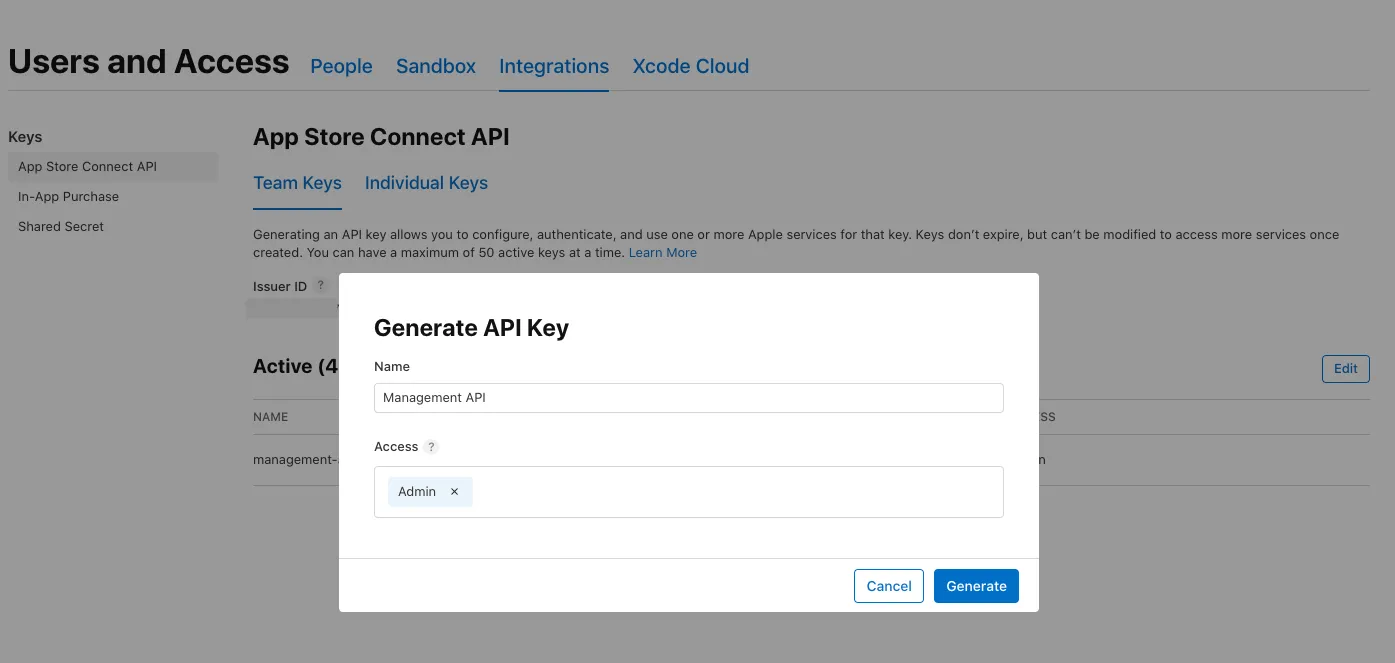
Click the ‘Add’ button or ‘Generate API Key’.
-
Enter a name for the key (e.g., “FirstLook Integration”) and select the ‘Admin’ or ‘App Manager’ role.
-
Click ‘Generate’.
-
Once generated, copy your ‘Issuer ID’ and the ‘Key ID’ for your new key.
-
Click ‘Download API Key’ to get your Private Key (
.p8) file.
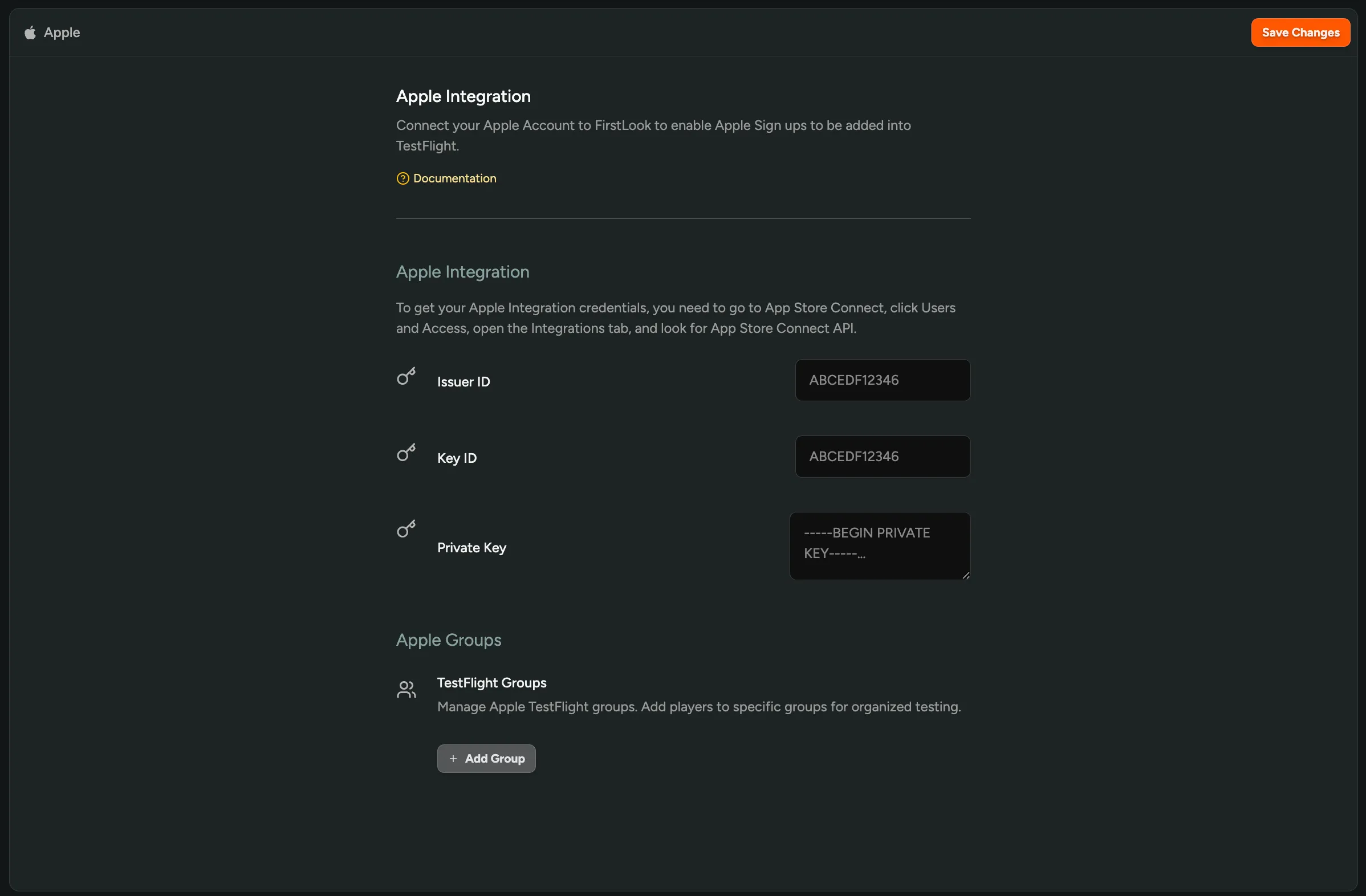
You can now enter the Issuer ID, Key ID, and the contents of your Private Key file into the Apple Integration Settings page in FirstLook.
TestFlight Groups
Section titled “TestFlight Groups”Once you have entered your credentials, you can manage TestFlight Groups to map FirstLook players directly to your existing groups in TestFlight.
How to create a TestFlight Group in App Store Connect
Section titled “How to create a TestFlight Group in App Store Connect”Ensure your testing groups are set up in Apple’s portal:
- In App Store Connect, select your app and click the TestFlight tab.
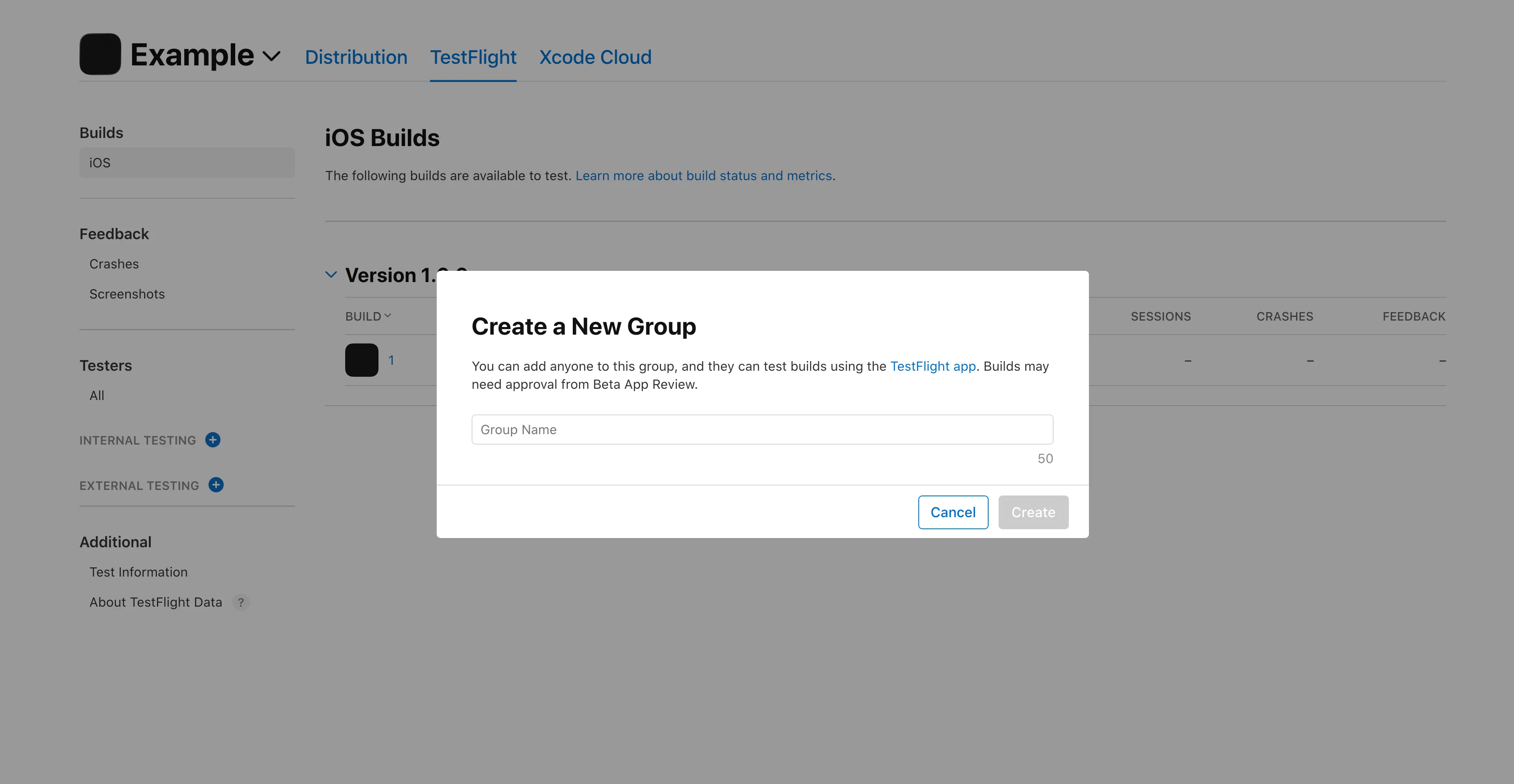
- In the sidebar, click the ‘Add’ button next to ‘Internal Testing’ or ‘External Testing’ to create a new group.
- Enter a ‘Group Name’ and click ‘Create’.
- Once created, you can find the ‘Group ID’ in the URL of the group’s page or within the group settings.
Configuring a TestFlight Group in FirstLook
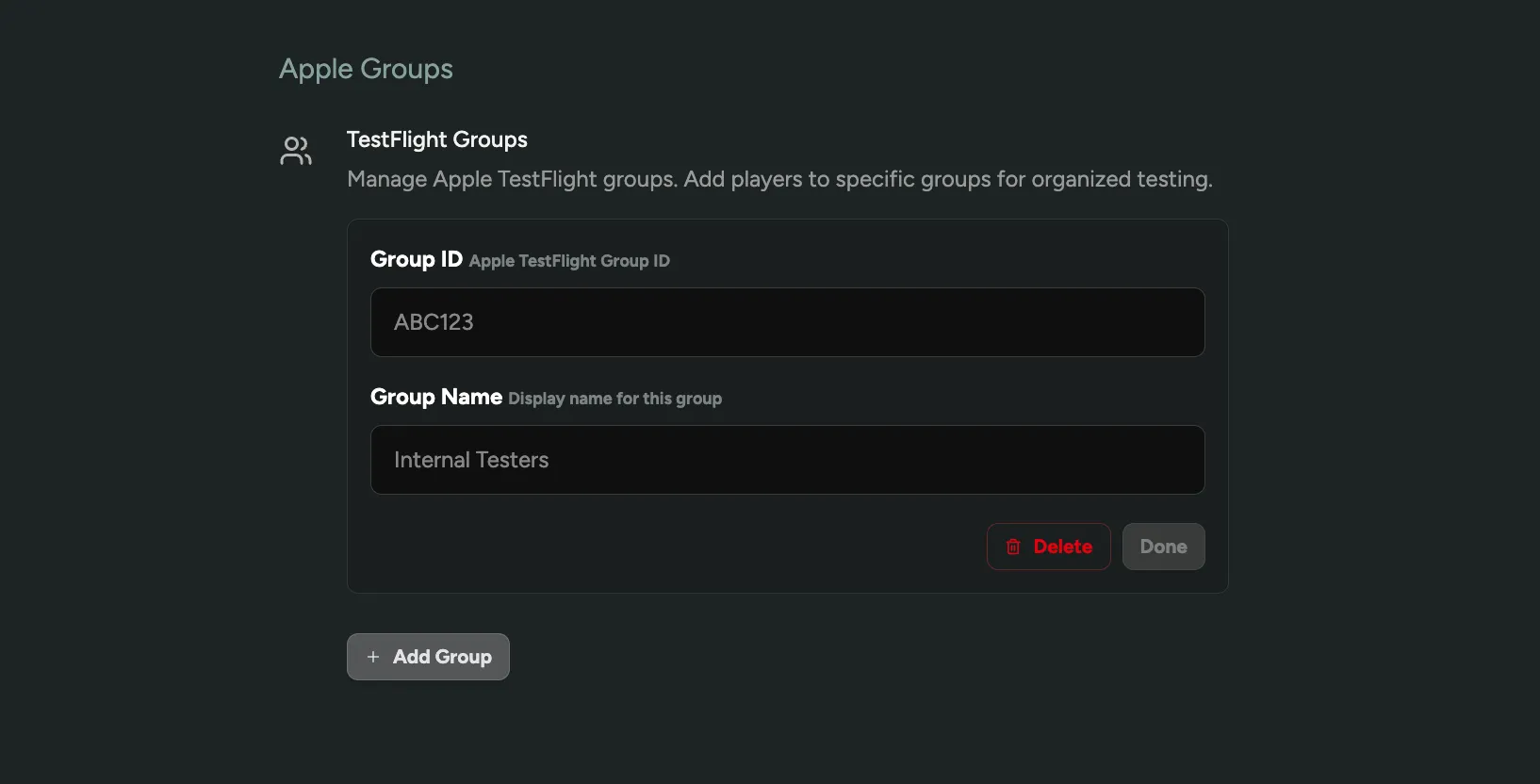
Section titled “Configuring a TestFlight Group in FirstLook”To link your Apple group to FirstLook, click the ’+ Add Group’ button in the Apple Groups section and provide the following details:
- Group ID – The unique ID of your Apple TestFlight Group.
- Group Name – A display name for this group inside FirstLook (e.g., “Alpha Phase 1”).