Running Playtests with Pragma Limited Access Mode Guide
Limited Access Mode lets you open your game exclusively to the players you choose during the windows you define. Because FirstLook integrates directly with Pragma, studios using Pragma can pre-create accounts, map FirstLook roles to Player Groups, and schedule events.
This guide walks you through connecting FirstLook to Pragma, mapping roles to Player Groups, and scheduling a Limited Access event.
Note: Limited Access Mode is available only to Pragma Engine customers
Prerequisites:
Section titled “Prerequisites:”- Reach out to your CSM to enable the Pragma Integration feature flag
- A Pragma environment with Operator Portal access
Pragma Setup
Section titled “Pragma Setup”Head over to the Social Operator Portal and complete the following:
Generate a Pragma Partner Token
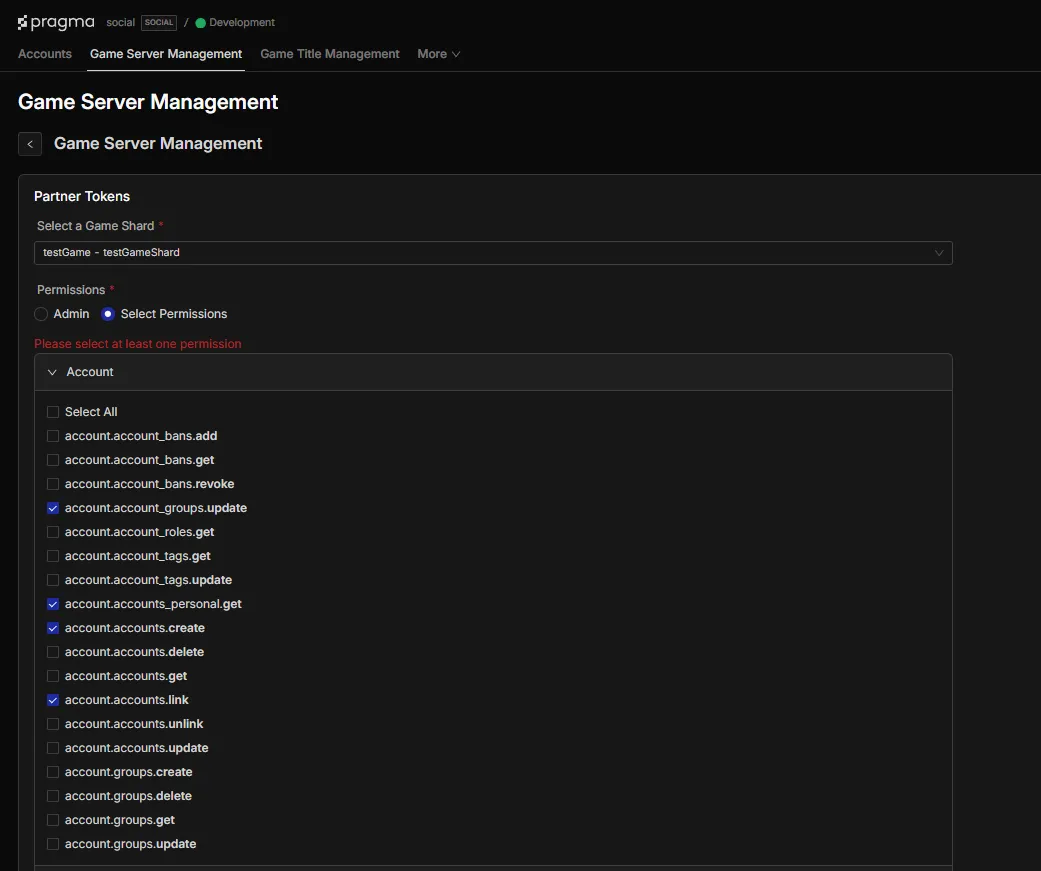
Section titled “Generate a Pragma Partner Token”- Select
Game Server Managementfrom the top menu - Use the
Select a Game Sharddropdown to select the game shard to associate it with the generated Partner token - Select
Select Permissionsand add the following:account.account_groups.updateaccount.accounts_personal.getaccount.accounts.createaccount.accounts.link
- Scroll to the bottom of the page and click
Create Tokens
Create Player Groups
Section titled “Create Player Groups”Still in the Social Operator Portal:
- Select
Accountsfrom the top menu - Select
Groupsfrom the left hand menu - Click
Create Player Groupin the top right

- Add group name and description
- Click
Create- Provide the group ID to your CSM
Schedule a Limited Access Event
Section titled “Schedule a Limited Access Event”-
Navigate to the Social Operator Portal
- Select
Game Title Managementat the top of the screen - Select
Shardsfrom the left hand menu - Click into the shard associated with your FirstLook instance

- Select
-
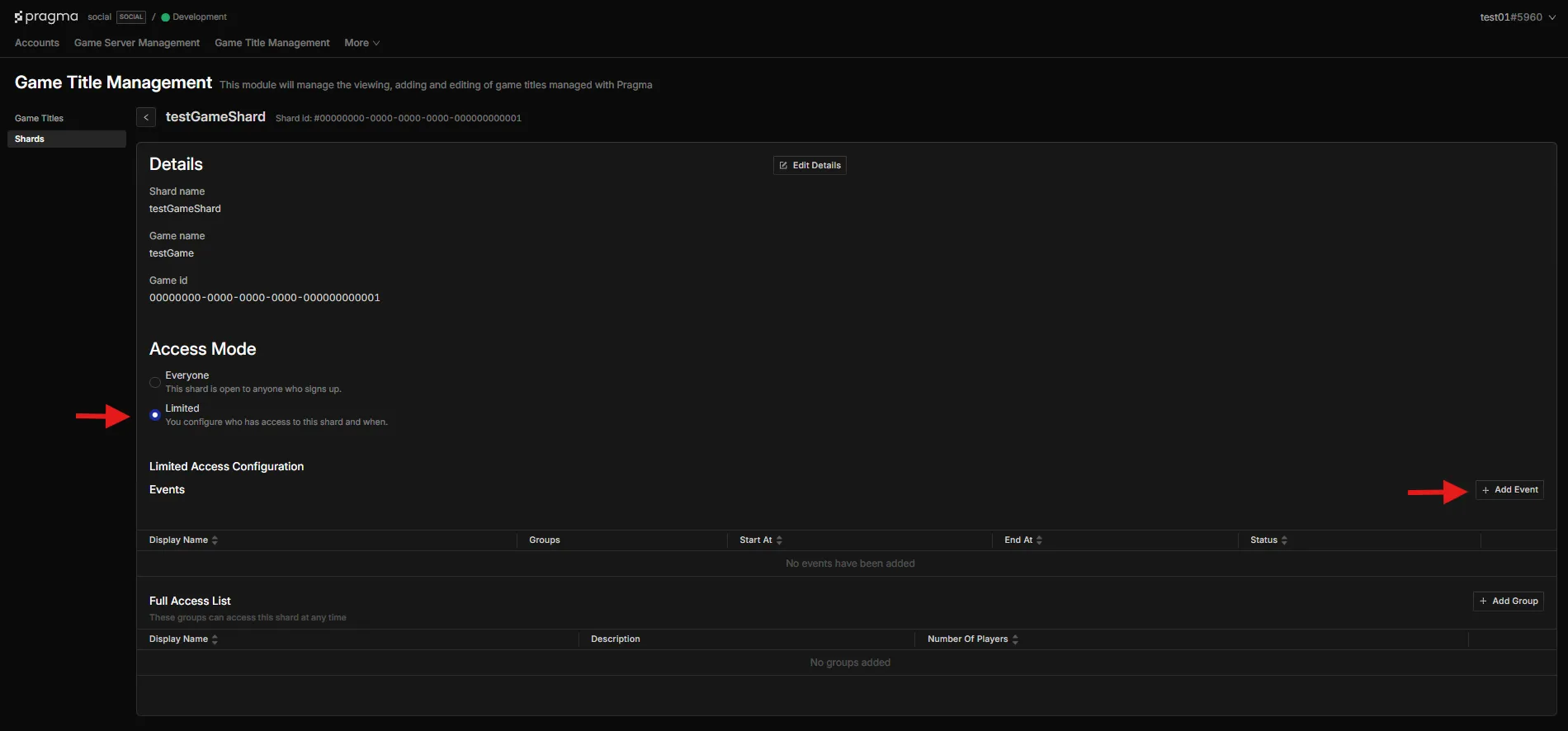
On Shard Details Page
- select
Limited - You will be prompted that you want to turn on limited access mode. Click
Confirm - Select Add Event
- select
-
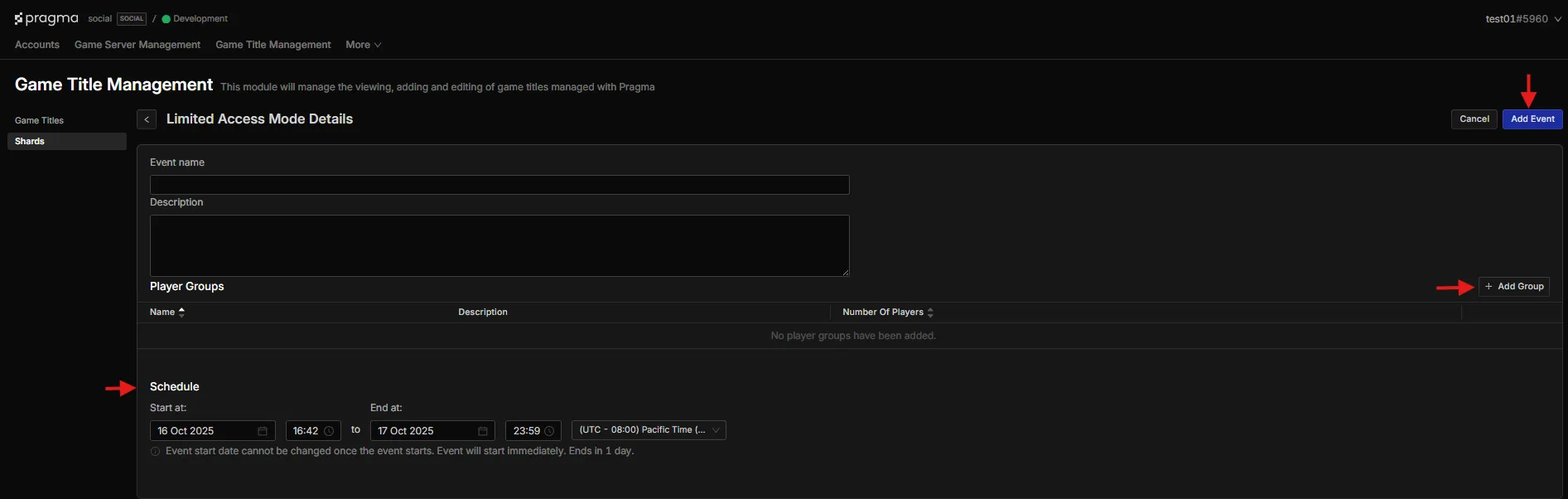
On the Event Page:
- Name the event
- Select
Add Group - Add the desired player groups
- Set start/end time (and time zone) for the test windows
- Click
Add Eventin the top Right
FirstLook Setup
Section titled “FirstLook Setup”FirstLook Roles
Section titled “FirstLook Roles”- Setup a Flow to funnel your target players into a role
- Let your CSM know which FirstLook role(s) you want to have access to Limited Access events
- Your CSM will map this role to the correct Pragma Player Group(s)
Connecting Pragma to FirstLook
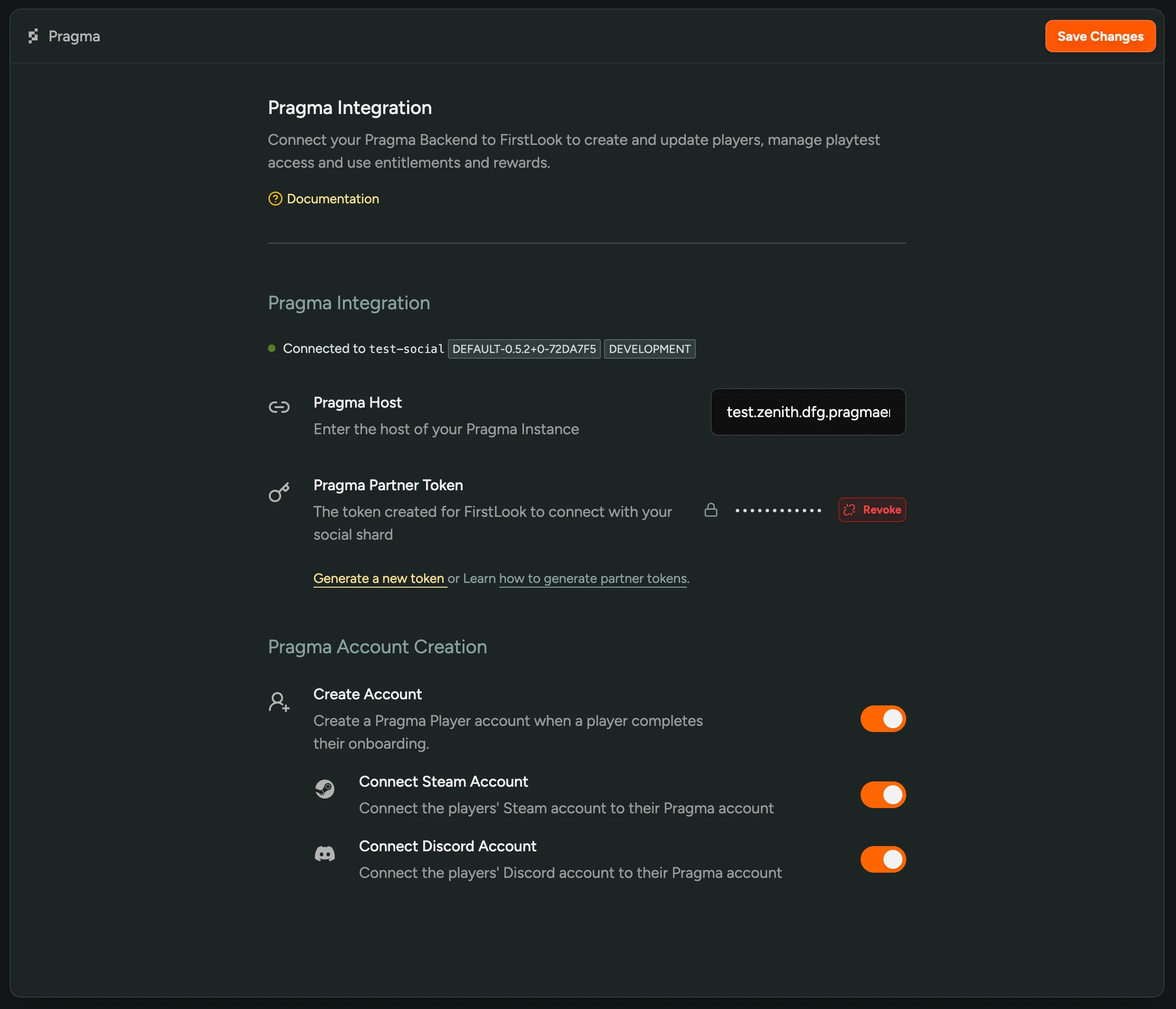
Section titled “Connecting Pragma to FirstLook”- Head over to the Pragma Integration page
- Enter the host URL of your Pragma instance
- Add the generated
Pragma Partner Tokencreated in the Pragma Setup section above - Toggle on
Create Accountso FirstLook automatically creates/links Pragma accounts when a player completes onboarding