Tags
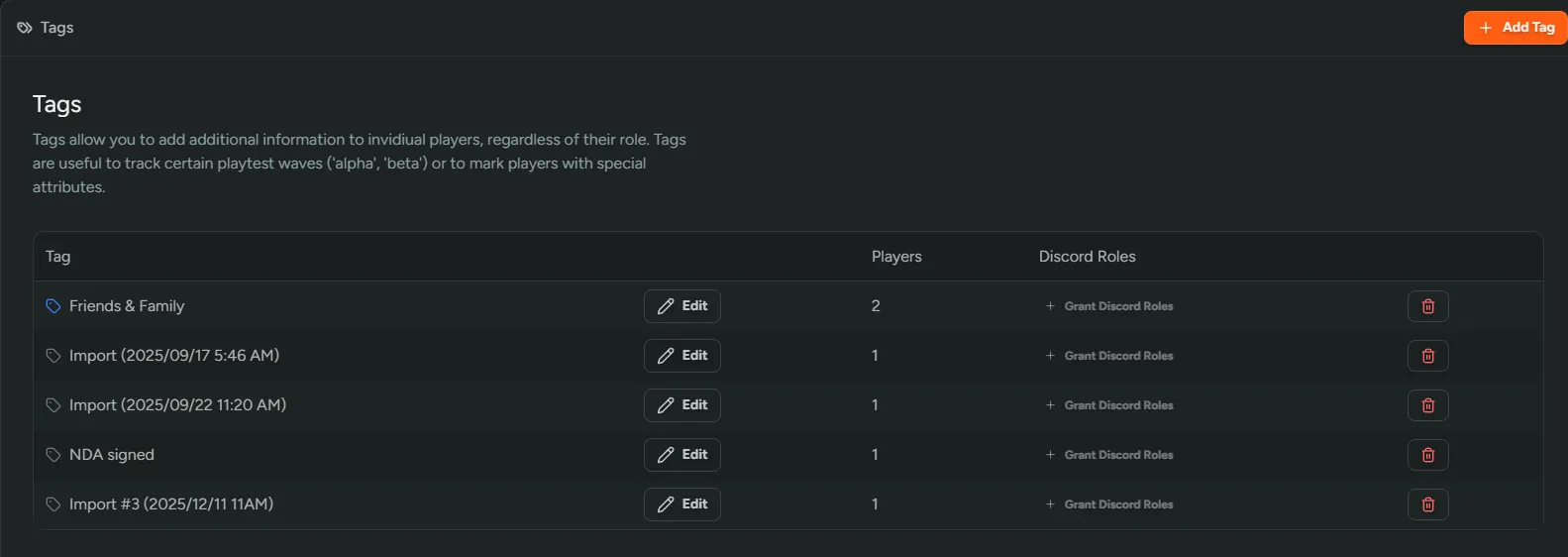
Tags can be managed from Settings → Tags. Here you can add, edit and delete tags. They are incredibly helpful when assigning to cohorts of players which can later be filtered.
Creating A New Tag
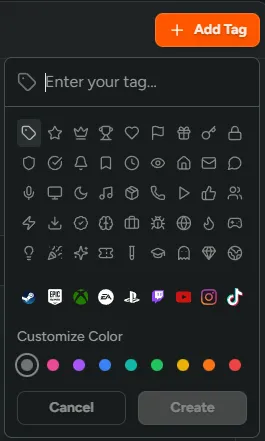
Section titled “Creating A New Tag”To create a new tag, select Add Tag. When adding a new tag you’ll be able to create a tag name, assign an image and color.
Assigning Discord Roles via Tags
Section titled “Assigning Discord Roles via Tags”Once a tag is created, FirstLook allows you to assign Discord roles via the tag. To add a Discord role, navigate to the tag and select + Grant Discord Roles. Select the Discord role from the list and click Save
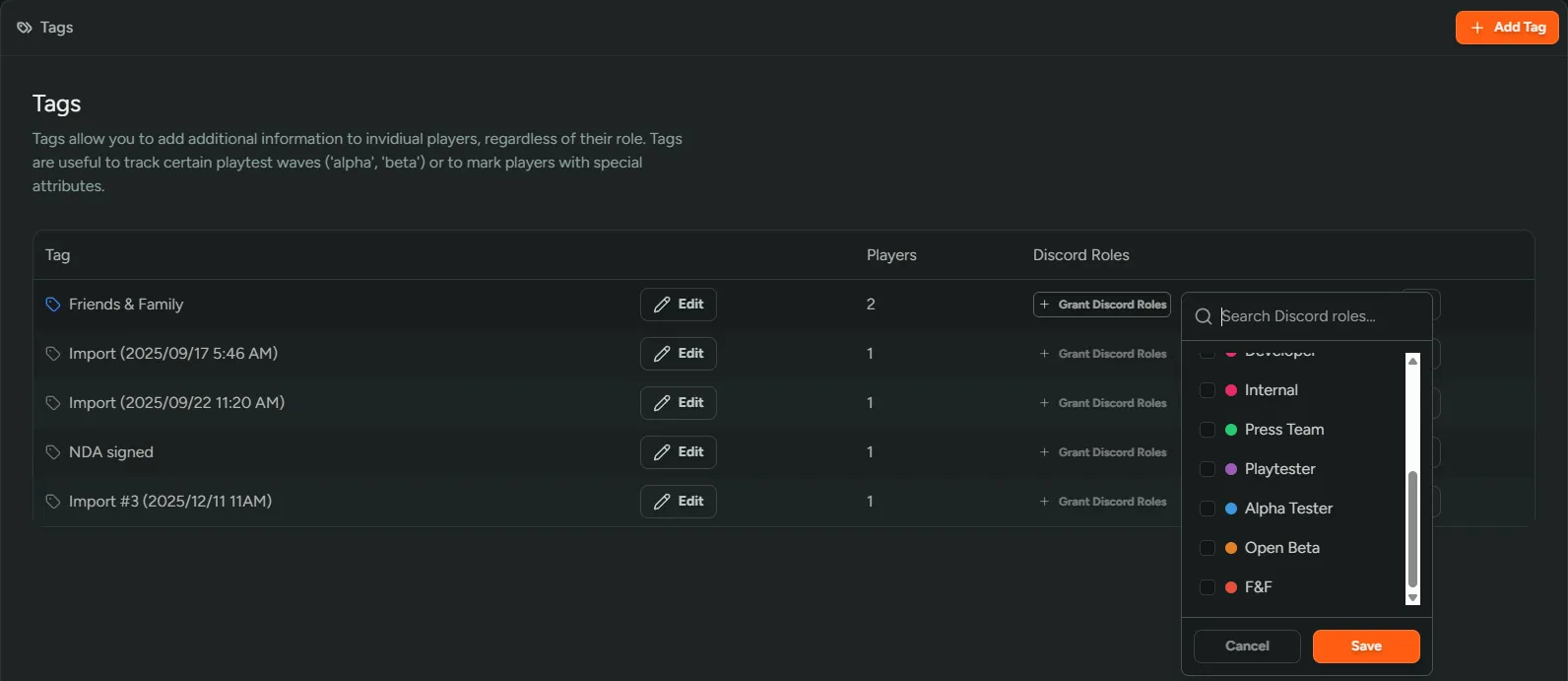
When you assign Discord roles to a tag, all players with that tag automatically receive those roles, and they’re removed when the tag is removed.
How role assignment works in combination with Player Roles:
- Players receive Discord roles from both their combined Player Role and all assigned tags
- When a player’s Player Role changes, any Discord roles granted by tags are preserved
- Updating the Discord roles on a tag automatically updates all players with that tag
- Removing a tag from a player removes the Discord roles granted by that tag, unless those same roles are still granted by the Player Role or another tag
- Deleting a tag removes its Discord roles from all players, unless those roles are still granted by the Player Role or another tag