Waitlist
After signing up, players are added to the Waitlist. They’ll stay here until invited, so this is a good opportunity to thank them and share next steps.
General
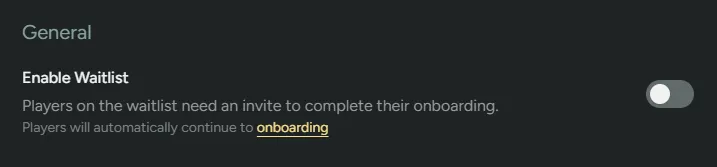
Section titled “General”Enable Waitlist - Toggle on so that players need to be invited to progress past the Waitlist. Toggle off to enable players to immediately progress through to Onboarding and skip the waitlist entirely.
Messaging
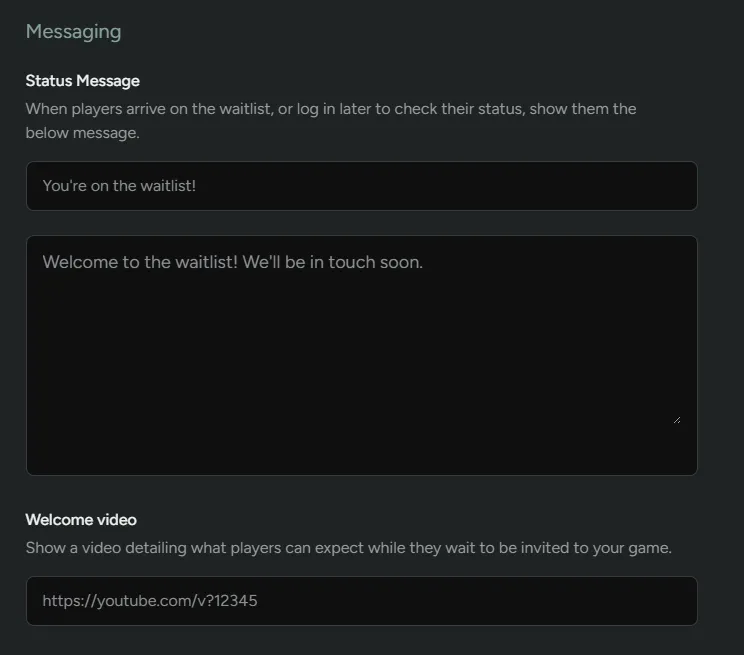
Section titled “Messaging”Control what messaging they see on their dashboard.
Call To Actions
Section titled “Call To Actions”Direct players to:
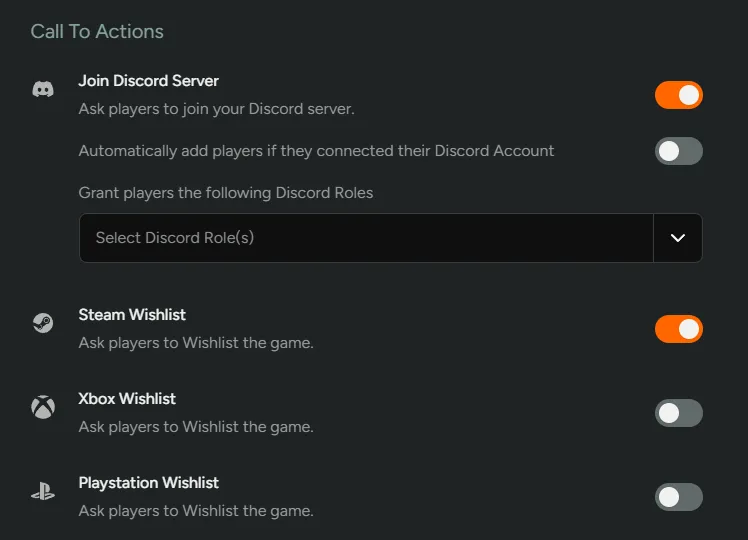
- Join your Discord server
- Grant players a specific Discord Role
- If you want to build your Discord community early, enable
Automatically add players if they connected their Discord Account, and optionally assign roles automatically. - Wishlist your game on platforms like Steam, Xbox, or PlayStation
Referrals
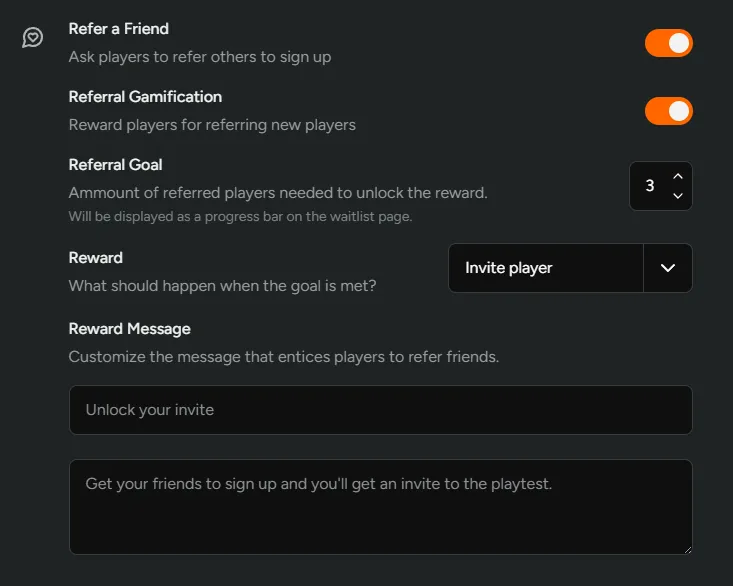
Section titled “Referrals”Refer a Friend - Let players share a referral link with friends. Referrals appear in the Players tab, so you can track who’s driving new sign-ups.
Referral Gamification - Toggle to gamify referrals. You’ll be able to set the goal, the reward for hitting that goal as well as a reward message. You can also choose not to automatically provide rewards if you wish to follow up manually.
Player Dashboard
Section titled “Player Dashboard”Once players are on the waitlist, they will have access to the Player Dashboard. From here they will be able to interact with lots of different functionality which will be visible depending on what’s been enabled above:
Dashboard
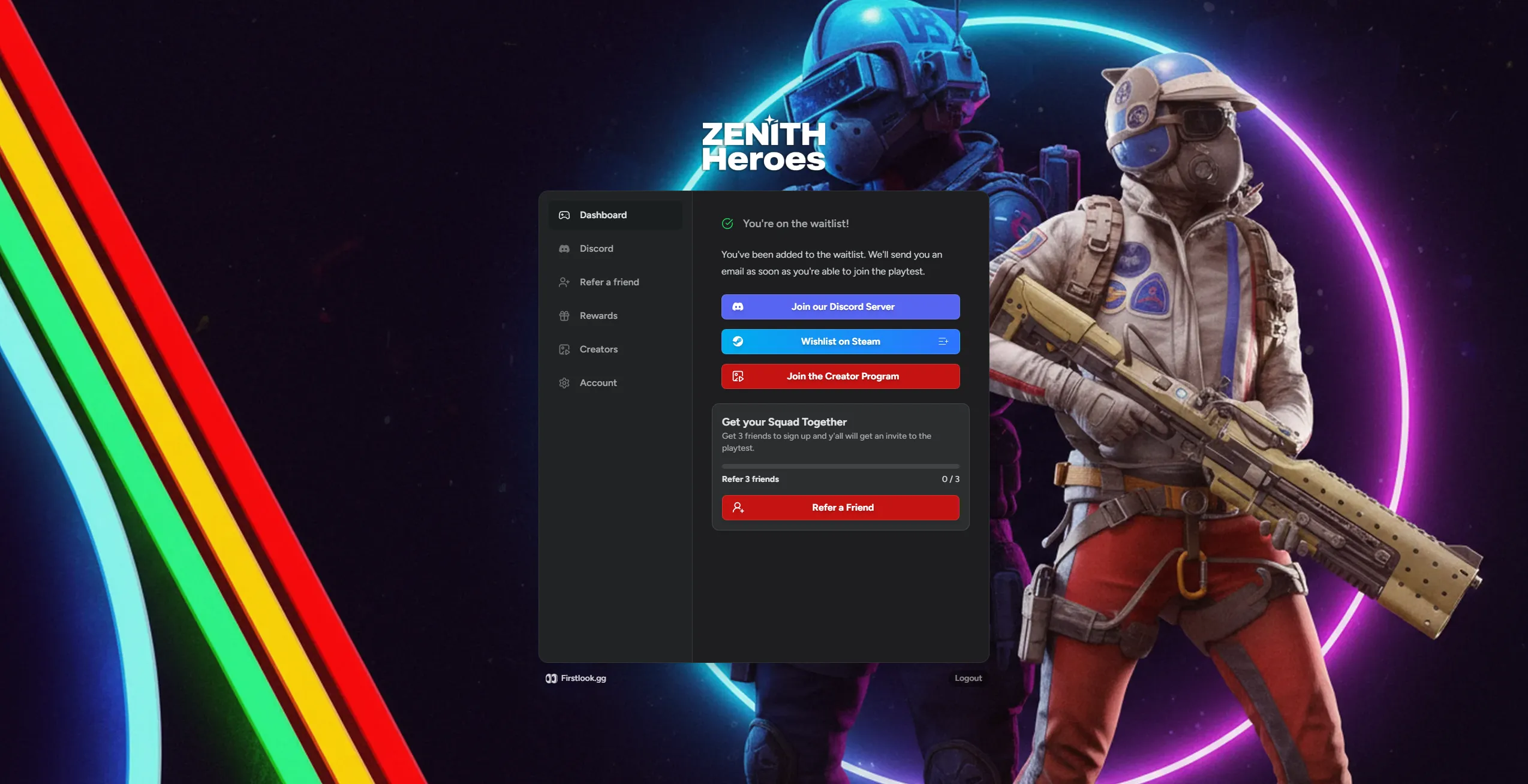
Section titled “Dashboard”The dashboard tab has all the important functionality from the other tabs in one place. From here, players will be able to join your Discord server, wishlist your game on various platforms, join your Creator Program and refer their friends.
Discord
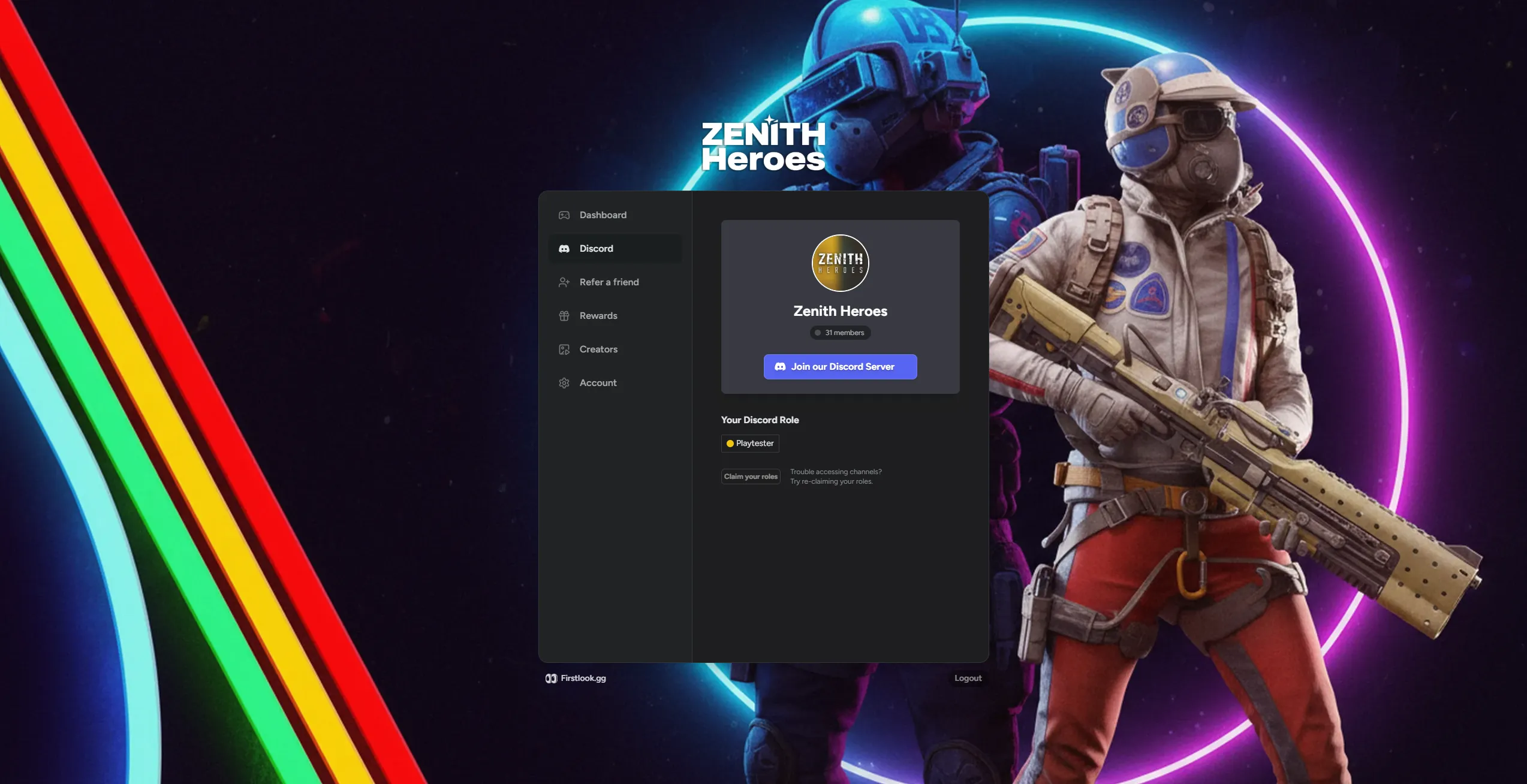
Section titled “Discord”The Discord tab will allow players to join your Discord server, see the Discord Roles they have been assigned as well as the ability to sync roles, should they not be already available.
Refer a Friend
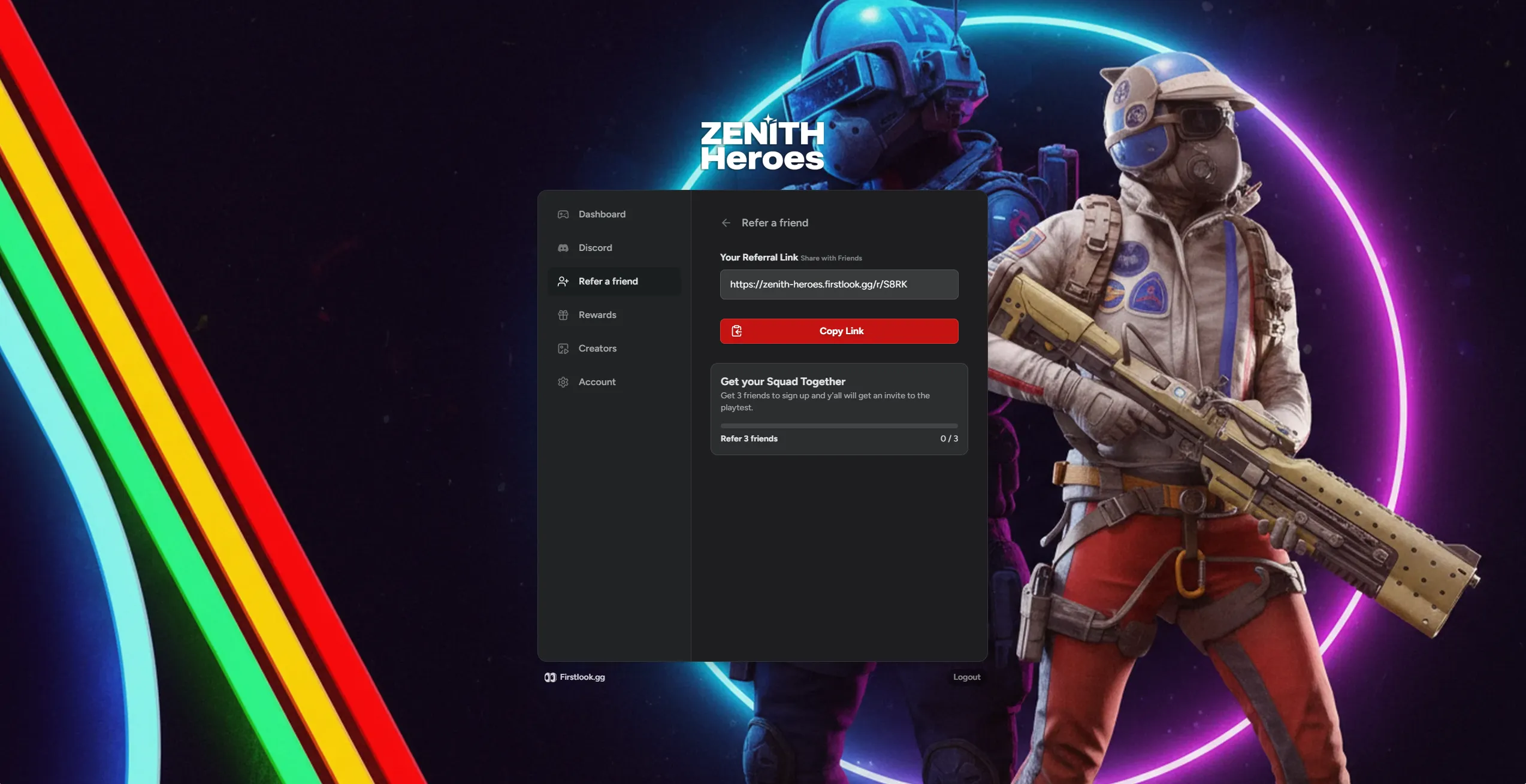
Section titled “Refer a Friend”From here players can find the referral link which can be sent to friends, along with any goals/rewards you’ve set.
Rewards
Section titled “Rewards”Rewards is in beta and documentation will be available soon.
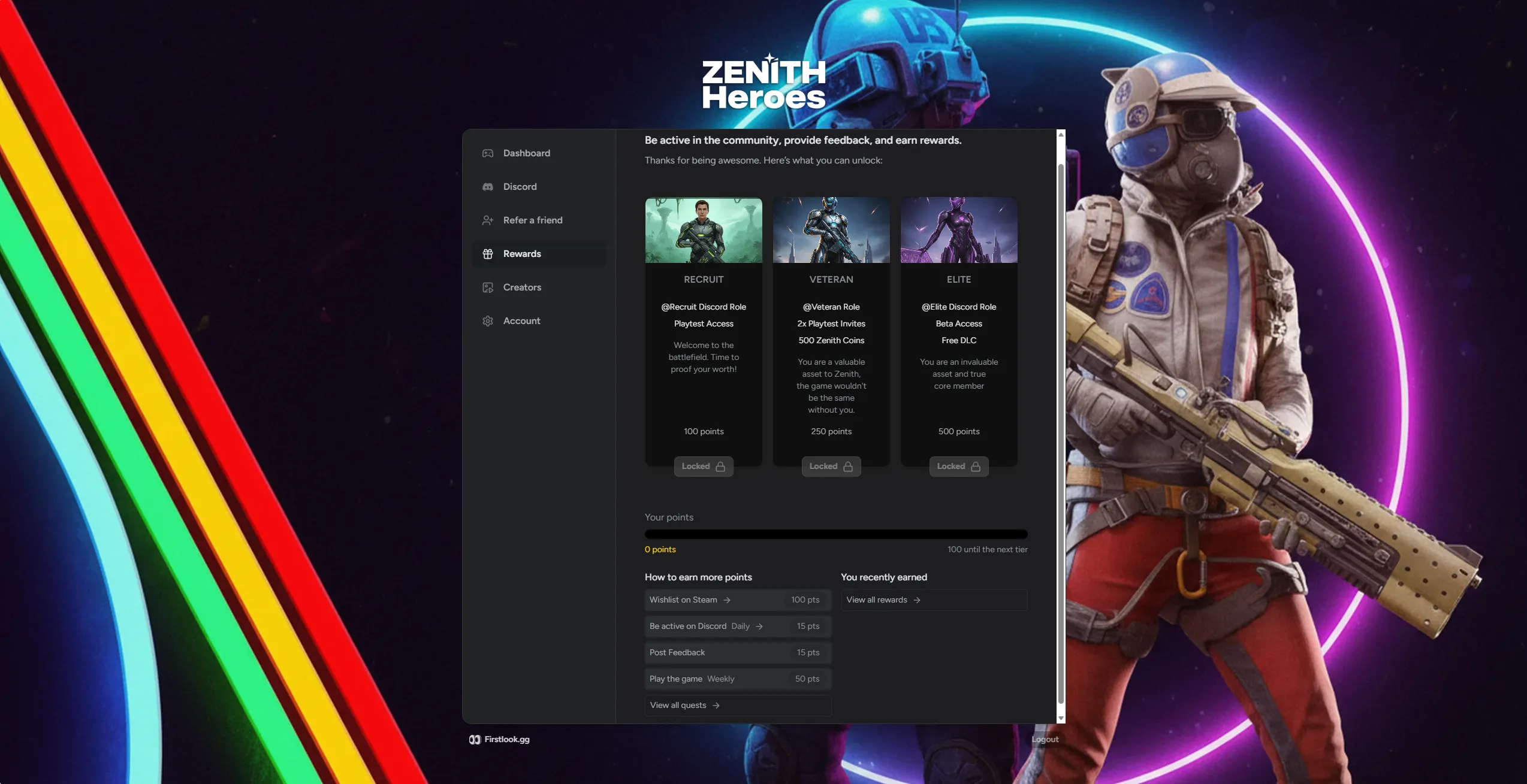
Creators
Section titled “Creators”Players can sign up to your Creator Program.
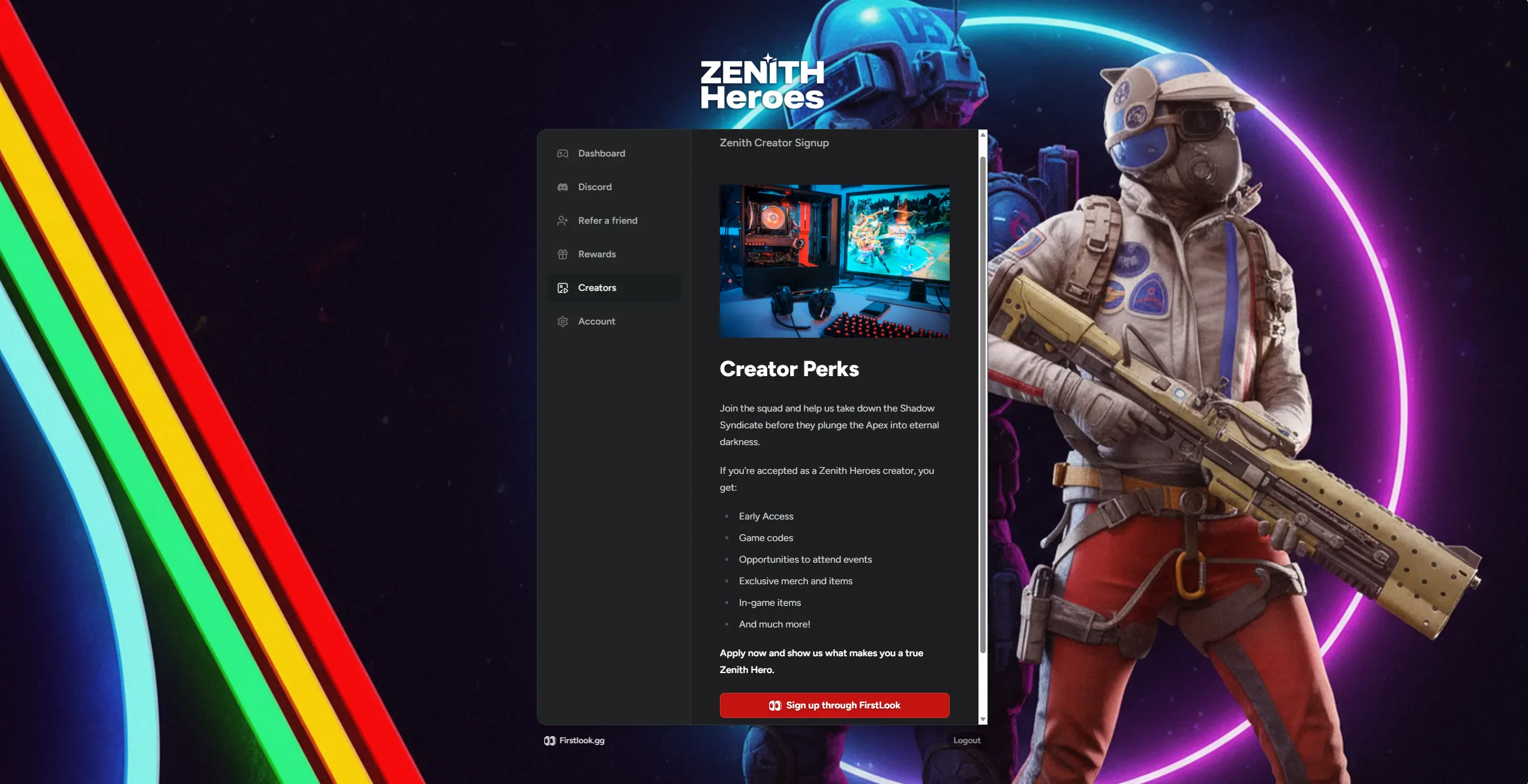
Account
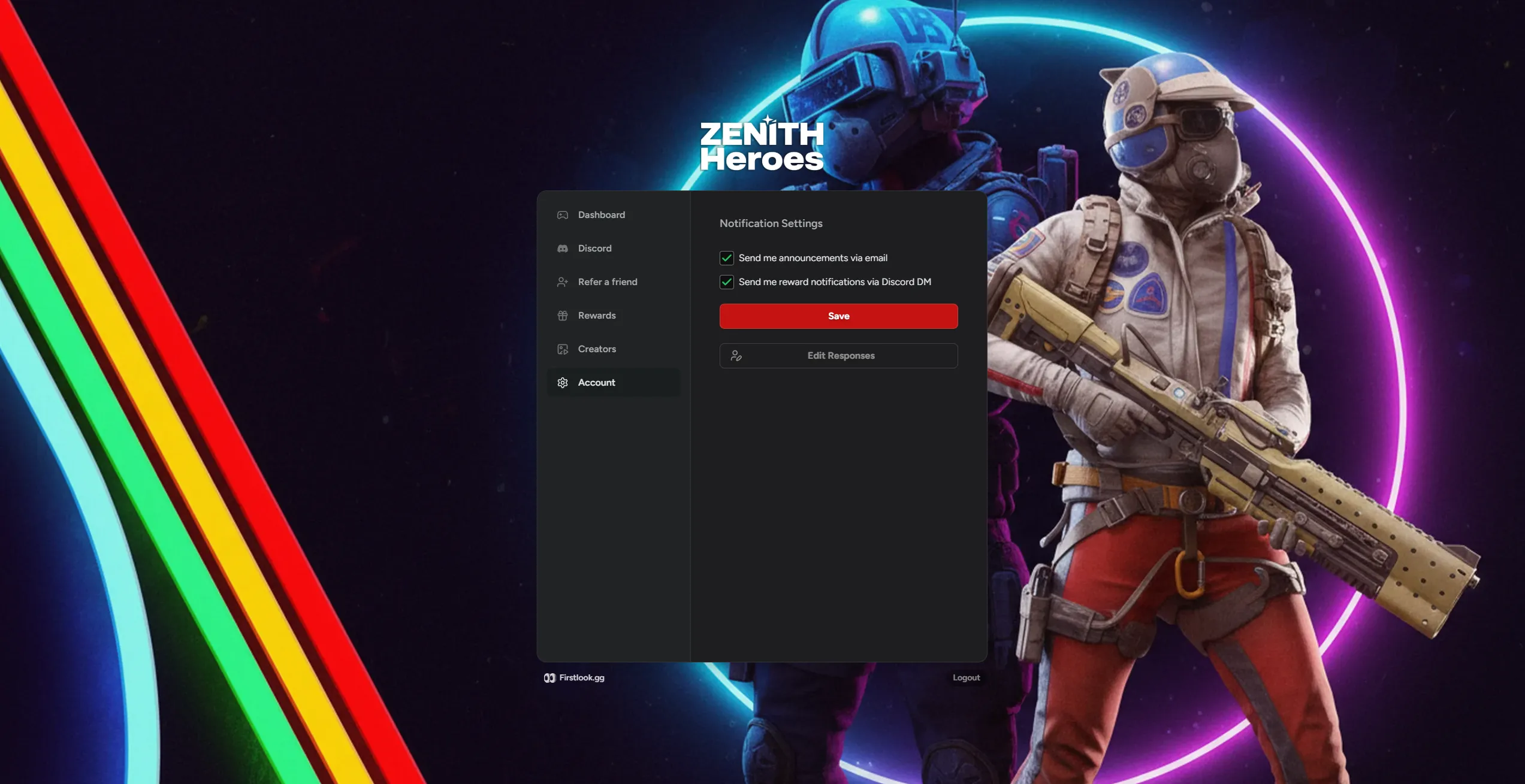
Section titled “Account”Under the Accounts tab, players can change their notification settings. They can also edit responses to the pre-screening questions asked during the sign-up stage. This is to help make sure information is as up-to-date as possible.