Steam Beta Branches
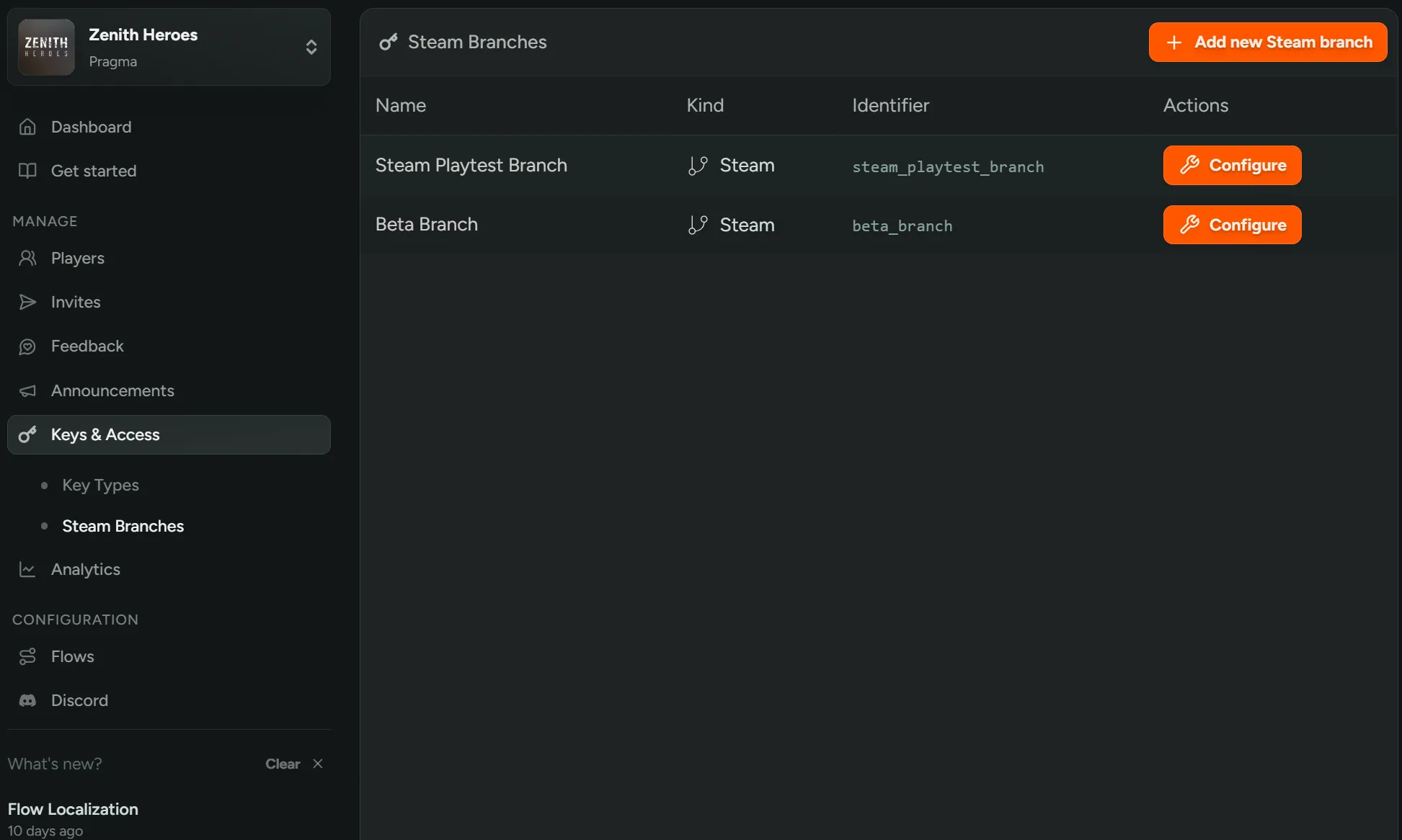
With FirstLook, you can provide players with instructions to access a specific Steam branch. Under the ‘Keys & Access’ tab in the ‘Steam Branches’ section, you can view all branches associated with your game and add new ones as needed.
Steam Branch Configuration
Section titled “Steam Branch Configuration”When you create a branch, you can configure the following settings:
- Steam Branch Label – The name of the branch. This identifies the branch in your system and is displayed to players in their dashboard.
- App ID – Select the App ID for the Steam application this branch is associated with.
- Steam Branch Name – The name of the branch as configured in Steam.
- Steam Branch Password – The password for the branch as configured in Steam.
- Associated Steam Keys – The Steam keys you want this branch’s instructions and password to appear alongside for the player. You won’t need to associate any keys if your game is live. Note these keys must be granted to separately.

Hide Branches from Players
Section titled “Hide Branches from Players”When you create a branch, you can choose to temporarily hide the branch from players. This means they won’t be able to view the branch password in their dashboard yet. This is useful if the branch isn’t ready to be played or if you want to wait until a specific date to make the branch available.
Viewing Branches
Section titled “Viewing Branches”In the ‘Keys & Access’ tab under ‘Steam Branches,’ you can browse all branches for your game.
Granting Branch Access
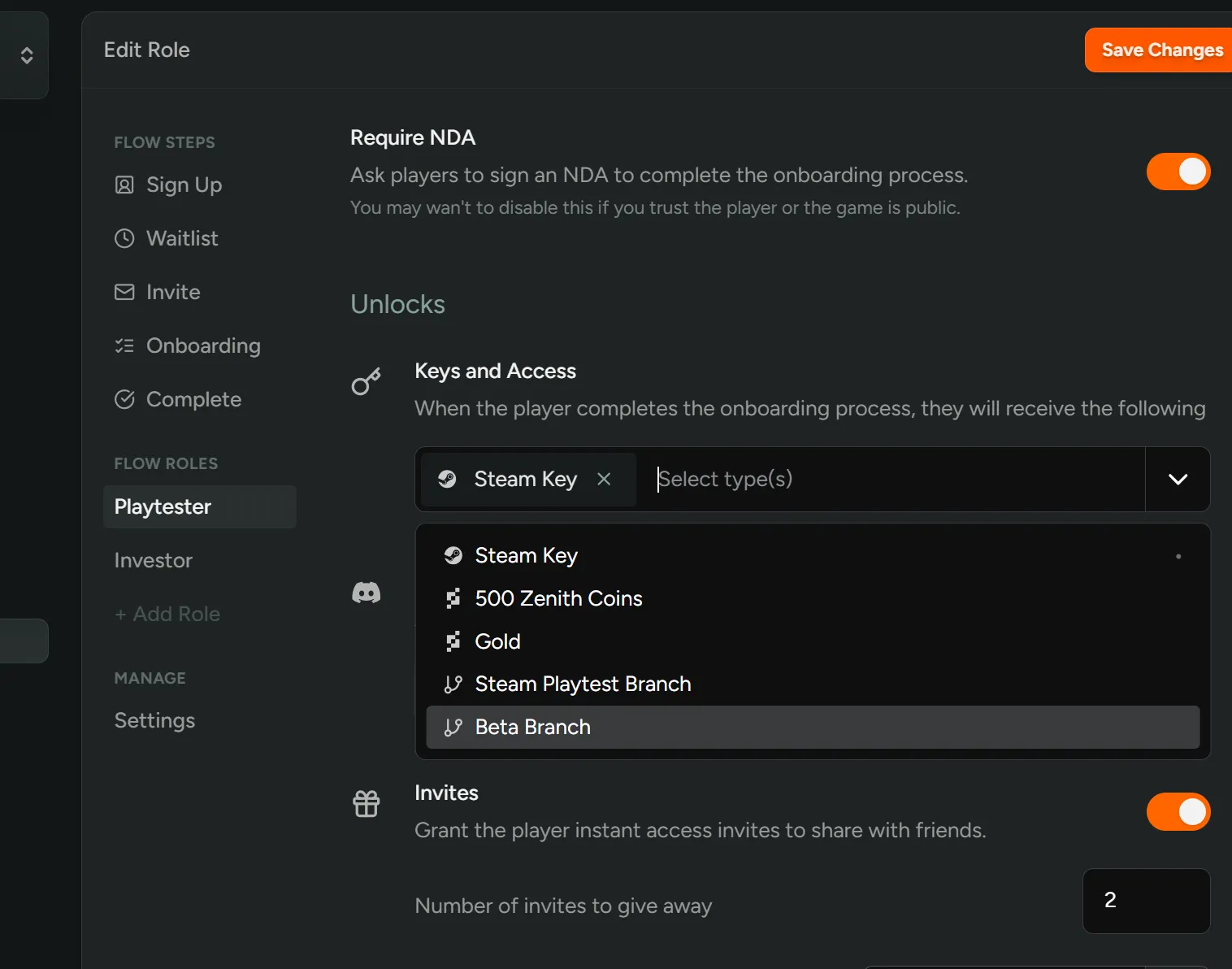
Section titled “Granting Branch Access”To give players access to a branch, navigate to ‘Flows,’ then ‘Flow Roles,’ and select the appropriate branch when configuring the role.
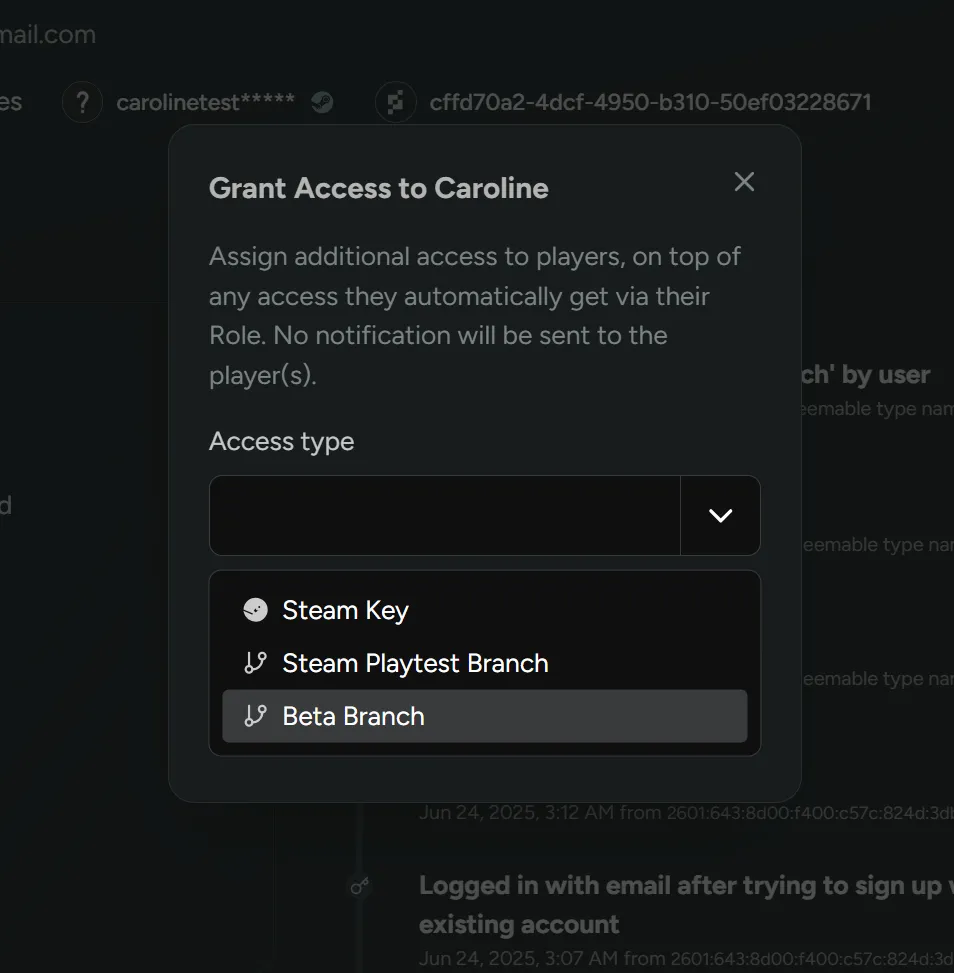
You can also grant access manually from an individual player’s profile. Click ‘Grant Access,’ then choose the branch as the access type.
Revoking Branches
Section titled “Revoking Branches”If you want to prevent a player from accessing a branch, first update the branch password in Steam. Then, in the Steam widget on the player’s profile, click the ‘Revoke’ button.