Key Management
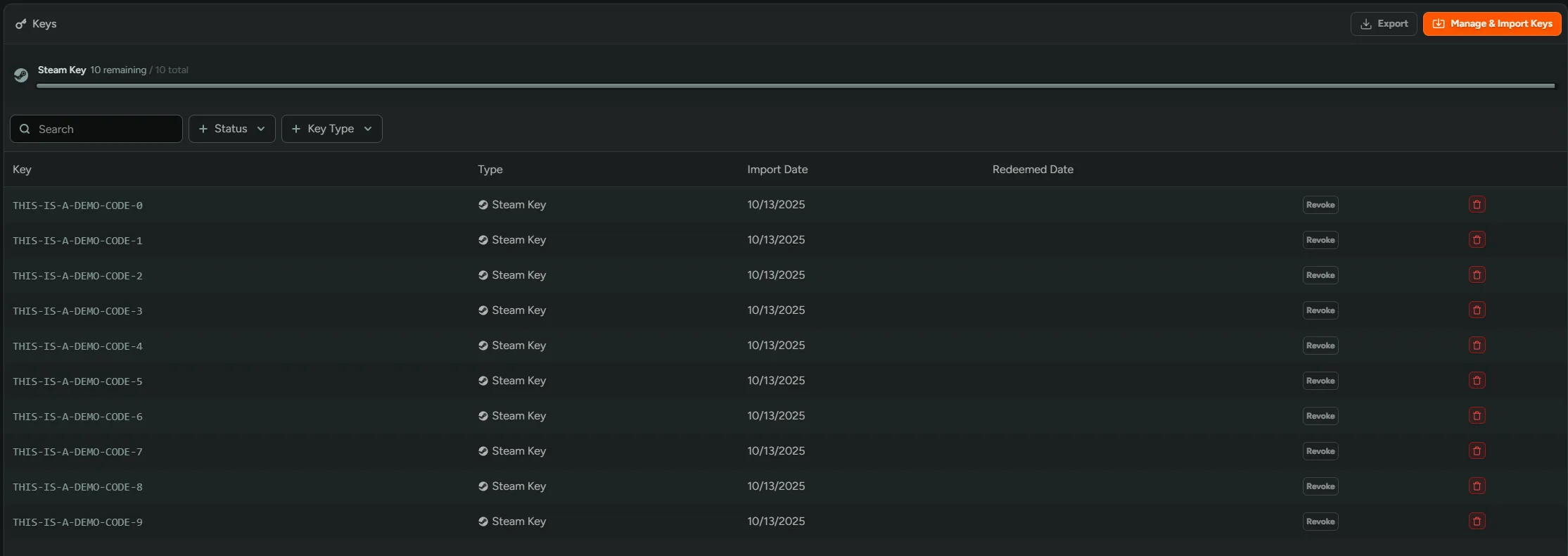
With FirstLook, you can distribute keys across different platforms and for various purposes. In the ‘Keys & Access’ tab, you can view all keys for your game, check which ones are redeemed, or search for a specific key.
Key Types
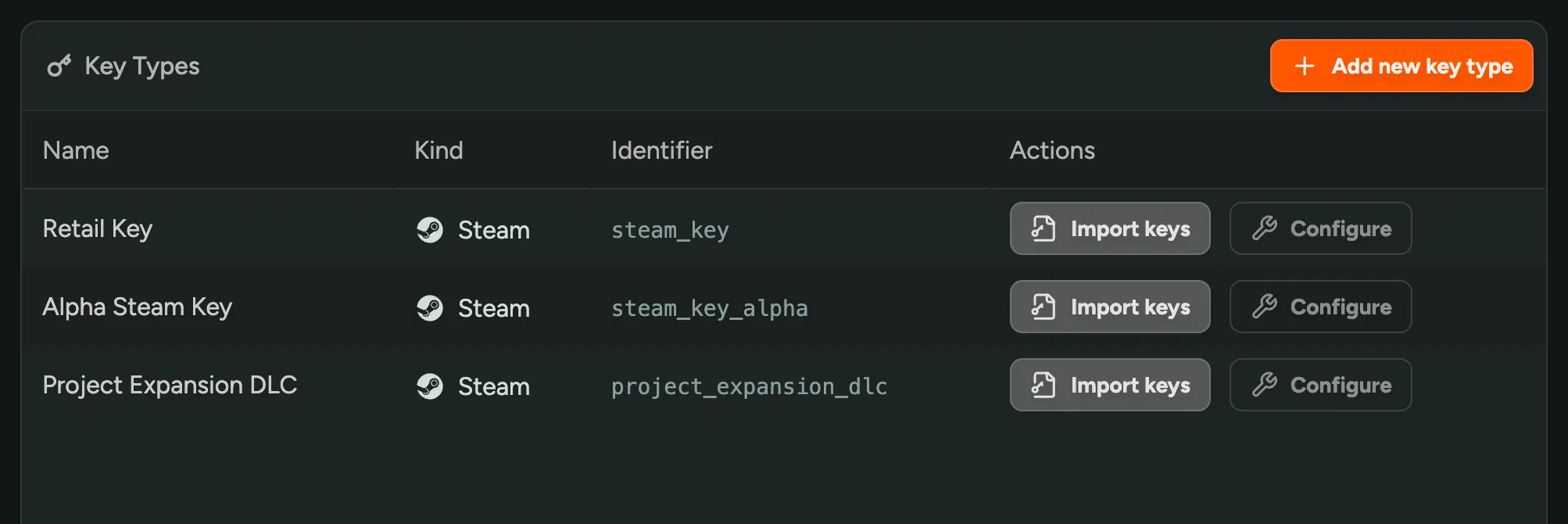
Section titled “Key Types”To differentiate between the various keys in your system, we use Key Types. Key Types group keys by their purpose and platform, allowing you to configure different settings for each type and assign specific keys to targeted audiences.
Key Type Configuration
Section titled “Key Type Configuration”When you create a Key Type, you can configure the following settings:
- Distribution Platform – The platform on which the key is distributed (e.g., Steam, Epic Games Store, etc.), influencing the interface and instructions for the player.
- Key Name – The name of the key type. This identifies the key type in your system and is displayed to players in their dashboard.
- Key Type – Depending on the Distribution Platform, select the type of key you exported (i.e., Release Override Key, Retail Key, etc.).
- Redeem Type – The type of product or content the key unlocks (i.e., Game, DLC, etc.).
- App ID - Select the App ID for the Steam application this branch is associated with.

Hide Keys from Players {#hide-keys-from-players}
Section titled “Hide Keys from Players {#hide-keys-from-players}”When you create a Key Type, you can choose to temporarily hide the key from players. This means a key will be assigned when a player is onboarded, but they won’t be able to view it in their dashboard yet. This is useful if the game isn’t ready to be played or if you want to wait until a specific date to make the key available.
Viewing Keys
Section titled “Viewing Keys”In the ‘Keys & Access’ tab, you can browse all keys for your game and filter by key type, status (redeemed or not), and search by key. If a key is assigned to a player, you will see when it was assigned and the player who received it.

Revoking and Deleting Keys {#removing-keys}
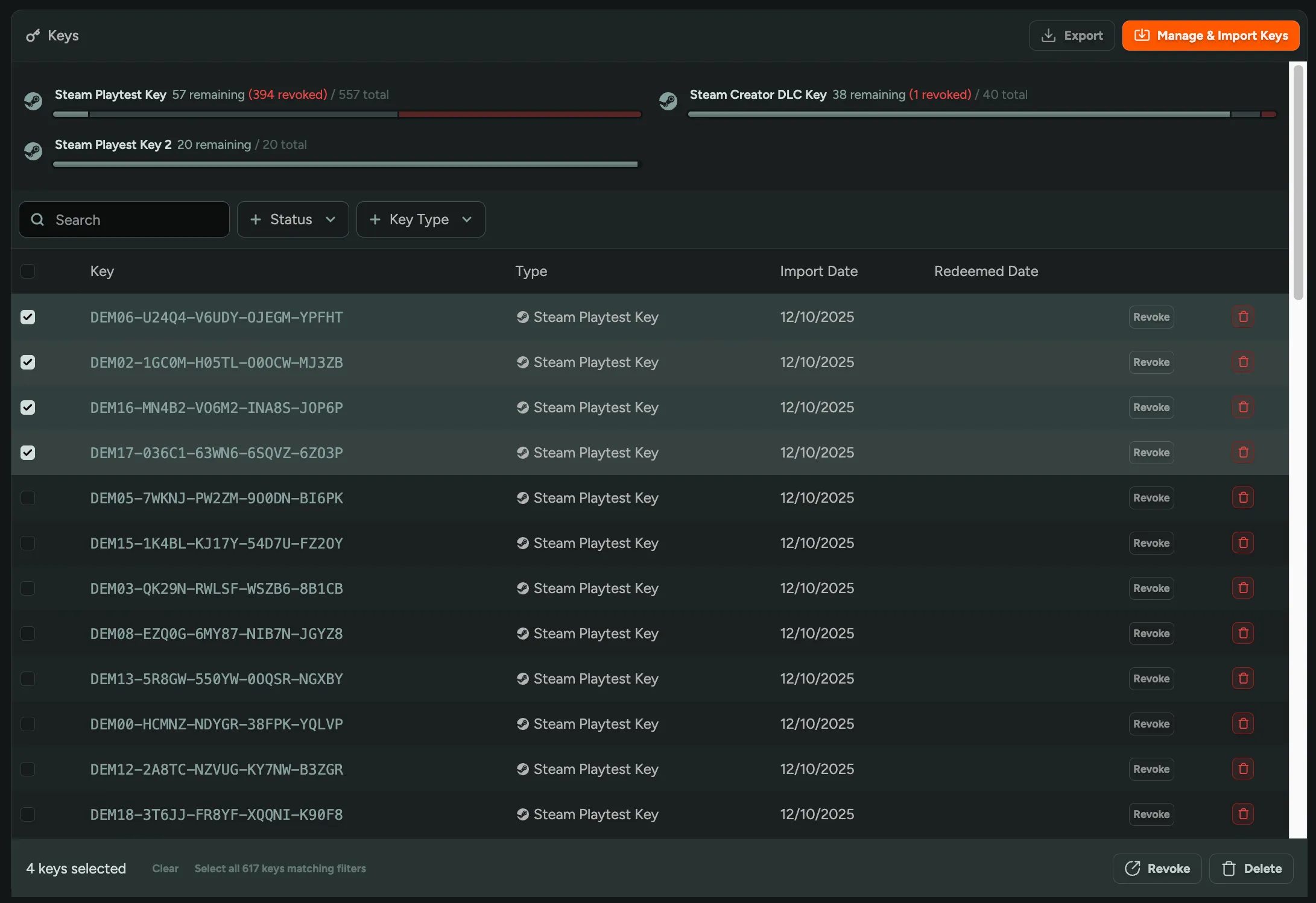
Section titled “Revoking and Deleting Keys {#removing-keys}”If you want to remove keys from FirstLook, you can either select Revoke or Delete. This can be done either individually or in Bulk from the Keys tab.
Revoke - Revoke keys that have been assigned to a player.
Delete - Delete keys that have not yet been assigned.
Exporting Keys {#exporting-keys}
Section titled “Exporting Keys {#exporting-keys}”If you need to export a .txt list of your keys, this can be done by selecting Export in the top right hand corner of the Keys and Access tab. This is especially useful if you’re looking to import them directly into Steam for deletion.