Inviting Players
There are multiple ways for players to join your playtest, including Sign-Up Links, Invite Codes, and Friend Invites. More commonly at the start of your playtest you may want to invite players via email.
Manually Inviting Players
Section titled “Manually Inviting Players”You’re always fully in control over who is invited to your playtest. By manually inviting players, you can manage exactly who has access to your playtest.
Invite Players via Email
Section titled “Invite Players via Email”We’ve made it extremely simple to invite players via email. In the bottom left corner of the screen, click “Invite Players” and enter one or more email addresses. Optionally, you can also add their First Name and Last Name.
Select the Role you want to assign to the player from the dropdown and click “Send Invites”.
You can optionally add custom ‘Invite Message’ which will be included in the email sent to the player.

Inviting existing players
Section titled “Inviting existing players”If your list includes emails of players who have already signed up for your waitlist, they will be invited with the role you select. If this is different from the role they currently have, a small warning will be displayed.
Players that have been invited before will be skipped.
Invite Players from your Waitlist
Section titled “Invite Players from your Waitlist”To allow anyone to sign up for your waitlist, you can enable ‘Sign-Ups’ in your Default Flow Settings. People on your waitlist will need to be invited by you before they can continue their onboarding.
To invite a player from your waitlist, you can click the ‘Send Invite’ button on their profile, or simply enter their email address in the ‘Invite Players’ step explained above.
Bulk Invite people from the Waitlist
Section titled “Bulk Invite people from the Waitlist”Navigate to ‘Invites’ → ‘Invite by Role’ and select a role for which you want everyone to receive an invite. This will send an invite to everyone on your waitlist with the selected role.
Importing Players from a CSV
Section titled “Importing Players from a CSV”You can also import players from a CSV file and send them an invite. Go to ‘Players’ → ‘Import’ and select a CSV file. You can map any columns to import, and select whether people should be invited automatically or be placed on the waitlist instead. Existing players will be updated but not invited again.
Invite Codes
Section titled “Invite Codes”Codes are a great way for you to create one-time or multiple-use shareable links that will grant players an immediate invite to your playtest.
One-time use
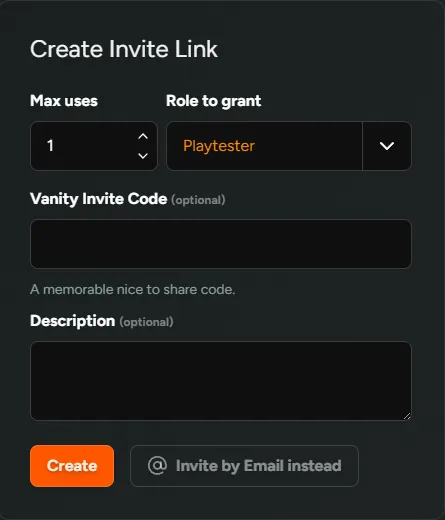
Section titled “One-time use”One-time use codes are really helpful for those times where you might want to invite someone, but don’t have their email address, and sending a link would be much easier. To create one, navigate to the Invite tab → Create Shareable Link.
- Select Max uses - 1
- Role to grant - Choose the role you wish to grant the invitee
- Hit
Create
Multiple use {#multiple-use}
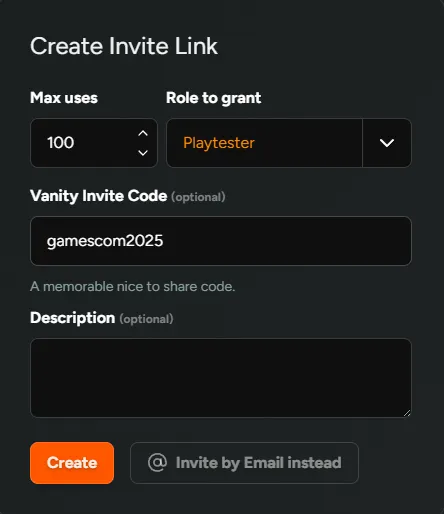
Section titled “Multiple use {#multiple-use}”What about when you need a single link that can be used to invite multiple people? If you’ve got an event coming up or want to distribute invites to your community, we’ve got you covered! Follow the same steps as above except:
- Select Max uses - number of times it can be used before running out.
- Vanity Invite Code - customise the URL to be event specific e.g. gamescom2025. This will result in a shareable link e.g.
https://demo.firstlook.gg/invite/gamescom2025
Batches
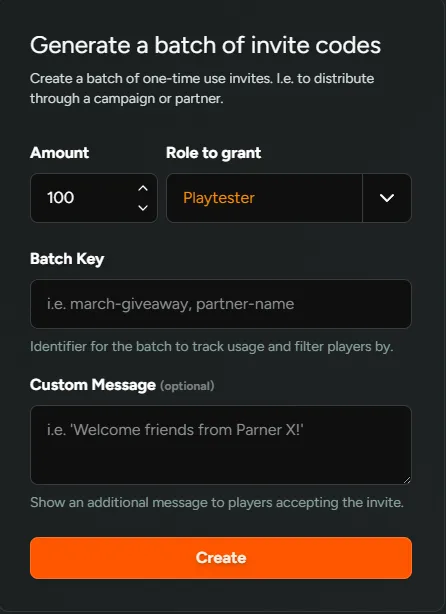
Section titled “Batches”Batches on the other hand are a “batch” of single-use invite codes. These make distributing invites through a campaign or partner nice and straight forward. To find this navigate to Invites → Batches. From here you can view any batches you’ve created, see who’s used the codes within each batch and export them so you can distribute accordingly. To create a new batch click Generate Batch .
- Amount - Decide on the number of individual invites you want in this batch.
- Role to grant - Choose the role you wish to grant the invitee
- Batch Key - Identifier for the batch to track usage. Can be used to filter players in the Players tab.
+Add Filter→More→Invite Batch Key - Custom Message - Display an additional message to players when they accept the invite.
Friend Invites
Section titled “Friend Invites”Finally, you can leverage your existing players to invite their friends.
For each Role, you can configure if and how many invites your players can send to their friends. They’ll receive unique links they can share with their friends, and find them on their Dashboard.
You can also assign additional invites to players at any time by visiting their profile and clicking the ‘Grant Invites’ button. Learn more
