Campaigns
이 콘텐츠는 아직 번역되지 않았습니다.
Creator Campaigns let you activate your creator community around a specific event, content drop, or ongoing program. You define what content counts, what creators need to achieve, and what they earn — FirstLook tracks everything automatically.
Navigate to Creators → Campaigns to get started.
Dashboard Overview
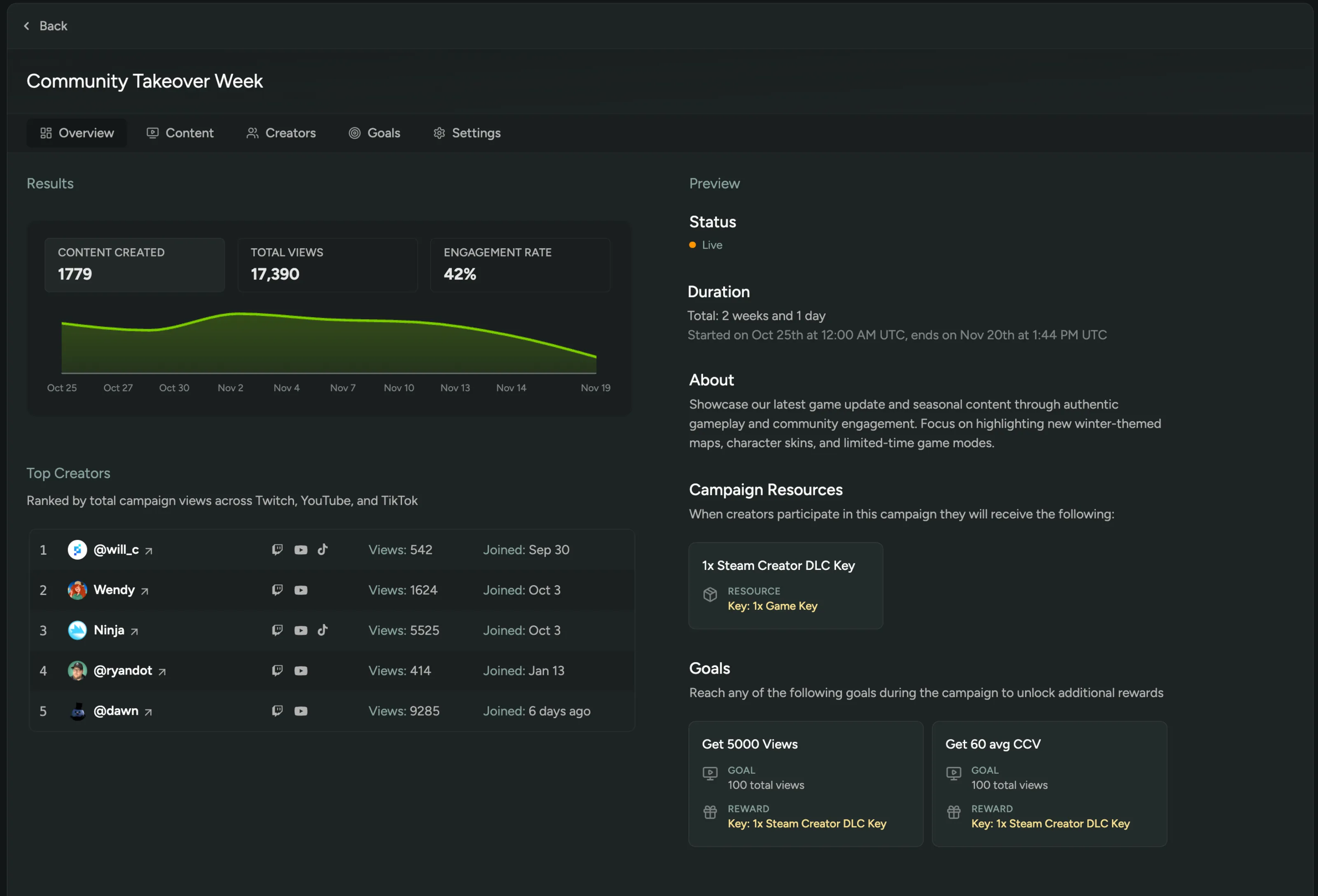
Section titled “Dashboard Overview”The overview shows a live summary of campaign performance:
Results (KPIs)
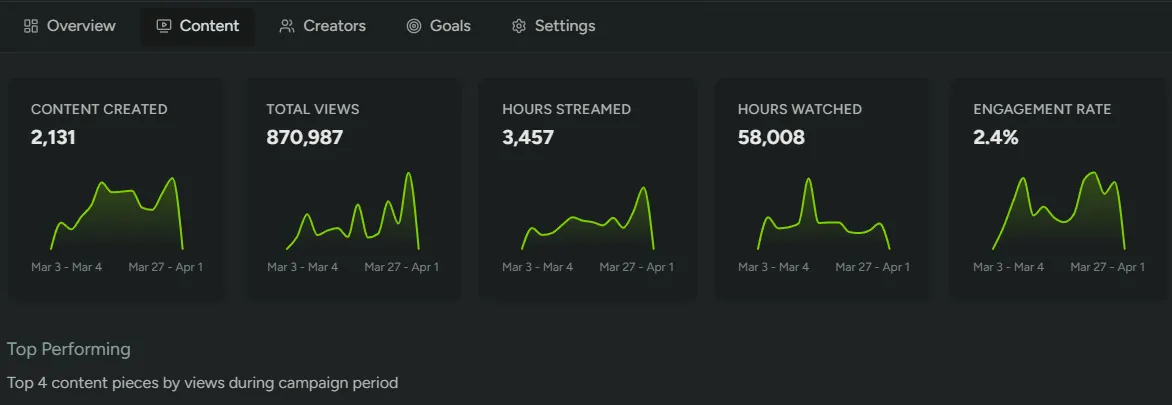
Section titled “Results (KPIs)”Five metrics are shown as selectable tabs. Clicking a tab reveals a time-series sparkline chart for that metric over the campaign period.
| Metric | Description |
|---|---|
| Content Created | Total number of videos and streams published by approved creators during the campaign. |
| Total Views | Combined view count across all tracked content. |
| Hours Streamed | Total live streaming time across all creators, in hours. |
| Hours Watched | Total hours watched by viewers across all streams. |
| Engagement Rate | Average engagement rate (likes + comments relative to views) across all content, shown as a percentage. |
Budget
Section titled “Budget”Only shown when a Total Budget has been set on the campaign. Displays a progress bar with:
| Field | Description |
|---|---|
| % used | Proportion of the budget already paid out to creators. |
| Total | The full campaign budget in USD. |
| Remaining | Unspent budget remaining. |
Top Creators
Section titled “Top Creators”A ranked table of up to 15 creators, sorted by total campaign views. Each row shows:
| Column | Description |
|---|---|
| Rank | Position by total views. |
| Creator | Avatar and name, linking to their creator profile page. |
| Platforms | Badges for each platform the creator is active on (Twitch, YouTube, TikTok). |
| Views | Total views generated during the campaign. |
| Joined | When the creator joined the campaign. |
Preview
Section titled “Preview”A read-only panel showing exactly how the campaign appears to creators:
| Section | Description |
|---|---|
| Status | Current campaign status badge (Draft, Published, Live, or Completed). |
| Duration | Total length (e.g. “3 weeks and 2 days”), plus formatted start and end date/times. |
| About | The campaign description. |
| Budget | Total payout amount, if a budget is configured. |
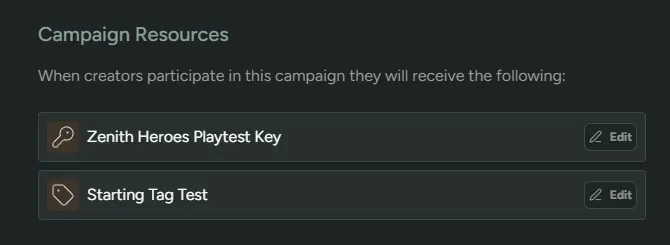
| Campaign Resources | Reward cards showing what creators receive just for joining. Empty if no resources are configured. |
| Goals | Reward cards for each goal, showing the condition and reward. Links to the Goals tab if none are set yet. |
Campaign Content
Section titled “Campaign Content”The Content tab is the main view for monitoring what your creators are producing during the campaign. It’s only populated after the campaign start date — before that, a Content Pending placeholder is shown.
Aggregate performance stats for all approved creators are shown across the top:
| Metric | Description |
|---|---|
| Total Views | Combined view count across all tracked content. |
| Total uploads / streams | Total number of videos and streams published during the campaign. |
| Total hours watched | Total hours watched across all streams. |
| Average viewers | Total live streaming time in hours. |
| Engagement Rate | Average engagement rate across all content as a percentage. |
Top Performing
Section titled “Top Performing”The four highest-viewed pieces of content from the campaign period are shown as cards. Each card displays:
| Field | Description |
|---|---|
| Thumbnail | With duration overlay, links to the content on its platform. |
| Creator | Avatar, name, country, and follower count. |
| Title | Links directly to the video or stream. |
| Published date | When the content was published. |
| Platform badge | Source platform with view count. |
| Engagement | Like and comment counts. |
All Content
Section titled “All Content”Below the top performers is a table of every piece of content attributed to the campaign, 20 items per page. Each row shows:
| Column | Description |
|---|---|
| Thumbnail | With duration overlay, links to the content. |
| Published date | When the content was published. |
| Creator | Avatar, name, and follower count, linking to their creator profile. |
| Platform badge | Source platform (Twitch, YouTube, TikTok) with view count. |
| Engagement | Likes, comments, and views. |
Creators
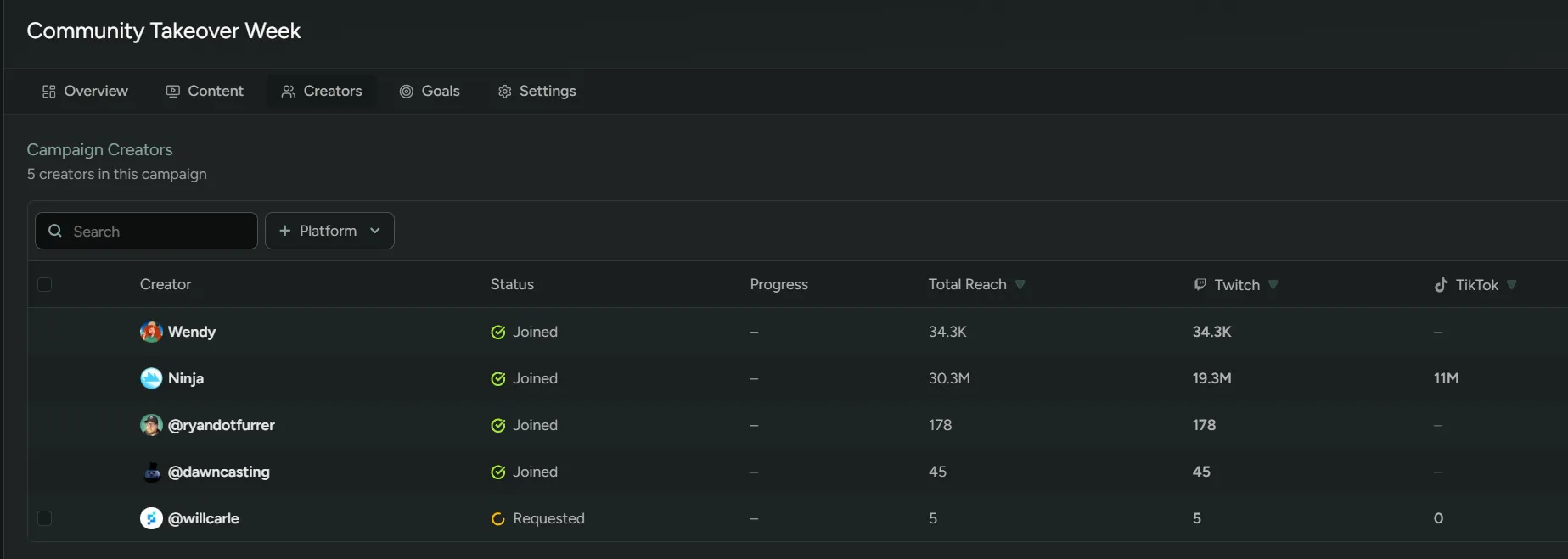
Section titled “Creators”Shows every creator enrolled in the campaign with their current stats: goals, views, uploads, stream duration, hours watched, and average viewers.
When the join method is Require Approval, pending join requests appear here. Select one or more creators and use Approve or Deny to manage access.
To set a new goal for your campaign, click ’+ New Goal’. You’ll be able to configure the following:
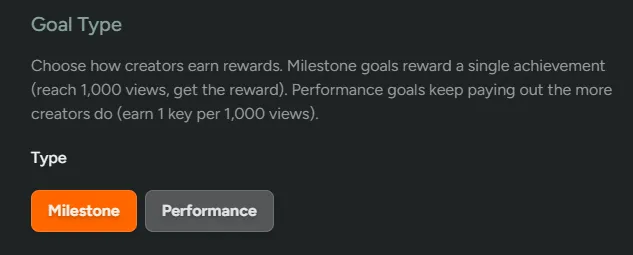
Goal types
Section titled “Goal types”Milestone - Fires once when the creator hits the target. Supports all reward types.
Performance - Repeats every time the creator hits the threshold. Supports a subset of reward types.
For Performance goals you can also set a Max award count — the maximum number of times a single creator can earn the reward. Leave it at
0for unlimited.
Goal Condition
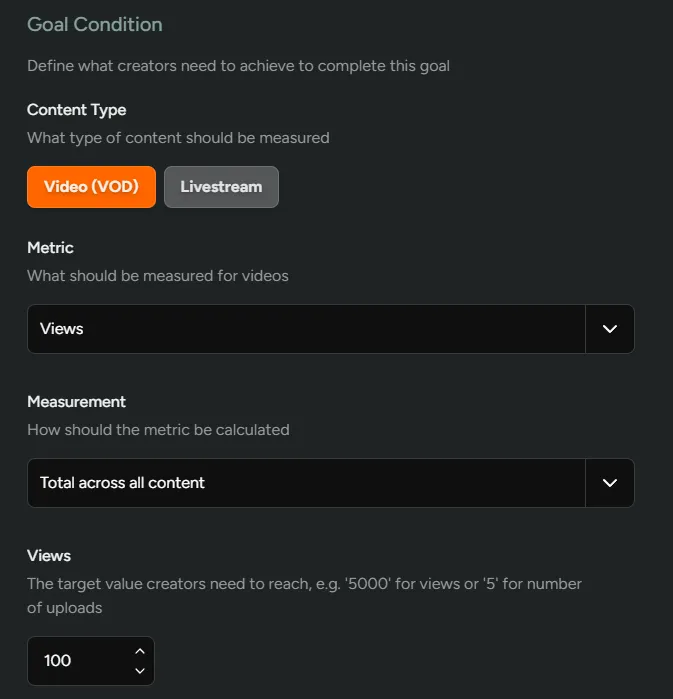
Section titled “Goal Condition”Each goal tracks either Video (VOD) or Livestream content.
| Metric | Type | Measurement |
|---|---|---|
Views | VOD | Total across all videos / On a single video |
Duration (minutes) | VOD + Livestream | Total / On a single piece of content |
Number of uploads | VOD | Total |
Average viewers | Livestream | Total across all streams / On a single stream |
Hours watched | Livestream | Total across all streams / On a single stream |
Number of streams | Livestream | Total |
Set a target value — the number creators must reach to earn the reward. For performance goals this is the repeating threshold (e.g. every 1,000 views).
Goal Reward
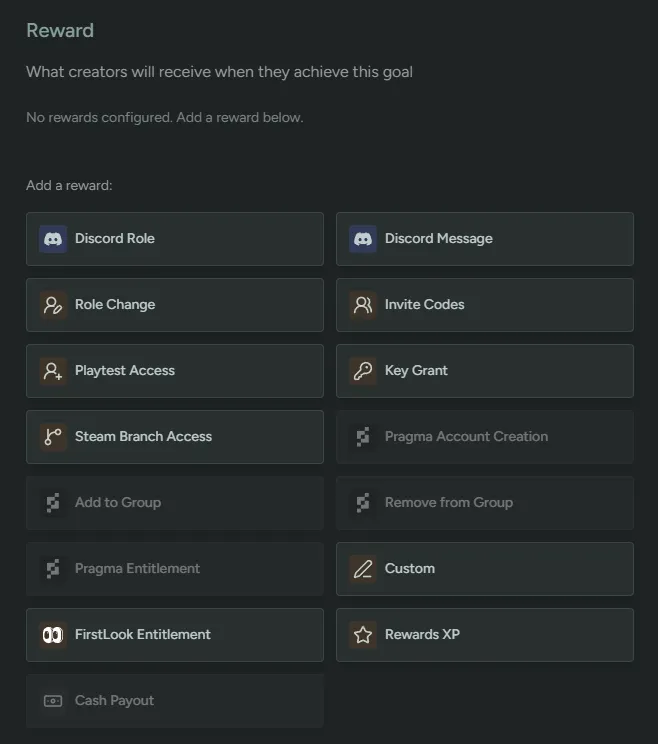
Section titled “Goal Reward”Every goal has a reward that creators receive on completion. Milestone goals support the full reward catalog; performance goals support a focused set suited to repeating payouts.
| Reward type | Available for |
|---|---|
| Discord Role | Milestone |
| Discord Message | Milestone + Performance |
| FirstLook Role | Milestone |
| Invites (game access) | Milestone + Performance |
| Key / Code Grant | Milestone + Performance |
| Gift Card | Milestone + Performance |
| Steam Branch Access | Milestone |
| Pragma Entitlement | Milestone + Performance |
| Custom Link | Milestone |
| FirstLook Entitlement | Milestone |
| XP (Battle Pass) | Milestone + Performance |
| Cash Payout | Milestone + Performance |
| Tag | Milestone |
Settings
Section titled “Settings”Campaign Settings
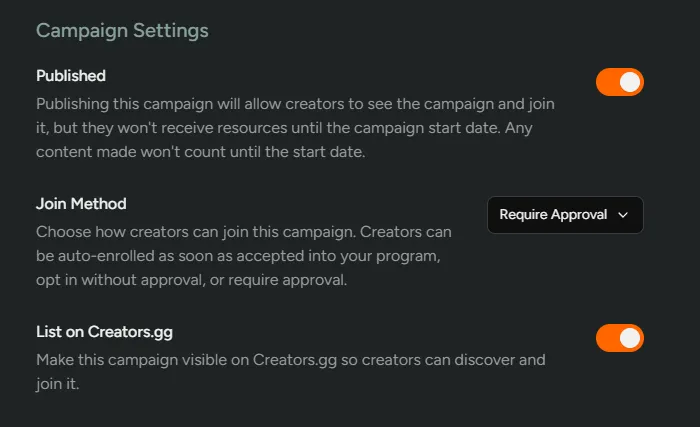
Section titled “Campaign Settings”| Field | Description |
|---|---|
Published | Makes the campaign visible to creators so they can join. Creators won’t receive resources or have content counted until the start date. |
Join Method | Controls how creators enter the campaign. |
List on Creators.gg | Makes the campaign discoverable on the Creators.gg directory. Only available when the Creators.gg integration is enabled. |
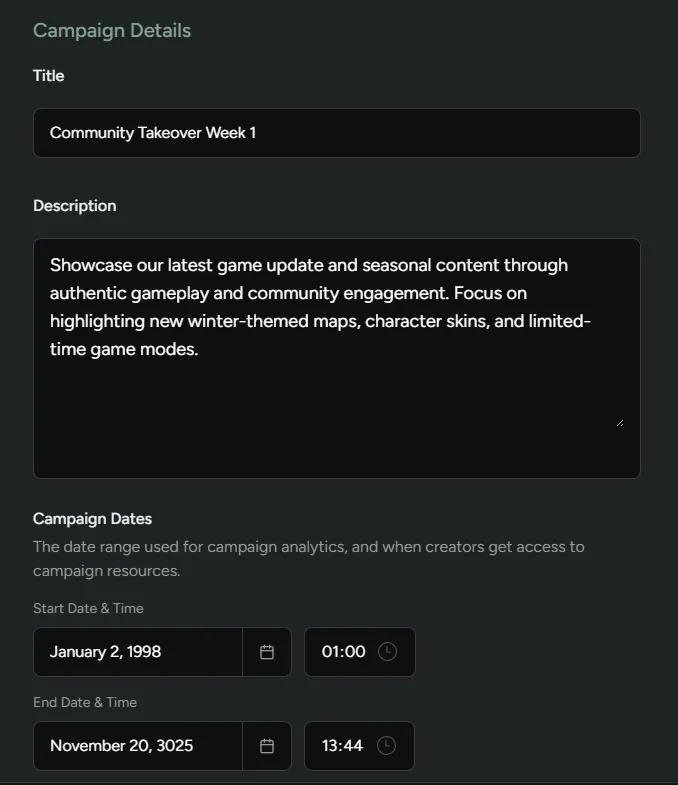
Campaign Details
Section titled “Campaign Details”| Field | Description |
|---|---|
Title | The campaign name shown to creators. |
Description | A Markdown-supported description of the campaign, visible to creators. |
Campaign Dates | Start and end date/time. Resources are granted at the start date; content only counts within this window. |
Image | Optional campaign image (recommended 1920×1080 px). |
Campaign Budget
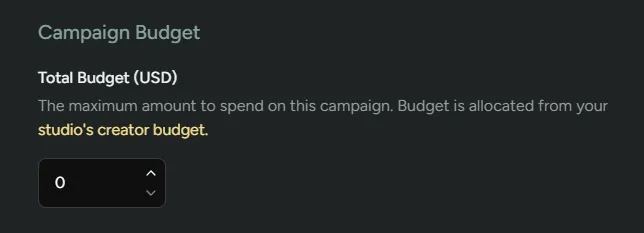
Section titled “Campaign Budget”Only visible when the Creator Payouts feature is enabled. Set a total USD budget for the campaign, drawn from your studio’s creator budget. FirstLook prevents over-allocation when goals with cash payouts are added.
Content Eligibility
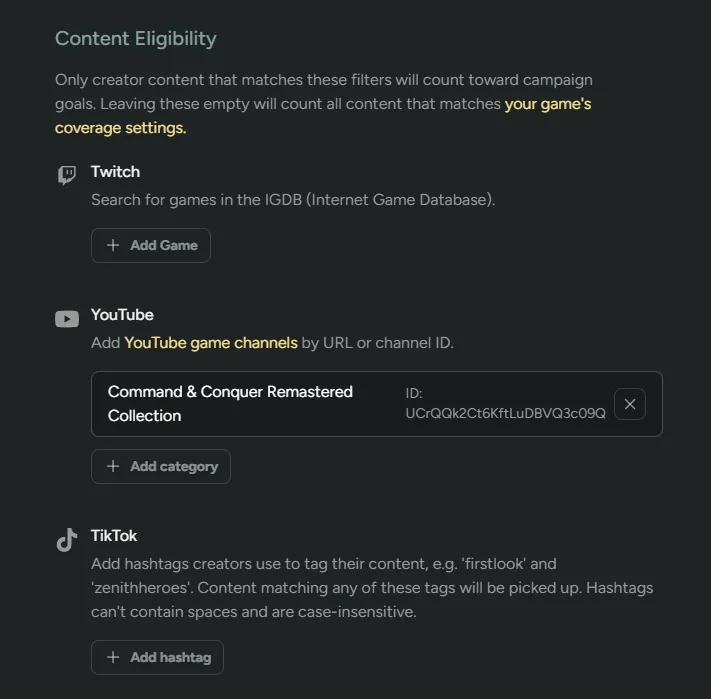
Section titled “Content Eligibility”Defines which creator content counts toward goals. By default, content matching your game’s global coverage settings counts. You can narrow this per-campaign:
| Filter | Description |
|---|---|
Twitch Games | Only count content where the creator is streaming one of the specified IGDB games. |
YouTube Channels | Only count content from specific YouTube channels. |
TikTok Tags | Only count TikTok content containing specific hashtags. |
Leaving all filters empty falls back to your game-level coverage settings.
Require Review
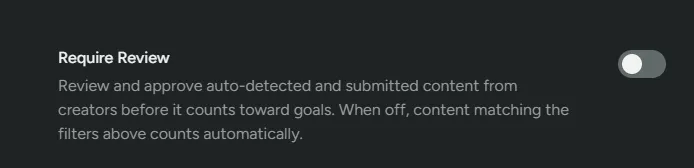
Section titled “Require Review”When Require Review is on, auto-detected and creator-submitted content must be manually approved before it counts toward goals. This enables the Submissions tab. When off, matching content counts automatically.
Campaign Resources
Section titled “Campaign Resources”Rewards granted to creators automatically when they join (or at the campaign start date). Resources are separate from goal rewards. Any reward type can be used — keys, Discord roles, XP, gift cards, and more.